DoorMaster User Guide
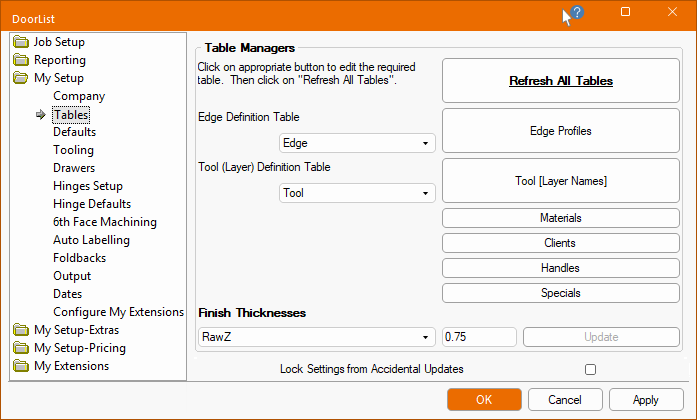
The My Setup > Tables page in the Catalog/Drawing Properties allows you to setup tables for...
When any of the buttons used to amend tables is pressed, an applicable Form Editor dialog will be presented to allow you to add/delete rows and modify data in the relevant table used for client information, material types etc without opening a table directly.

After making any changes, you should manually Refresh All Tables, as these tables are all non pricing related.
Changes made will not automatically update in the current drawing (or catalog editing session) if it was already selected prior to the change.
As a new drawing is started, defaults will refresh to the latest. This is deliberate as it stops details (particularly prices) of already quoted jobs from changing.
Pressing the OK button will save and close the property sheet.
Pressing the Apply button will save the details entered but the property sheet will remain open to allow for more changes. If this button is greyed out, it means that no new data has been entered.
See separate topic on Lock Setting from Accidental Updates. If you cannot see this category see discussion in the My Setup Introduction.
If a refresh is desired, then it is probably best to refresh both the Drawing and the Catalog (although the catalog should refresh as it opens).
After editing any of the available tables on the My Setup > Tables page, the Refresh Table button should be clicked on.

Changes made will not automatically update in the current drawing (or catalog editing session) if it was already selected prior to the change.
As a new drawing is started, defaults will refresh to the latest. This is deliberate as it stops details (particularly prices) of already quoted jobs from changing.
If more than one machine is being used to produce doors, then although they may be identical models and have the same tooling, the chances are that some of the offsets and tool compensation will be slightly different. This means that separate Definition Tables will be required to allow the correct Edging and Tooling Profiles to be applied as required.
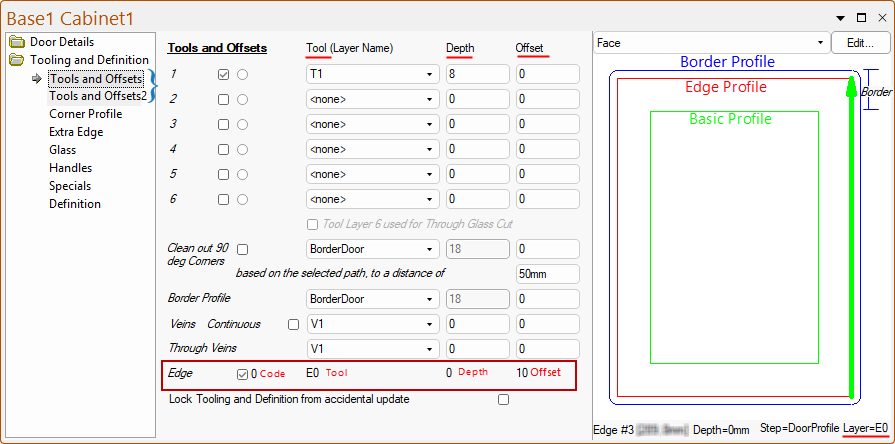
Each door can use up to 18 tools which can be allocated at door level on the Tools and Offsets pages, as shown below. These can include layer names to create the Basic Profile shape plus others to add Veins, a Border Profile (a tooling around the inside of the doors border), the Edge Profile, for square corner cleaning and the cutout of the door itself. These layer names relate to ‘Strategies’ within, which themselves could use multiple tools (e.g. a strategy may create a pocket in the door and use several tools of different sizes to achieve this).
Details of Tooling and Edge Profiles can be viewed/changed at Door Level on the Tools and Offsets pages
At door level the Tools can be viewed and amended as required. The Edge Profile, however, can only be viewed.
The Layer Name and Depth applied can be also verified in the Preview Pane, as shown.
Unless otherwise stated, the offsets are based on the Borders settings found on the Door Details > Size/Edging page. Positive offsets (+) being toward the centre of the door.
DoorMaster will allow several catalogs to be created (and renamed to suit). Each catalog/drawing can then have its own offsets applied to each door and also be allocated a different Tool and/or Edge table from which to operate. This is achieved by creating copies of the Tool and/or Edge tables (.qlt files only) within their respective folders.
The Forms discussed in this topic should be used to update tables and not the table files (qlt).
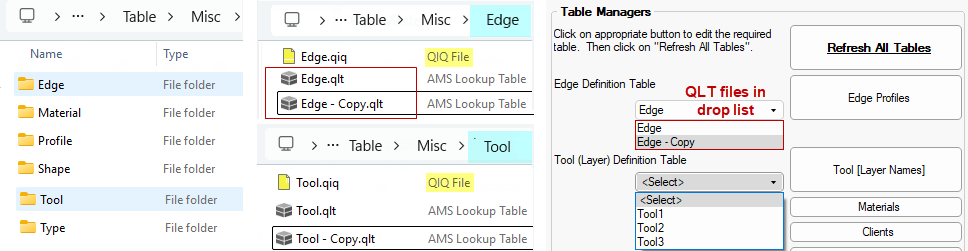
Example of Tool and Edge table location and copies of .qlt files
Lookup tables are located in the Edge and Tool folders. If you create copies of the Lookup Table files, then these become available in the relevant drop list on the My Setup > Tables page, as shown below right.
DO NOT rename the QIQ files. Only create copies/rename the Lookup Table files (these have a .qlt file extension).
If you rename the original file (e.g. Tool.qlt was renamed Tool1.qlt), then the <Select> option will be displayed (instead of Tool).
In the above right image of the Tool drop list, three (3) tool files (.qlt) were created and numbered accordingly.
If you need to create Tables and have difficulty with this (as it relies on an internal variable 'BasedOnLibrary' to point to the base library) then contact our Support Team.
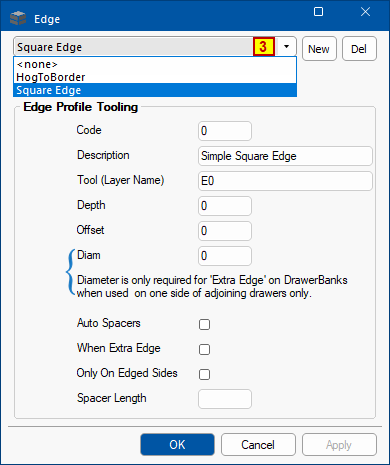

Code : All Edging has a code which can be used as a reference - click here for more details
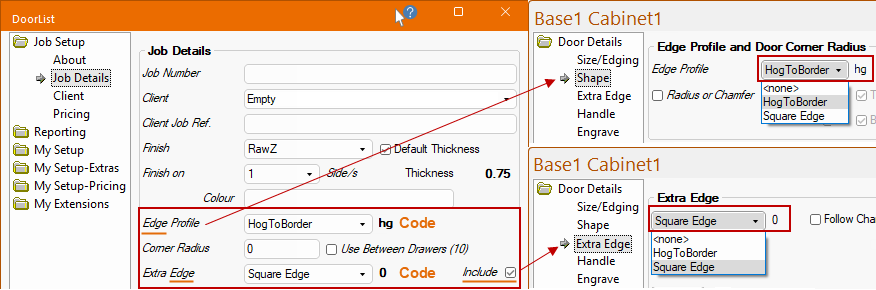
The Job Setup > Job Details page allows you to select the Edge profiles, which are reflected at door level.
If the Include checkbox is ticked, then the Door Details > Extra Edge page will allow extra dependent options.
Description : Reference Only
Layer Name : The name of the tool used to produce this profile. Make sure that this tool is also defined in the Tool table, discussed next.
Depth : The depth of the tool used.
Offset : Offset from the edge of the door and the centre of the tool.
Diam : Only required for 'Extra Edge' on DrawerBanks when used on one side of adjoining drawers.
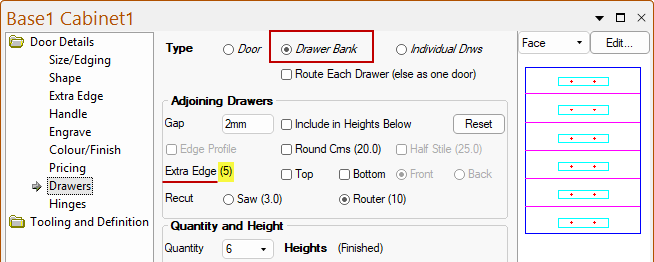
A Drawer Bank is applied to a door on the Door Details > Drawers page - click to view.
In this example the Diam on the Edge Profile used is set to 5 and is displayed on the Drawers page.
Auto Spacers : If the checkbox is ticked, then spacers are automatically added when this layer is used for the edge profile.
- Spacers are used to push doors apart on the nest and ensures a door is not nested too close to another.
- These are only applied to the Front Face machining.
- If the Back Face machining is used/required, they will need to be manually added on the Door Details > Extra Edge page.
When Extra Edge : If the checkbox is ticked, then use default spacer length.
Only On Edged Sides : If the checkbox is ticked, then only add spacer to the sides on which the edge profile is used.
Spacer Length : Enter the desired length of added spacers.
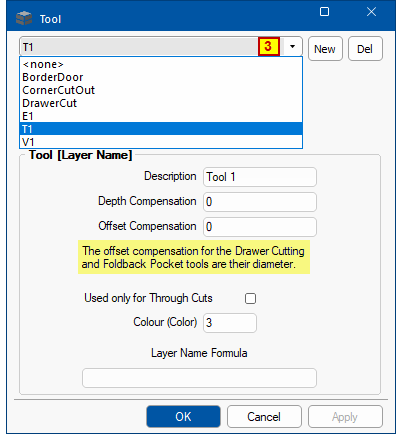

There are three fields associated with each Tool. The Tool Layer names are passed on the EzyNest nesting and toolpath system.
Tool Name : Tool Layer Name [ensure that you do not delete/rename the <none> entry as this is a system requirement.
Description : Only used as a reference.
Depth Compensation : As a tool is sharpened, you may wish to adjust the depth at which it runs. The amount entered here will be reduced from the nominal depth specified as a part of the setup of the door profile itself.
Offset Compensation : As a tool is sharpened, you may wish to adjust the offset at which it runs. The amount entered here will be reduced from the nominal offset specified as a part of the setup of the door profile itself.
- This is not applied to any Veining or Border Profile offsets.
- For the tool used for cutting up drawerbanks, this field is the actual diameter of the tool.
- The Offset is toward the zero point of the offset.
- Note that care must be taken with this if the same layer names are used for multiple purposes.
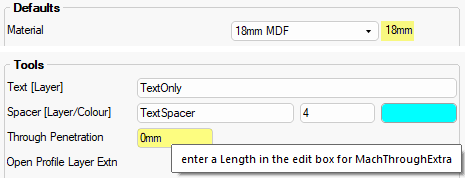
Through Cuts : Whether or not this is a Tool [LayerName] that is used to cut right through the door. If the checkbox is enabled/ticked (i.e. set to 'Yes') then the depth of the tool cut is set to be the door thickness (see My Setup > Defaults page) plus any Through Penetration specified on the My Setup > Tooling page.
Colour : Layer colour as a whole number - see topic on DXF Layer Colours.
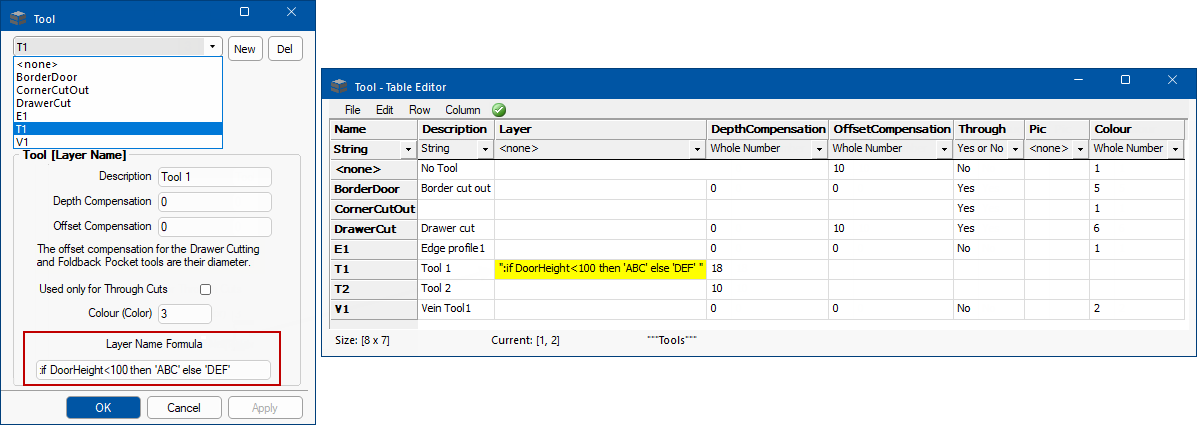
Layer Name : The Tool table (Tool.qlt) supports a column called ‘Layer’.
If this contains a formula, it is evaluated as the tool name rather than using the fixed name - click here for more details.
Drawing Properties Import Example File
Lines with ~ in the first column import Drawing Properties instead of adding an item - see tutorial on Import Item List.
For example, these two lines would import the three properties abc, def and ghi.
~ abc 123 def 15mm
~ ghi "A string with ""embedded"" quotes"
Layer Name Formula
In this example, for the T1 tool, if the variable door height is less than 100 it will output the layer as 'ABC' otherwise 'DEF'
A string preceded by a colon (:) will tell DoorMaster to evaluate the string as it reads the table.
Use single quotes (') when referring to a string within the formula.
If no formula were present, it would output the name “T1”.
The file is located <your DoorMaster folder>/Table/Misc/Tool/Tool.qlt
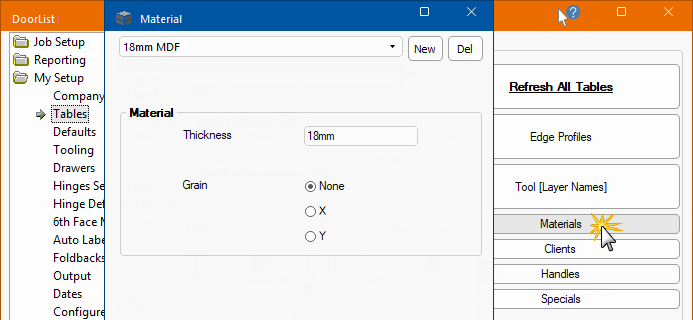
Material tables allow for different types and thickness of door materials. Materials can be created/changed using the Form available in the Drawing Properties. Simply click on the Materials button to open the property inspector.
Material Name : Descriptive name of material e.g. 18mm MDF
Thickness : Thickness of the material e.g. 18mm
Grain Direction : Radio button to select None i.e. no grain (or pattern);
X direction of sheet (horizontal i.e. left/right);
Y direction of sheet (vertical i.e. up/down).
It is recommended to use the Form editor shown above but you can open the .qlt file and use the Table Editor or Excel, which are best for bulk changes.

Remember: After editing any of the available tables on the My Setup > Tables page, the Refresh All Tables button should be pressed. The reason is that changes made to materials will not automatically update the same materials in the current drawing (or catalog editing session) if it was already selected prior to the change. This is deliberate, as it stops details (particularly prices) of already quoted drawings from changing.
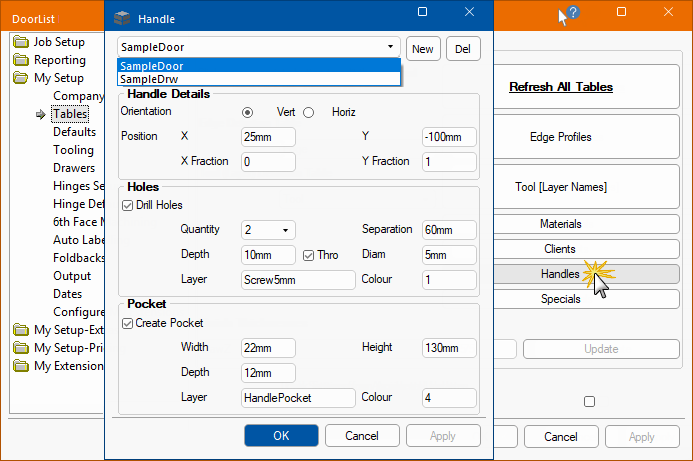
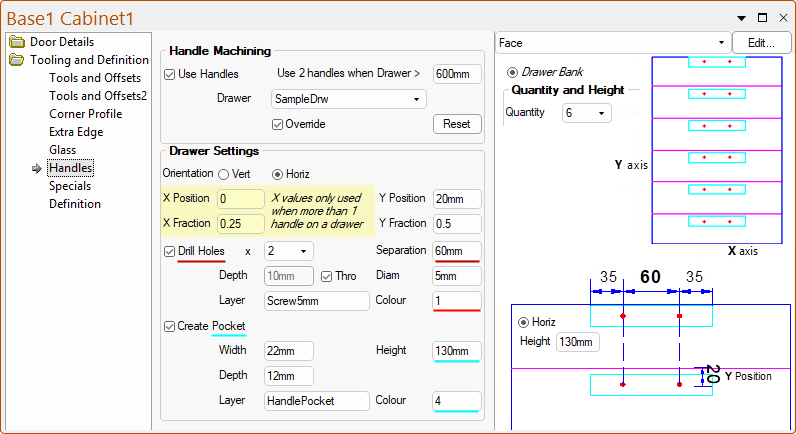
The Handles table allows for different types (door/drawer) and positioning of handles. Handles can be created/changed using the Form available in the Drawing Properties. Simply click on the Handles button to open the property inspector.
Orientation : Can be either Vertical or Horizontal.
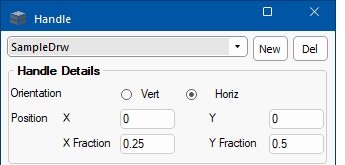
Example : The drawers default set to Horizontal using 1 and 2 handles
The Door Details > Handle page uses the default orientation. The orientation for doors in the example above is set to Vertical.
Position : The position of both the holes and pockets are defined by their centre.
It is calculated using the XPos, XFrac, YPos and YFrac columns in the table, where the Frac is a fraction of the total width (or height). For example if a vertical handle had a single hole at XPos= -10mm and XFrac= 0.25 then a single hole would be drilled 10mm short of quarter the door width.
Note that in drawers the X position of the handle is always half way across the drawer and the XPos and XFrac values are only used if two handles are required.
The settings then assume the left handle. The right handle is assumed to be in a similar position on the other side of the drawer.
Drawer Settings Example : Drill Holes and Pocket positions
The Toolings and Definitions > Handles page uses the default orientation. The orientation for doors in the example above is set to Vertical.
Colour : Numeric, used for a visual reference to Layers - see the example of drawer settings above and the topic on DXF Layer Colours.
The handles table is located at “….\Table\Machining\Handle\Handle.qlt” and can be edited directly but it is recommended to use the supplied Form.
Each row in the table defines the handle setup where the column cells in the table are actual values.
|
Column Name |
Cell Details/Values |
|
Orientation |
0 or vertical and 1 for Horizontal (when horizontal X is the height and Y the width) |
|
XPos |
X position |
|
XFrac |
Fraction of the total width (e.g. 0.5 is half) |
| YPos |
Y position |
|
YFrac |
Fraction of the total height (e.g. 0.5 is half) |
|
HoleBore |
Whether or not to drill the hole |
|
HoleQty |
Quantity of holes (1 or 2) |
|
HoleSep |
If 2 holes then their separation apart (they are drill equal distance each side of the centre) |
|
HoleDiam |
Diameter of the hole |
| HoleDep | Depth of the hole |
|
HoleThro |
Yes/No. Whether the hole is drilled through the material (ignores above HoleDep setting) |
|
HoleLayer |
The DXF layer name for the holes |
|
HoleColour |
The DXF Layer Colour for the holes |
|
PocketRoute |
Whether to route out a handle pocket/cutout. |
| PocketWid |
Width of the cutout (height when horizontal). |
|
PocketHgt |
Height of the cutout (width when horizontal) |
|
PocketDep |
Depth of the cutout |
| PocketLayer | The DXF layer name for the cutout |
| PocketColour | The DXF Layer Colour for the cutout |

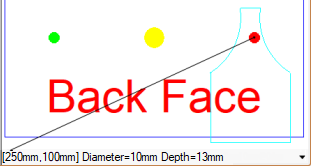
Specials can consists of sets of holes or cutouts into either the Front or Back Face of a door/drawer and are defined in tables.
Each table can hold up to 5 sets of holes (circles) and/or up to 3 cutouts (each with a maximum of 10 nodes).
Another option for creating cutouts is using the cutout feature available on the Door Details > Engrave page at door level. This feature allows customers to add lettering and decorative cutouts to a door, by machining existing DXF files of outlines in repeated sets of up to five individual outlines. DoorMaster will then seamlessly integrate with EzyNest to achieve the desired result.
When you click on the Specials button, a Form is not available for data entry but values can be entered directly into the table using the Table Editor - click to view.
To edit the Specials table, click on the Specials button the the Tables page of the Drawing Properties.
In this table, only one (1) cutout has been turned on i.e. Rout1 is 'Yes'. Rout2 and Rout3 are both 'No'.
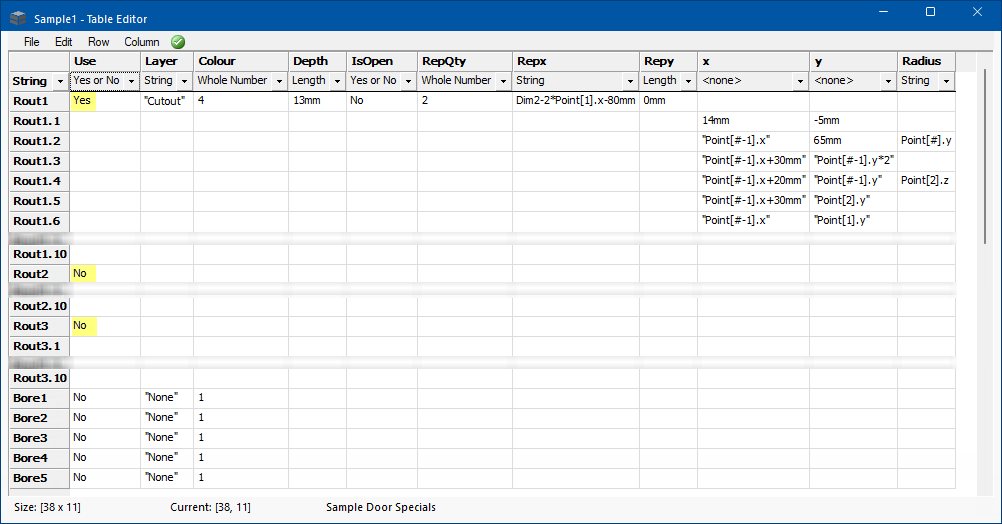
Cutouts are defined by a number of rows in the table (click dropdown above to view full table).
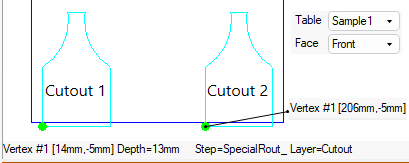
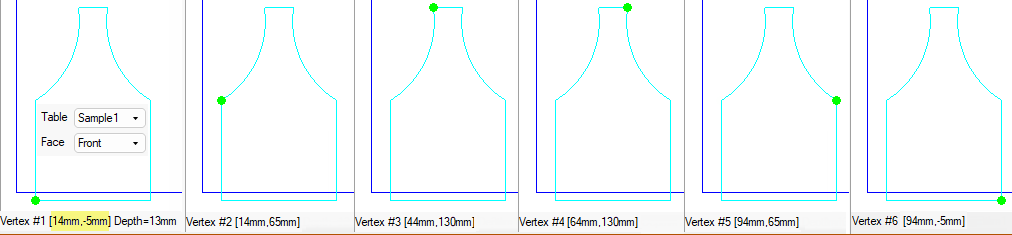
To explain the workings of this table, we will use the supplied Sample1.qlt which creates the cutout as shown here - see topic on Tooling and Definition > Specials page.
The first row (Rout1) is the parent row which holds machining information - compare following to above Preview Pane details.

This is followed by up to 10 child rows (Rout1.1 etc) each holding the definition of a point on the shape for cutout.

Using formula's requires a certain amount of skill. Another option is to use/create DXF files of outlines which allows up to five individual outlines, in repeated sets - see topic on using the cutout feature available on the Door Details > Engrave page.
However, if you wish to use the Specials table formula's, see the tutorial in the CabMaster Software Online Help for Developers.
|
Row Name |
Corresponding Vertex |
Formula of X Value | New X Value | Formula of Y Value | New Y Value |
| Rout1.1 | Vertex #1 | 14mm | 14mm | -5mm | -5mm |
|
Rout1.2 |
Vertex #2 |
"Point[#-1].x" | "Point[#-1].x" = 14mm | 65mm | "Point[#-1].y" = 65mm (creates radius) |
|
Rout1.3 |
Vertex #3 |
"Point[#-1].x + 30mm" | Calculated : 14mm + 30mm = 44mm | "Point[#-1].y*2" | Calculated : 65mm x 2 = 130mm |
|
Rout1.4 |
Vertex #4 |
"Point[#-1].x + 20mm" | Calculated : 44mm + 20mm = 64mm | "Point[#-1].y" | "Point[2].z" = 130mm (creates radius) |
| Rout1.5 |
Vertex #5 |
"Point[#-1].x + 30mm" | Calculated : 64mm + 30mm = 94mm | "Point[2].y" | 65mm |
|
Rout1.6 |
Vertex #6 | "Point[#-1].x" | Calculated : 94mm + 0mm = 94mm | "Point[1].y" | -5mm |
The Specials table allows for drilled holes (or circular cutouts) to be defined using their centre point and radius in the same table (e.g. rows Bore1).
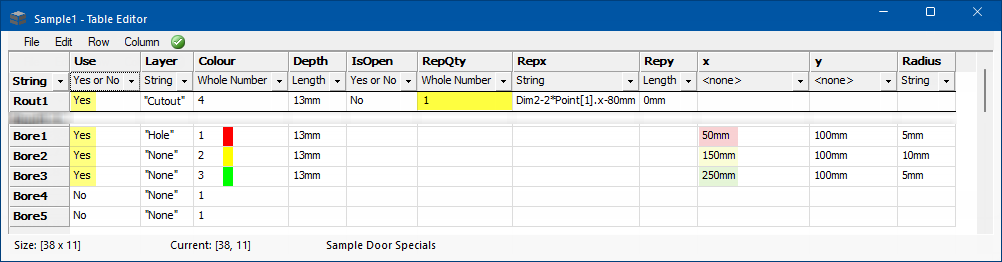

Each table can hold up to 3 cutouts (each with a maximum of 10 nodes) and/or up to 5 sets of holes (circles).
|
Column Name |
Cutouts |
Holes (Circles) |
|
Use |
Whether or not the cutout should be used **This is additional to the "Use Specials" checkbox |
Same as Cutouts |
|
Layer |
The DXF Layer name |
Same as Cutouts |
|
Colour |
The DXF Layer Colour - numeric value |
Same as Cutouts |
| Depth |
Depth of the cutout |
Depth of the hole |
|
IsOpen |
Whether the cutout is a closed or open shape |
Unused |
|
RepQty |
Whether the defined shape is repeated |
Same as Cutouts |
|
RepX |
The X Offset if the shape is repeated |
X Offset if the hole is repeated |
|
RepY |
The Y Offset if the shape is repeated |
Y Offset if the hole is repeated |
|
X |
X position - assumes zero point is bottom left of the door, looking at Front face |
Same as Cutouts |
| Y | Y position - assumes zero point is bottom left of the door, looking at Front face | Same as Cutouts |
|
Radius |
If the line between this and the next point is curved i.e. the radius of the curve |
The radius of the hole/circle |
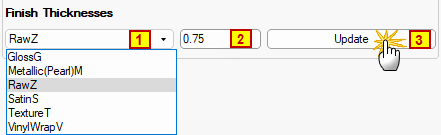
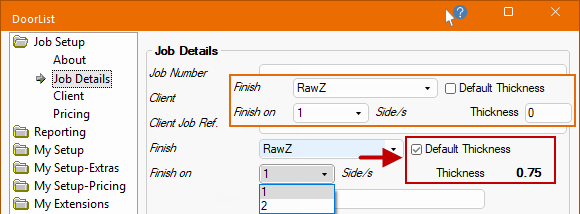
The default thickness of each door finish which is taken into account when routing the door border and edging, can be set by...
When you type in a Value and press the Update button an applicable file will be created/saved.
In this example, the CTL file is created in the related .../Table/Price/Finish folder (RawZ) and saved with the default Thickness Value (0.75)
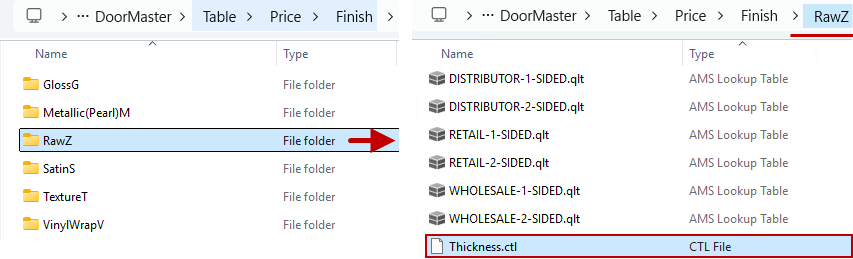
The value set for each door finish is subtracted from the overall size of the door, or each drawer, to give the correct cut size, thereby finishing the door/drawer to the required size.