DoorMaster User Guide
The Tooling and Definition > Tools and Offsets pages at door level allows you allocate each Base door up to 18 tools.
Depending on which door is used, there will be slightly different options available. Most doors have a Tools and Offsets page (where you allocate the first 6 tools, shown below) but only Base doors have the Tools and Offsets2 page (where you can allocate tools 7 to 18). This means that Speciality/Custom doors only allow up to 6 tools.
For more on setting up the required tools, see the topic on Table Management.
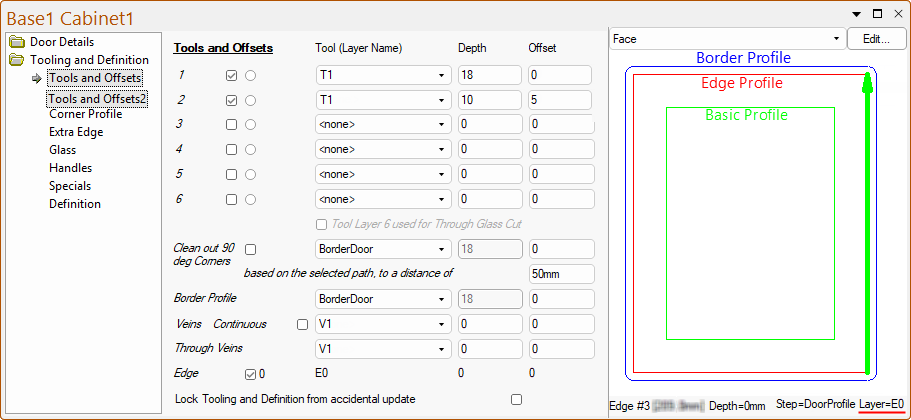
Click to view the Tools and Offsets2 page which allows Tools/Offsets for tools 7-18
Tool [Layer Name]
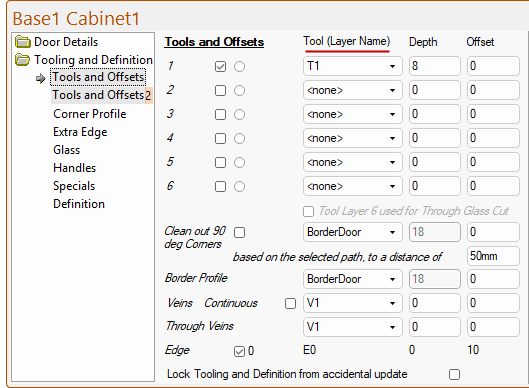
Each door can use up to 18 tools which can be allocated at door level on the Tools and Offsets pages, as shown right. These can include layer names to create the Basic Profile shape plus others to add Veins, a Border Profile (a tooling around the inside of the doors border), the Edge Profile, for square corner cleaning and the cutout of the door itself. These layer names relate to ‘Strategies’ within, which themselves could use multiple tools (e.g. a strategy may create a pocket in the door and use several tools of different sizes to achieve this).
Unless otherwise stated, the offsets are based on the Borders settings found on the Door Details > Size/Edging page. Positive offsets (+) being toward the centre of the door. The Tool(Layer) names in the drop lists are those created/updated in Tool Table accessed on the My Setup > Tables page of the Drawing Properties.
Note that when a tool is sharpened this may affect the depth or offset needed to achieve the required result. The tool table allows for compensation to the depth and/or offset for each tool.
This means that when the tool dimensions have changed then just the table needs to be updated and NOT all the doors in which the tool is used.
In EzyNest geometric shapes are machined using a ‘strategy’. These can be created to use one or multiple tools with rules i.e. which tool goes on the first pass etc.
You may want a door with panels that need a rebate machined in the back face. To do this simply select a door with the border you like and set up the tool to suit. You would therefore setup several layers with names that are recognisable in EzyNest. Then change the offsets and depths as required.
In the above example, 2 tools are applied, Tool Layer #1 [T1] is set at a depth of 18mm to go right through the board and Tool Layer #2 [T1] at a depth of 10mm for the rebate, with a 5mm offset into the border. EzyNest will then apply appropriate tools to each of those layers.
The 'Tool Layer 6 used for Through Glass Cut option is available on all Base doors and

If enabled/ticked, then the options on the Tooling and Definition > Glass page become available (otherwise greyed out).
The Include Glass option will also be made available on the Door Details > Size/Edging page and will be automatically turned on. The Include Glass option can be used to turn on/off the Tool Layer 6 option in exactly the same way as the #6 checkbox. If either the Tool Layer 6 used for Through Glass Cut is turned off or if there is no ‘Layer name’ defined for Tool #6, then the Include Glass checkbox will not be made available and will not appear as an option.
Corner Clean is not applicable to every door or useable in all situations. This optional tooling runs in an ‘L’ shape around 90deg corners in the Basic Profile. This can be used to clean out corners without necessarily having to run the tool all the way around the profile. However, it is often better to run the tool all the way around for a better finish.
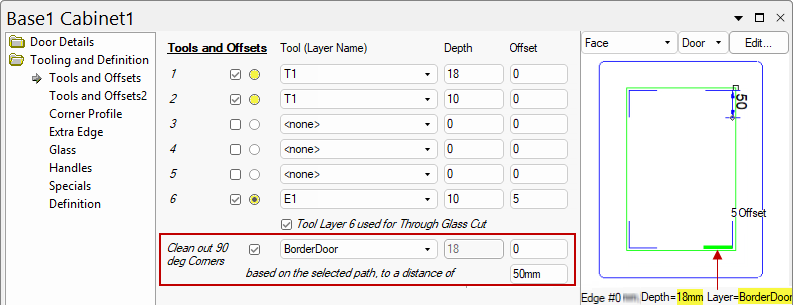
To use this facility, enable the Clean out 90 deg Corners checkbox. This will make relevant radio buttons available (highlighted above in yellow), allowing you to select which of the six (6) Basic Profile tool paths for it to base its offset from. The Tool(Layer Name) drop list will allow you to select the appropriate tool, and enter the required Depth and Offset. The Distance setting determines the length of the ‘L’, as shown above.
A Border Profile is a single tool path offset from the edge of the door, which allows for a profile on the border area of the door i.e. a tooling around the inside of the doors border.
Select the appropriate Tool(Layer Name) from the drop list and enter the required Depth and Offset.
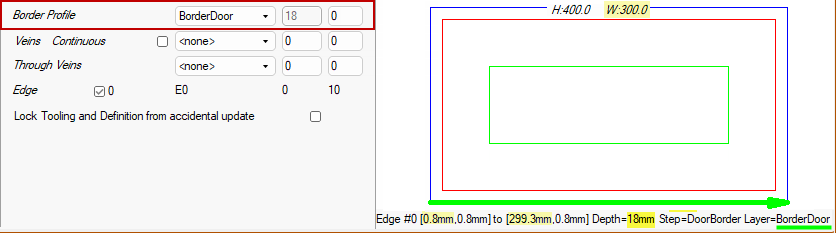
The Border Profile checkbox on the Door Details > Shape page determines if the Border Profile is applied or not.

Veins are not available on all the doors styles. Select the appropriate Tool(Layer Name) from the drop list and enter the required Depth and Offset.
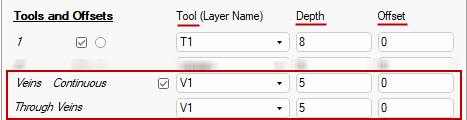
The checkboxes on the Door Details > Shape page (as shown below) determines if Veins are applied or not.
Main Veins are those within the Basic Profile, whereas Through Veins are those which generally run along the edge of the Basic Profile and go through to the top and bottom of the door.

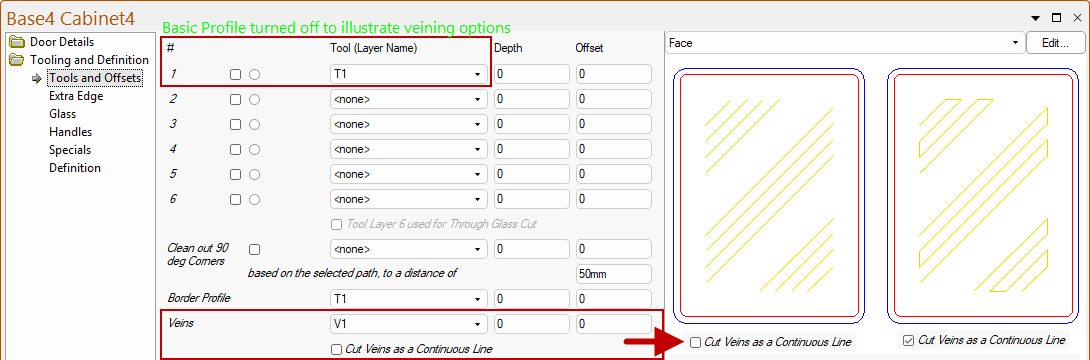
DoorMaster has the ability to cut veins as a continuous joined line. This is only applicable to Base1, Base3 and Base4 doors.
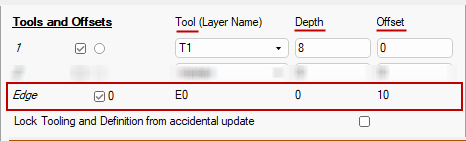
The Use Edge checkbox defines whether an Edge Profile is used for the current door or not.
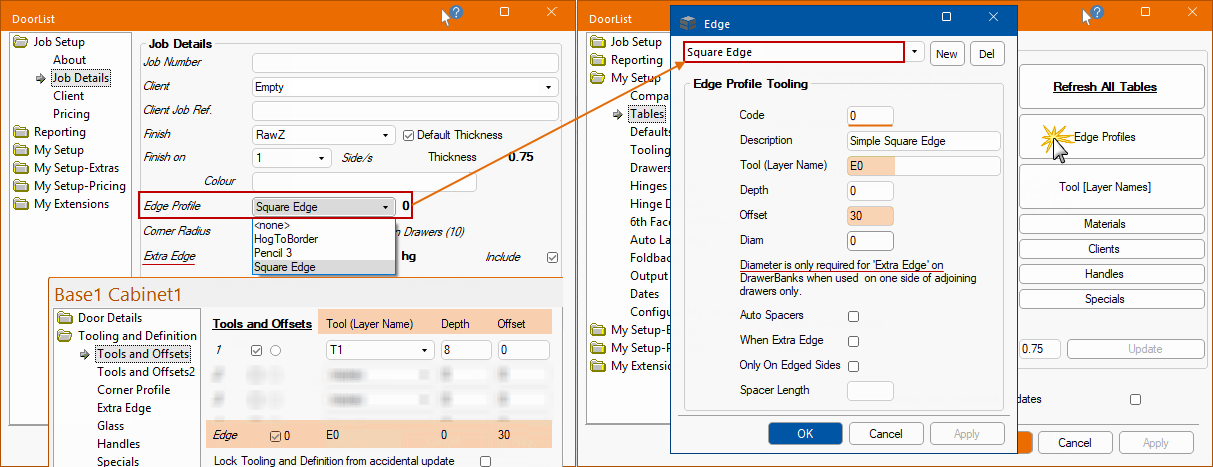
Which Edge Profile to use is selected on the Door Details > Shape page - click to view
This example shows that the 'Square Edge' profile is used.

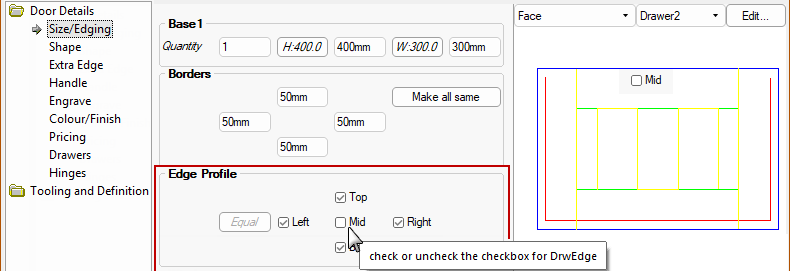
Which Edge (i.e. Top, Bottom etc) requires the Edge Profile to be applied to, is selected on the Door Details > Size/Edging page - click to view
The example shows that the Mid Edge of Drawer2 (defined by a red line in the Preview) has been turned off.
The Tool(Layer Name), Depth and Offset are part of the definition of the selected Edge Profile (Door Details > Shape page). The Offset is from the edge of the door.