DoorMaster User Guide
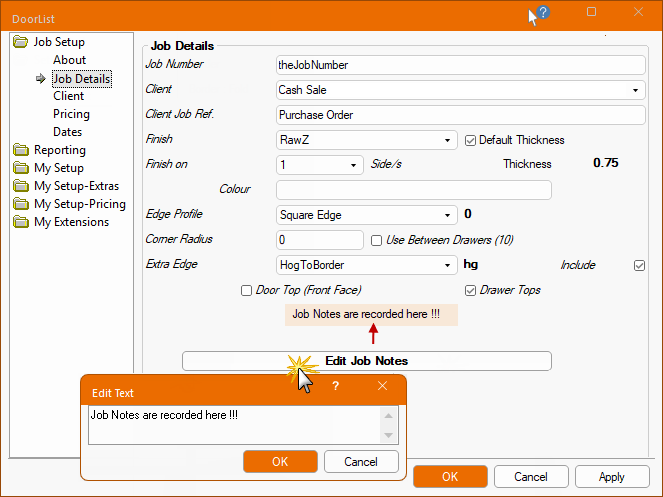
The Job Setup > Job Details page of the Drawing Properties contains job specific information, such as job number and client references. Door defaults e.g. finish and profile, will be used for all the doors in the current job/drawing, but they can be changed on individual doors if required.

The Job Number is your reference to the job and can be manually entered.
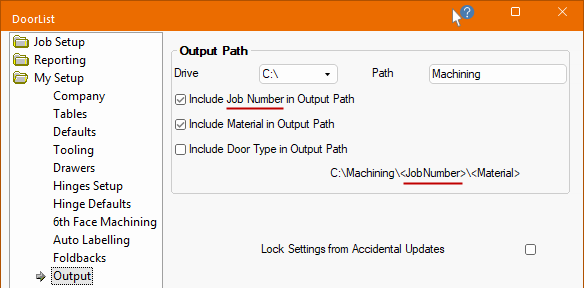
As EzyNest uses the Job Number as a part of the path when the job is output for processing, it is advisable that something is entered here - see topic on My Setup > Output page.
The Job Number can also be machined onto the door part and/or displayed in the DXF (click on above image).
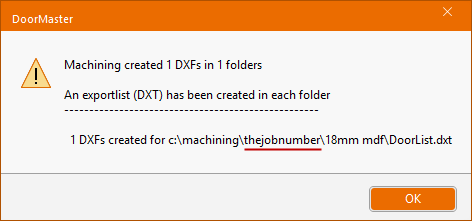
You also have the option to file exported machining files under the Job Number for easy retrieval - click to view examples.
This is a typical message providing the details of the Output Path. For more on how this is generated, see Export Machining.
Enable the 'Include Job Number' check box on the My Setup > Output page of the Catalog/Drawing Properties, if you want the Output Path to include the job number, as shown above.
The Client edit box can be manually entered (e.g. Cash Sale) or use the drop down to select from the Client database/table - see Job Setup > Client page.
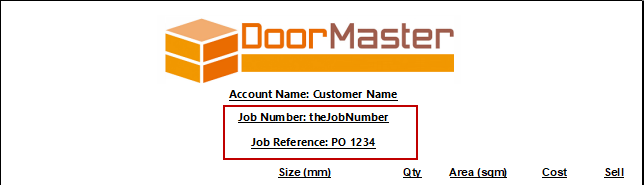
The Client Job Reference edit box can be used to manually allocate client references e.g. the customer's purchase order, if required.
These details are printed on the report header - click to view example.
The Account Name is set on the Job Details > Client page.

The Finish for the doors can be selected from the drop list of available finishes.
The Default Thickness, if the checkbox is enabled/ticked as per the image above, refers to value applied on the My Setup > Tables page.
The Finish On drop list allows you to select whether the doors are to be finished on 1 or 2 Side/s and will be the default used for all doors in the current job/drawing.
The Colour is an optional free text entry which defines the final colour of the door.
The Edge Profile for the doors is selected using the drop list of available profiles. On the right of this field is the associated code - see My Setup > Tables page.
The Corner Radius for applicable doors can be set here as the default, which can be overridden at door level.
Example of Edge Profile and Corner Radius/Chamfer door options
The Door Details > Shape page uses the defaults for Edge Profile and Radius or Chamfer options.
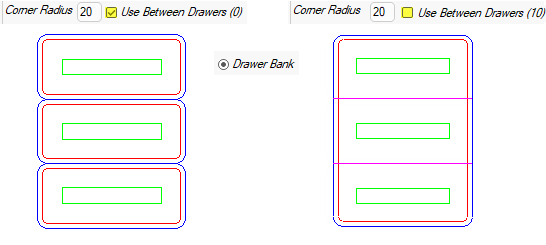
The Use Corner Radius Between Drawers checkbox is only relevant if the Type on the Door Details > Drawers page is set to Drawer Bank or Individual Drws.
Example of Use Between Drawers option
The Type on the Door Details > Drawers page is set to Drawer Bank for these examples.
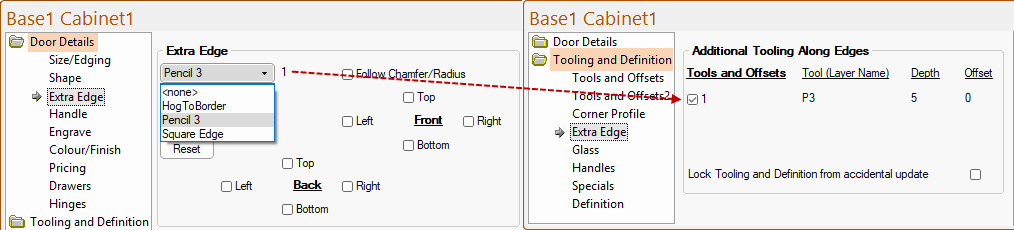
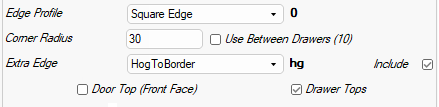
The Extra Edge default can be applied for features such as recessed handles or V Grooves on door/drawer Tops for all doors by ticking the Include checkbox. Enabling the Include checkbox will also make the Door Top (Front Face) and the Drawer Tops checkbox options available. This means that you can run extra edging toolpaths along (or offset from) chosen edges of the door and/or drawer, set on the Door Details > Extra Edge page, as shown below left.