DoorMaster User Guide
The Door Details > Size/Edging page at door level allows you to adjust the most common door properties such as quantity, height and width.
This discussion only covers the options for Base Doors.
For Type Cabinet0 Doors, which includes Pilaster, see the topic on Cabinet0 Doors : zFrames, zFronts, zShelves, zVanity.
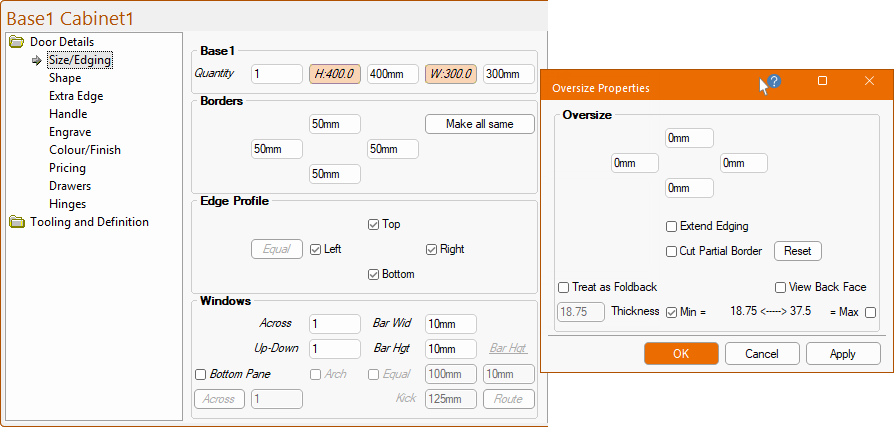
The Height and Width edit boxes allow these dimensions to be amended.
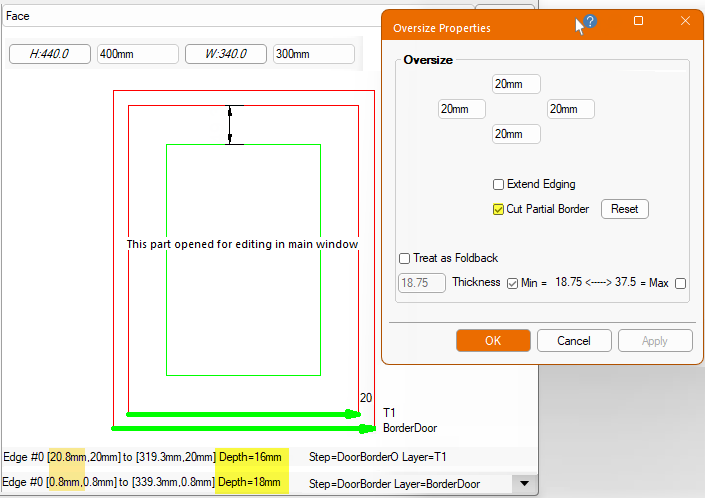
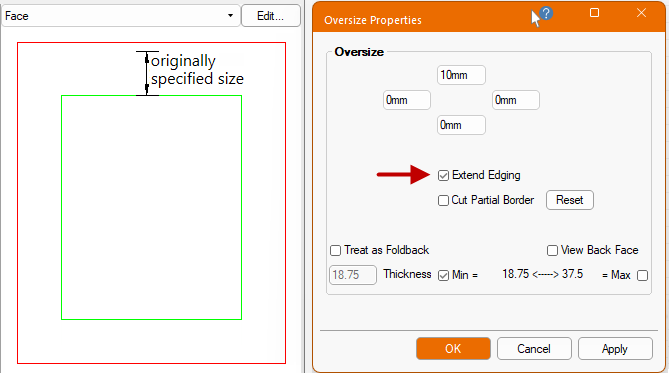
These dimensions are reflected in the corresponding adjacent buttons which, when pushed, opens an Oversize Properties dialog (shown above right).
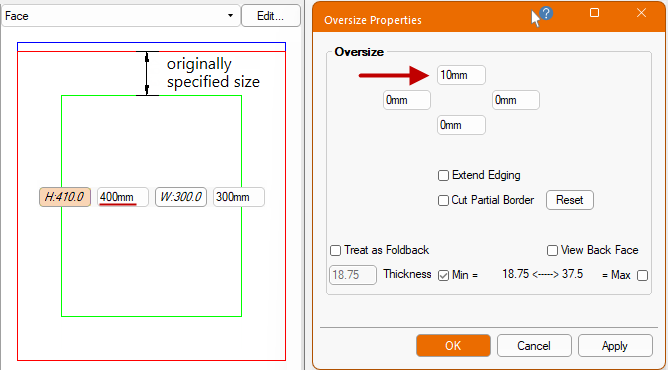
When the oversize for the Top, Bottom, Left and/or Right are entered, the entire door profile will stay at the originally specified size, with the oversized area being plain material. The image shows another 10mm has been added to the Top border.
Click to view Layer details in the preview pane
Extend Edging option provides the ability to extend the edging profile with Oversize/Foldback.
The Top edging profile has been extended by 10mm. Compare with image above.
 See My Setup > Tooling for more on Oversizing and Cut Partial Border options.
A Foldback panel is a panel folded on itself to create a thicker end of up to twice its thickness.
If the required thickness is less than twice the thickness of the material, the part is pocketed so as to tuck into itself.
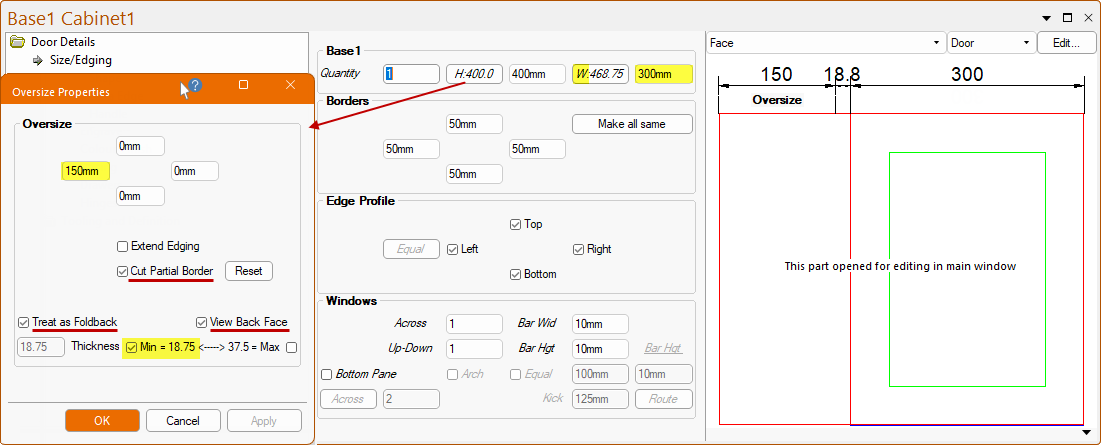
Click to view Back Face opened in main window
The fold is normally only achieved if the door is wrapped rather than painted.
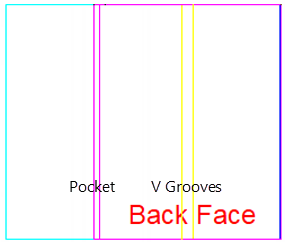
When used, this will add the appropriate machining to the Back Face of the Panel i.e...
- Two V grooves by which to fold the part;
- A "foldback" door (often called a bifold or concertina door) is a door system with multiple hinged panels that fold back on themselves when opened.
- A rectangular pocketing step;
- A rectangular pocketing cleanup step;
- required as the pocketing step toolpath cannot exceed the perimeter of the door to allow correct re-positioning on the machine.
The depth of the ‘V’ Grooves are determined in the My Setup > Foldback page of the Drawing Properties along with the layer names of it and the pocketing tool paths.
The depth is the depth of material remaining (the actual depth cut will be the material thickness minus the chosen depth remaining).
The DXF Layer colours are set on the My Setup > Tables page.
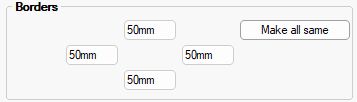
The size of the border around the door, this positions the ‘Basic Profile’ whose tooling is offset from this border. The distance represents the width of the Border for the four sides of the door.
Setting the Top distance and clicking on the Make all same button will copy the Top distance to the other sides.
The option on the Oversize Properties just extends an area outside of the edge profile, leaving the border cut around the entire panel. This allowed for panels to be made that could be scribed on install. See My Setup > Tooling for more on Oversizing and Cut Partial Border options.
The Reset button can be used to change this setting back to the Drawing Properties default - see Secondary Border discussed next.
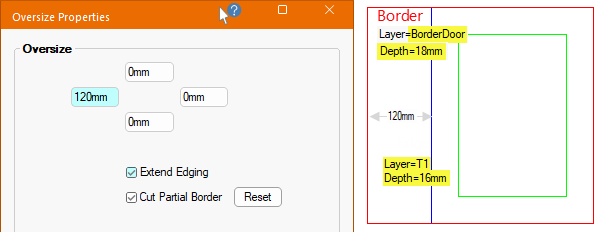
Expand to view tooling and depth
A secondary border can be specified around the actual door size. This allows for small parts that may otherwise have moved on the machine to be oversized with the secondary border not cutting through the material in order to hold it in place, the part can then be trimmed up afterwards.
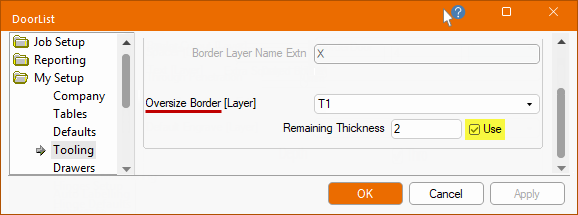
This is an alternative to using bridges when specifying the strategy in EzyNest.To achieve this, first specify the alternative border layer on the My Setup > Tooling page of the Drawing Properties.
The Remaining Thickness will set the depth of the layer to be the thickness of the door minus the Remaining Thickness specified.
- If you want to specify that this is the default setting for ALL doors, then tick/enabled the Use Remaining Thickness checkbox.
- This will mean that at Door level the Use Cut Partial Border checkbox on the Oversize Properties of the door will be automatically enabled but can be manually turned off.
Example shown in Preview Pane
Note that the thickness of the door material is 18mm and the T1 Layer is 18mm minus 2mm = 16mm.
See discussion on the topic on the My Setup > Tooling page.
See discussion in the topic on the My Setup > Tooling page.
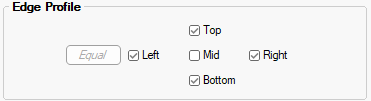
The checkboxes are used to define which sides to apply the Edge Profile. For example, a corner door may not require the edge profile along the edge facing into the corner. If these options are greyed out, then the edge has not been selected as a part of the door definition
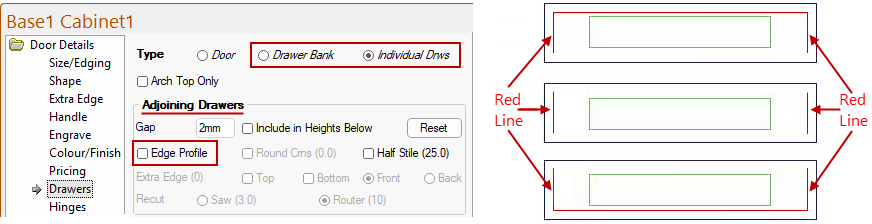
The Mid checkbox is only shown when Individual Drawers or Drawer Bank is selected on the Door Details > Drawers page. It provides the ability to control edge profiles on adjoining drawers.
The Mid checkbox also controls the same options as the Edge Profile in Adjoining Drawers group of options, shown above left.
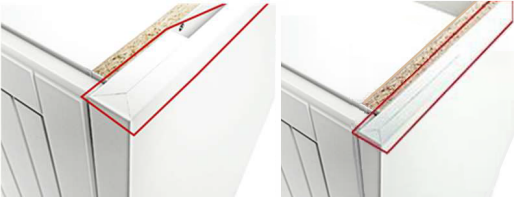
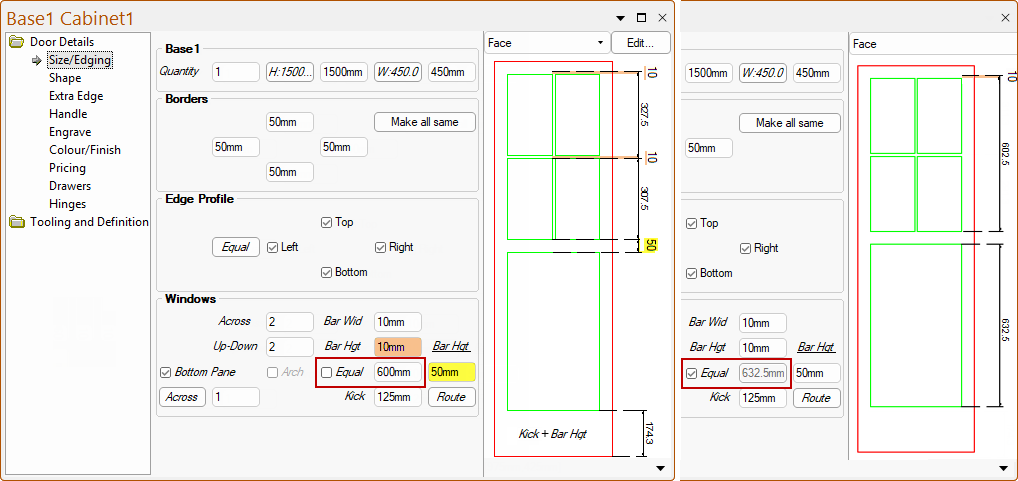
On a set of three drawers, for example, with the Edge Profile (Drawers page) or Mid (Size/Edging page) is enabled, a Base1 drawer would look something like the image above right (where the red line is the edge profile).
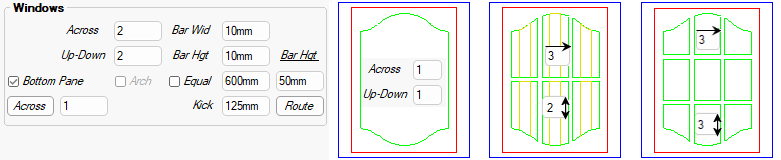
The Quantity of windows (panes), horizontally and vertically on the door, each will contain the basic profile.
The Bar Width and Bar Height are the horizontal and vertical gaps between the panes. There is also the ability to control the distance between the upper and bottom panes separately from the horizontal ‘bar’ height.
The Bottom Pane checkbox allow you to turn this option on/off and its height (such as those on tall pantry doors).
An Arch can be applied to the Bottom Pane, if the Profile Shape setting for an Arch Door is enabled on the Shape page.
In this example, the Arch Door option on the Shape page is enabled. The corresponding Arch option for the Bottom Pane is no longer greyed out.
The number of ‘Windows’ used in the bottom pane can be specified separately from the upper pane. The Across button is used to reset the bottom pane to be the same as the upper pane, which is the default setting.
The Equal checkbox sets and keeps the bottom and upper pane sizes the same as the door size changes.
The Kick Height is added to the bottom border height as the gap, before any profile is started. This allows for panes to be matched in height on pantry doors which go to the floor as opposed to their neighbours that perhaps start above the kickboard. See next page on Base 1 Kick area ‘Route’ button.
The Kick area at the bottom of a Base1 door (which is above the bottom frame) can be a routed pane with control over...
- the Height of the pane;
- the Quantity Across of ‘windows’;
- the Bar Width and Bar Height;
- the addition of an Arch and Glass machining.
The Kick area is only available when the door has a Bottom Pane. Click on the Route button to access the Kick Routing Properties, as shown.
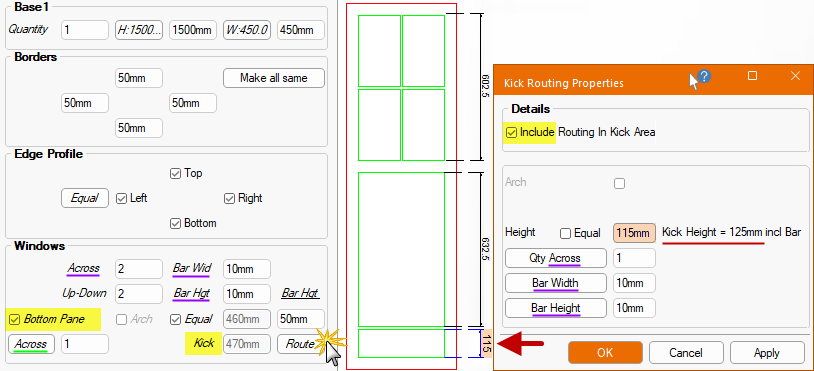
The Kick Routing Properties have buttons that act as a ‘Reset’ to the defaults set on the Size/Edging page i.e. using the example above, pressing the Qty Across button (underlined in purple) on the Kick Routing Properties would reset the quantity from 1 to the original 2.
The Height of the pane will make the Kick Height the specified height (e.g. 115mm) plus any Bar Width (e.g. 10mm), so that the pane itself is the height specified.
The Across button in the Windows group (underlined in green) acts as a 'Reset' for the Bottom Pane i.e. using the example above, pressing this would reset the quantity from 1 to the original 2.
If the Tool Layer 6 used for Through Glass Cut checkbox is enabled/ticked then the Include Glass option is made available and will be automatically turned on. The Include Glass option can be used to turn on/off the Tool Layer 6 option in exactly the same way as the #6 checkbox.
Also the Tooling and Definition > Glass page will be made available (otherwise this page is totally greyed out), providing more options for Bottom Pane.

The Across and Bar options only come available if the Tool Layer 6 is enabled.