DoorMaster User Guide
As every job is billed to a customer/client, this is where you can set up Client and Contact information which can be displayed on reports.
The client/customer details that relate to a current job/drawing are located in the Job Setup category of the Drawing Properties which can be either manually entered or selected from a Clients Database (or Table) for quick and easy entry.
The Job Setup > Client page in the Drawing Properties is where your customer information is created and applied to the current drawing.
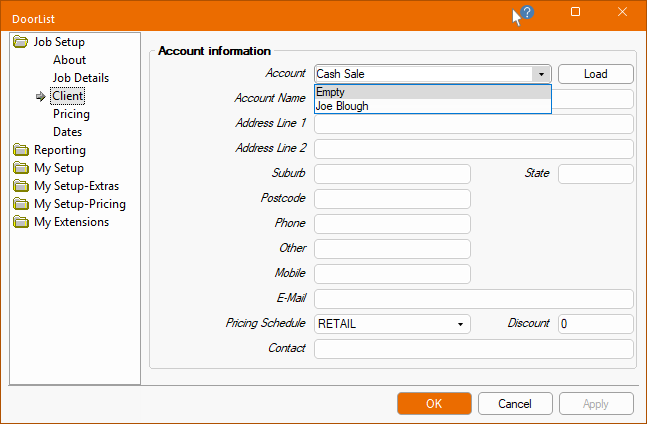
This is optional. The Account edit box can be manually entered e.g. Cash Sale or use the drop down to select from the Client table and click on the Load button.
The drop down uses a Client Database to prefill your customer information which must be unique irrespective if a number or a name is used as a label. If used all following options will be greyed out (and prefilled) except Account Contact. However, if you change your mind and decide to manually enter, just blank out this field and all fields will be again made available for entry.
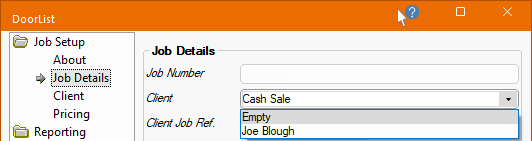
The Account edit box works in the same way as the Client edit box on the Job Details page.
Note that details entered/selected for Account on the Client page will automatically update the details for Client on the Job Details page and vice versa.
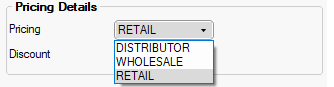
The Pricing Schedule selected will affect the price of the doors and is established when setting up the customer/client - see discussion on My Setup > Prices page.
If the Client is manually entered, then the Pricing Schedule can be manually edited.
Each customer/client can have a pricing percentage discount allocated, which is automatically applied on the Job Setup > Pricing page.
On the Job Setup > Pricing page, a fixed dollar amount discount can also be applied, in which case if both are used, then the customer percentage is calculated before the fixed dollar amount, allocated to the job, is deducted.

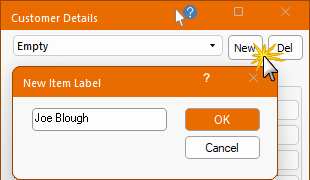
The My Setup > Tables page has a Clients button, as shown, which allows you to create a client database i.e. add, amend or delete Customer Details using the provided form.
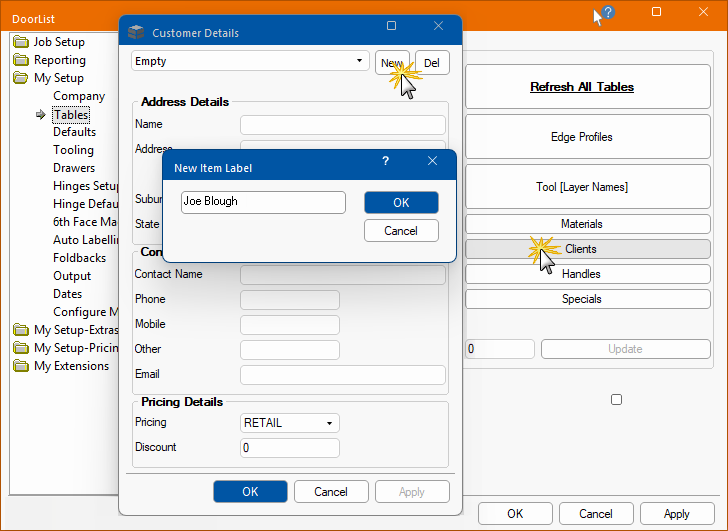
The clients table can be set up for regularly recurring clients/customers
The  button opens a dialog (shown above) which allows you to:-
These are details associated with the currently selected client/customer and are mostly self explanatory.
Account Name : Name of customer or company to bill the current job/drawing to.
Address and Contact Details : Billing address. Phone, Mobile, E-Mail or Other.
Account Contact : Name of the customer or other contact associated with the job/drawing.
The drop list allows you to select the correct pricing schedule for the currently selected customer - see My Setup-Pricing : Pricing Schedule.
Enter additional discount percentage if required to be applied to this customers jobs.
A Discount amount and/or a percentage can also be applied to the job as a whole (including the total of the individual doors) on the Job Setup > Pricing page. It can also be optionally applied to the Job Extras using the checkbox provided.
If the customer/client also has a pricing % discount allocated, if will be automatically copied into the and/or % edit box (e.g. 10 - but can be manually changed here). If both the $amount and the % are used, then the percentage is calculated before the fixed amount is deducted.

The Refresh Table button should be used after the Client Table (or any table) is amended.