DoorMaster User Guide
The Door Details > Engrave page at door level provides access to the cutout feature which allows customers to add lettering and decorative cutouts to a door, by machining existing DXF files of outlines in repeated sets of up to five (1 to 5) individual outlines. DoorMaster will then seamlessly integrate with EzyNest to achieve the desired result. The Depth of the tool used for Machining will determine whether this is a cutout or an engrave.
 Watch the video below which demonstrates how to add pre-defined cutouts using DXF files. [2:22 mins]
At Door level each door can have up to 5 cutouts (radio buttons represents each cutout) which can be defined on the Door Details >Engrave page.
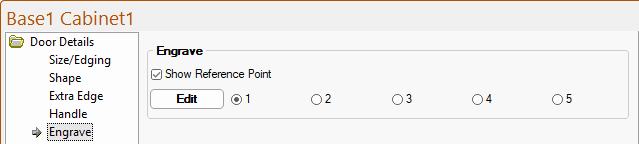
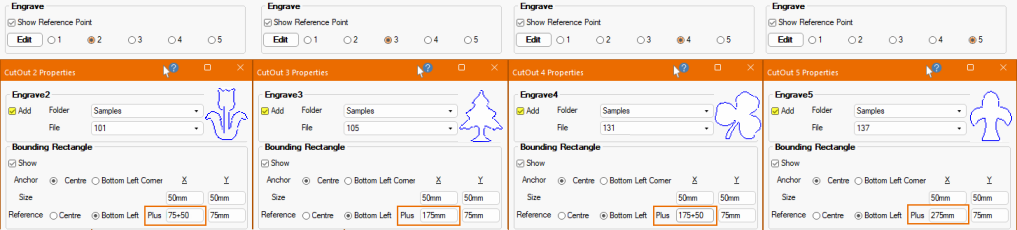
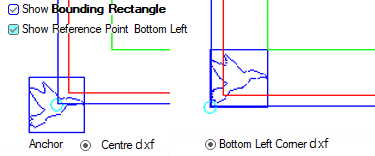
The Show Reference Point checkbox, if enabled, allows you to see where the cutouts are positioned with reference to a given point on the door.
Radio buttons (1 to 5) allow you to select repeated sets of up to five DXF file for machining.
The Edit button, when pressed, will open selected Cutout Properties dialog, shown below right.
Each Cutout from 2 to 5 has 50mm added to the X point
Edit boxes can calculate formula's i.e. Engrave2 : X edit box shows '75+50' which will result in 125mm.
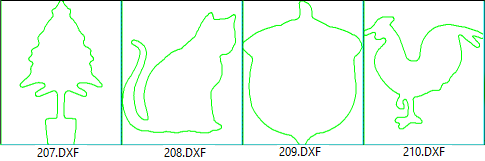
For a complete list of supplied DXF images together with their reference number, see DXF Cutout Samples below.
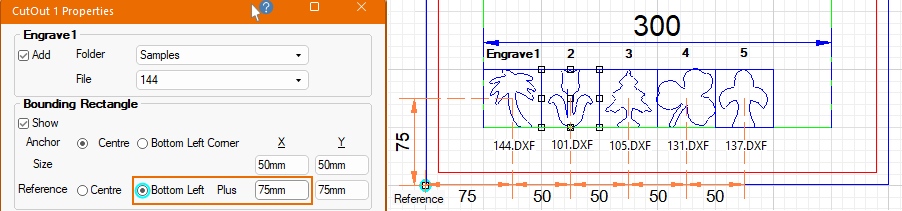
In the example above, five different cutout outlines have been applied, with the...
Watch the video below which demonstrates how to add pre-defined cutouts using DXF files. [2:22 mins]
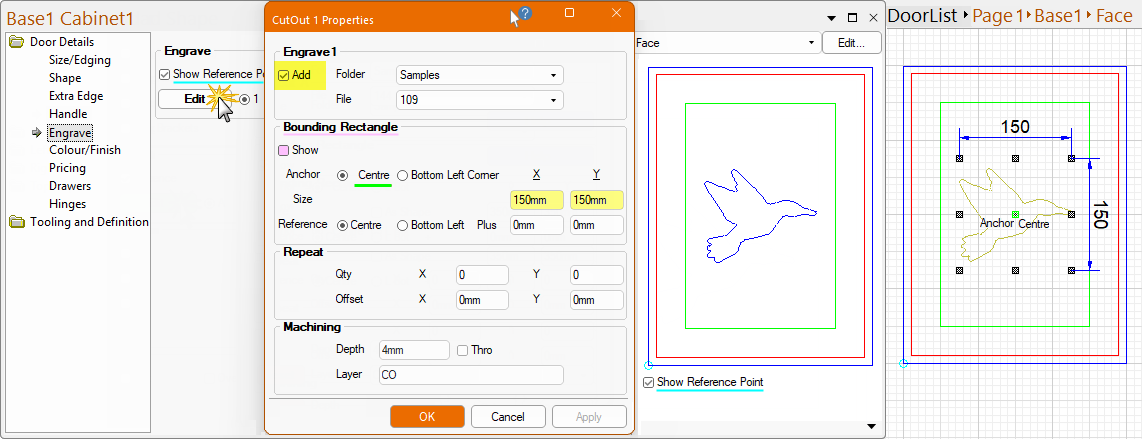
The Add checkbox must be ticked to apply a cutout, as shown below.
Using the Folder and File drop lists, select a DXF file.
In the following discussion, we are going to use the DXF Cutout Sample .../Samples/109.dxf file (bird in flight).
The Depth of the tool used for Machining will determine whether this is a cutout (Thro) or an engrave.
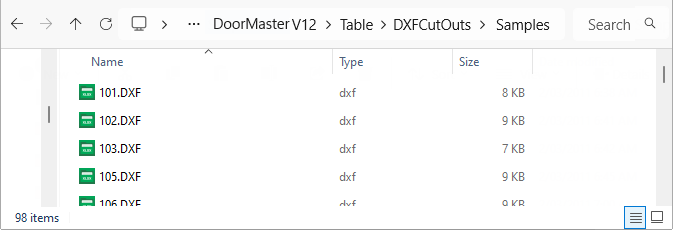
Sample DXF files are located in <your DoorMaster folder>/Table/DXFCutouts/Samples folder.
Additional Folders can be created to include your own customised DXF's files.
Folder and File location
The contents of these DXF files are discussed later in this topic and can be used, renamed and/or customised.
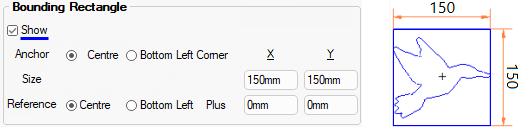
The Bounding Rectangle defines the extremes the DXF cutout can fit into and the Show checkbox is used to turn it on/off.
Anchor refers to the datum point of the DXF, either Centre or Bottom Left Corner, using the radio buttons.
Size defines the extreme bounding area in which to fit the DXF and uses the X:Y edit boxes to set the dimension.
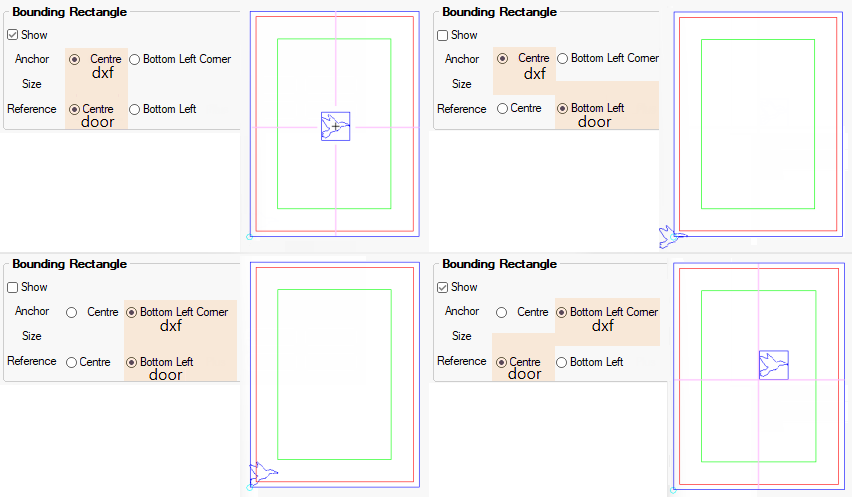
Reference is the given point on the door from where the DXF's are initially positioned (offset) from.
The Plus X:Y dimensions allow you to Offset your DXF a specified distance from the Reference point. For example...
- Reference point is Centre of the door and dxf (using the radio buttons);
- The DXF is Offset from the Centre point of the door +50mm i.e. right of centre;
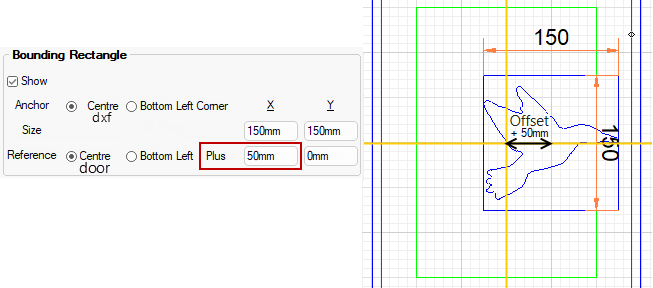
Show Grid has been turned on and Dimensions added for confirmation and clarity.
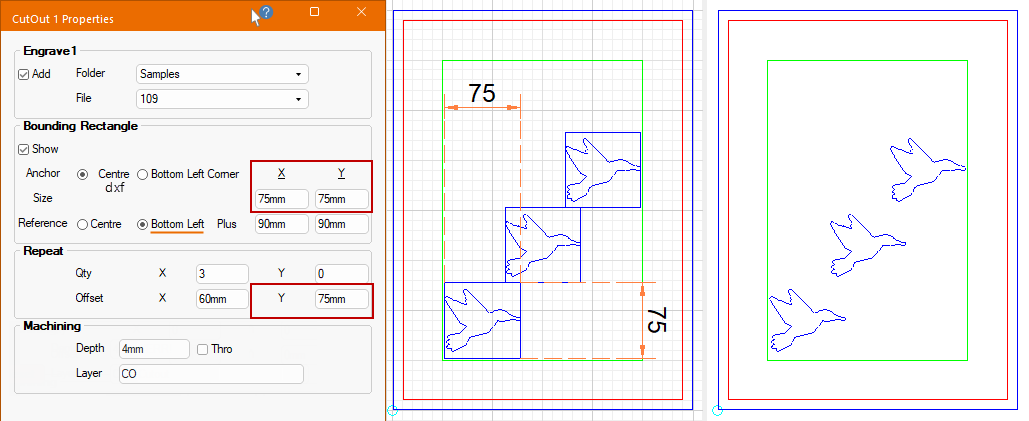
The Repeat options allow multiple DXF's to be placed on the door at a specified X:Y Offset. The DXF outlines are placed within Bounding Rectangles which allows them to be sized.
Example 1
In this example, the birds to sit within the profile of the door...
- Repeated a Qty of 3 times in the X direction;
- Offset in the +ve X direction by 60mm (i.e. right);
- Offset in the +ve Y direction by 75mm (i.e. up).
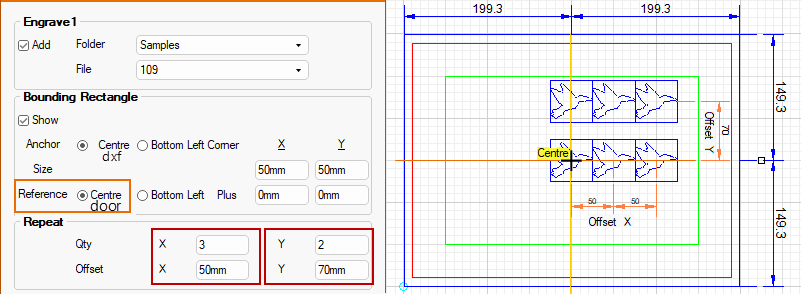
Example 2
The position of the bounding rectangle (Centre or Bottom Left) is defined as an Offset from the Reference Point of the door.
- In this example the Reference is Centre of the door and dxf.
- The X Offset is set to 50mm and the Y Offset is set to 70mm.
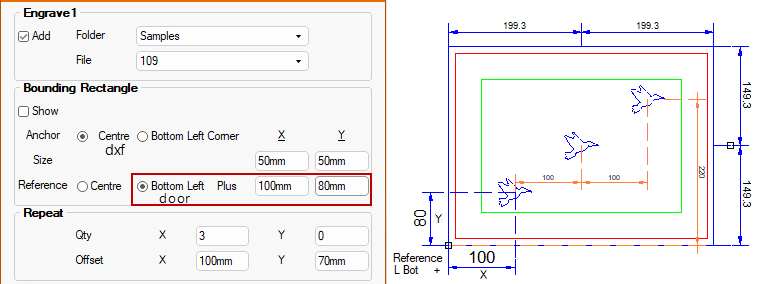
Example 3
- In this example the Reference is Bottom Left of the door, to the Centre of the dxf.
- The X Offset is set to 1000mm and the Y Offset is set to 80mm.
When in 2D View, before using the wheel to Zoom in, click on area that you want to get a closer look at. If you loose focus, use the Reset View and try again.
In the example above, we have used Dimensioning tool in the Current Editor which is displayed in the preview. Watch the Quick Demonstration here [0:14 mins]
The Depth of each cutout can be controlled by either selecting a required Depth or using the Thro option which automatically adjusts with the thickness of the material.

Click to view Machining Subprogram CO_1 and CO_4
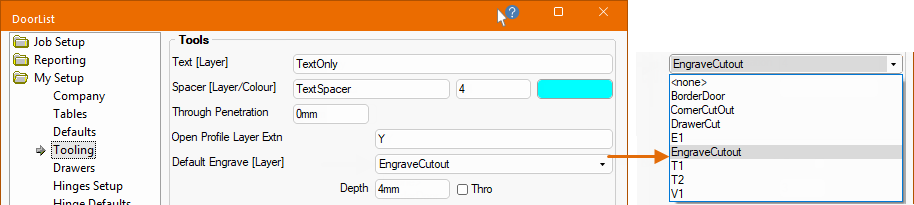
The default Layer name can be specified on the My Setup > Tooling page of the Drawing Properties.
In the example above, a New tool was created for Engrave [Layer] - see the topic on My Setup > Tables.
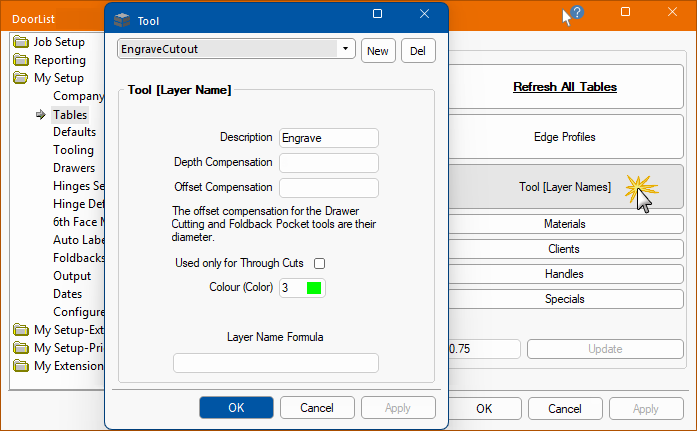
The Default Engrave [Layer] name and DXF Colour is specified in the Tool table.
When any of the buttons used to amend tables is pressed, an applicable Form Editor dialog will be presented to allow you to add/delete rows and modify data in the relevant table used without opening a table directly.
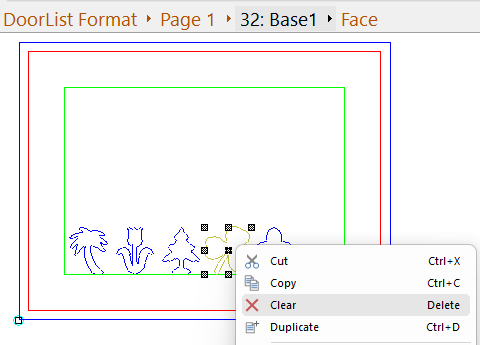
To delete a cutout, first select the door>face using the Breadcrumbs Bar (in this example, Base1>Face) - this will make the Machining Editor commands available.
Then select the cutout and use the right click menu to Clear/Delete (as shown). In this example, we have 5 cutouts applied but only cutout 4 needs to be deleted.
The following DXF's are supplied in the ...DXFCutouts/Samples folder.
You can create as many Folders/Files as you require in the ...Table/DXFCutouts folder for selection.













A Minute with Mike : This video demonstrates how to add pre-defined DXF cutouts, using our supplied sample files but you can create your own.
This video uses a different CabMaster Software™ application but the process is the same.
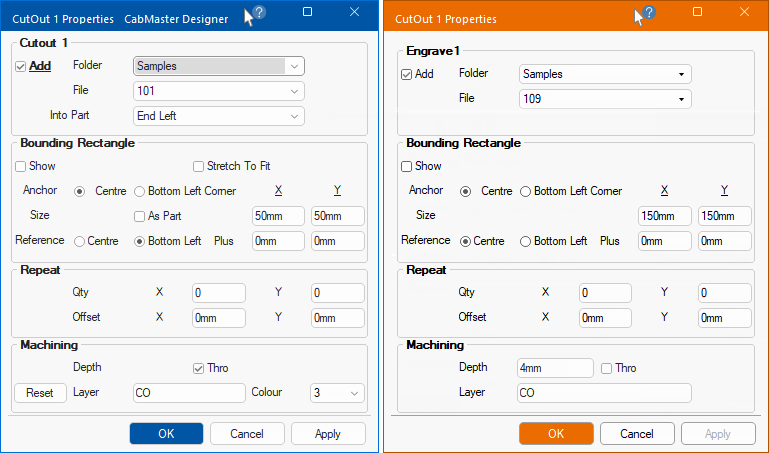
Click here to compare the properties sheet used in this video to the DoorMaster properties sheet.
As shown here, the CabMaster CutOut Properties sheet is similar to the DoorMaster CutOut Properties sheet.
The only real difference is that CabMaster allows you to add cutouts to cabinet parts but the process is the same.