DoorMaster User Guide
Extra Edge is used for features such as recessed handles or 'V' Grooves on door tops. It allows you to run an extra edging toolpaths along, or offset from, chosen edges of the door and this feature can be used for recessed handles.
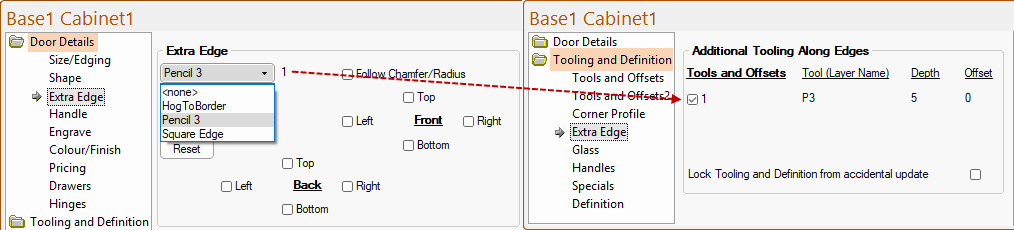
(1) The Door Details > Extra Edge page allows you to select the Edge tool and on which edges it is to be applied.
and
(2) The Tooling and Definitions > Extra Edge page provides the ability to switch the feature ON by enabling the Use checkbox for each door.
In the following example, the "Pencil 3" Edge tool has been selected using the drop list and the corresponding Use checkbox has been turned on.
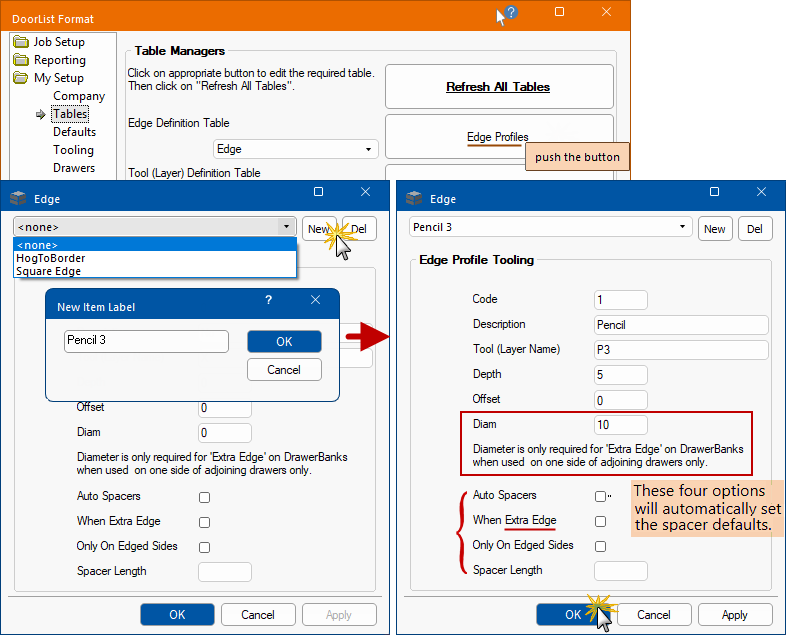
The My Setup > Tables page allows you to create or customise an edge tool e.g. "Pencil 3" with a diameter of 10mm - click here to view.
The tool diameter is a part of the its definition in the Edging tool table.
The following shows a "Pencil 3" Edge Profile tool created with a diameter of 10mm.
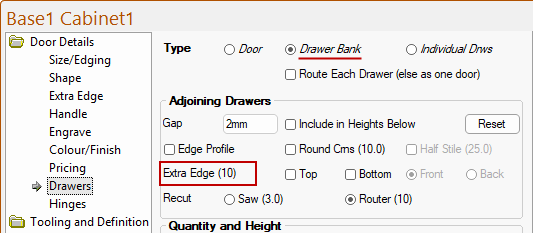
The Door Details > Extra Edge page allows you to select the Edge Profile and the Drawers page displays the Diameter i.e. (10)
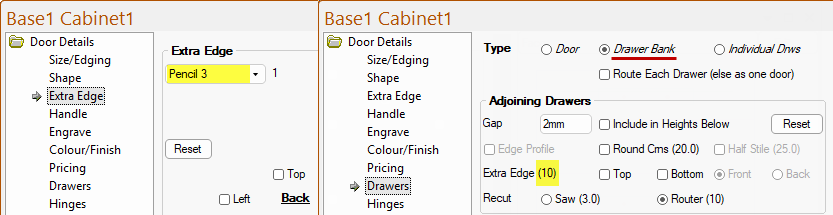
The control of whether the edge is placed on the adjoining edges of drawers is separately controllable on the Door Details > Drawers page.
A diameter is required for an 'Extra Edge' on Drawerbanks when used on one side of adjoining drawers. In this example, the diameter of the Extra Edge tool is 10mm is set on the My Setup > Tables page (see above note).
If a Drawer Bank is being made and the Extra Edging is only required on just one of the adjoining edges (e.g. just the top edge), then it is important that the system knows the diameter of the tool, so that the part can be made large enough and split up accordingly.
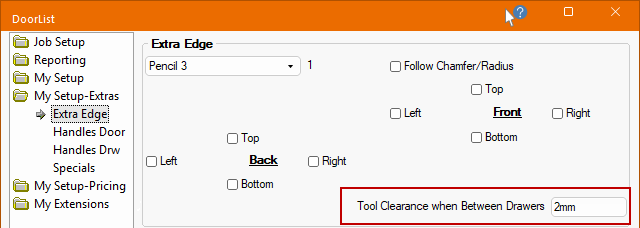
A clearance from the next drawer can be specified on the My Setup-Extras > Extra Edge page of the Drawing Properties.
On the Door Details > Extra Edge page each door has a set of Spacer options which provides the ability, for all doors, to add spacers to push doors apart on the nest and ensures a door is not nested too close to another.
For example, on a 300mm wide door, turning on the Left spacer and setting it to a value of 60mm results in this.
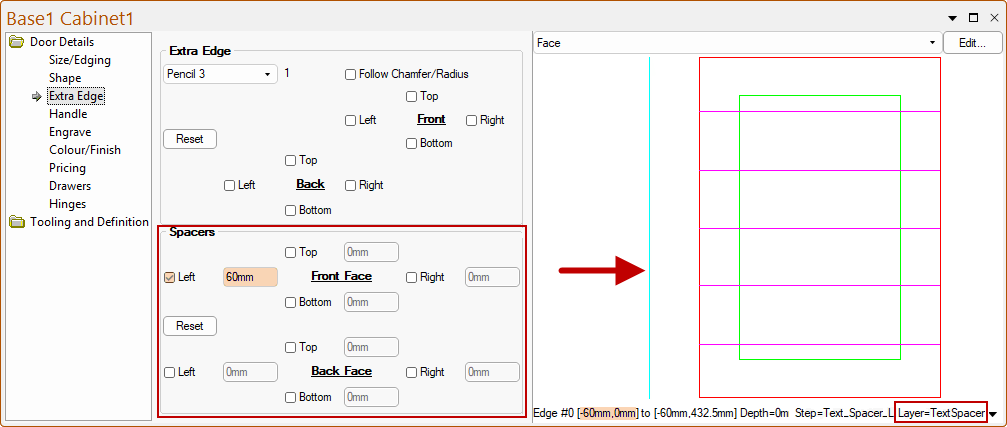
Spacers are parallel to the edge of the part, instead of being perpendicular. As EzyNest is a true shape nesting product, the parallel spacers will stop small parts being nested next to the door (whereas a perpendicular one would allow this).
The Spacer Layer Name and DXF Layer Colour is set on the My Setup > Tooling page of the Drawing Properties.
The Layer Name for these spaces is set to “TextSpacer “. This is similar to the Text [Layer] which would not have an associated strategy, although defined in the EzyNest ATP.
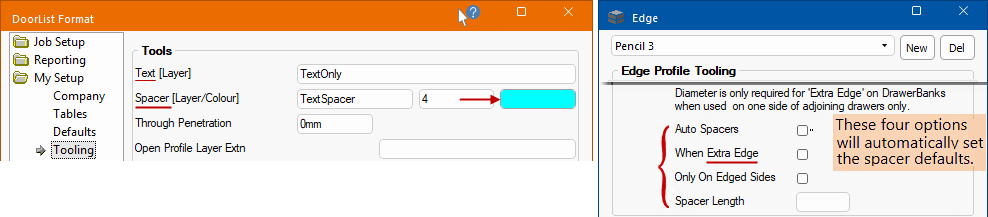
The My Setup > Tables page allows you to automatically set the spacer defaults, shown above right. The correct use of the four (4) options highlighted above will automatically set the spacer defaults. These can then be overridden in the Drawing Properties and door level as necessary.
Automatic spacers are only applied to the Front Face machining. If the Back Face machining is used/required, they will need to be manually added.
The Edge Profile can also be automated (also in front face only) based on the selection of edging tool as an Edge Profile or When Extra Edge.