DoorMaster User Guide
Handles at door level are dependent on whether you are setting up a Door or Drawer configuration.

This is determined by the options selected on the Door Details > Drawers page. The radio buttons allow you to select...
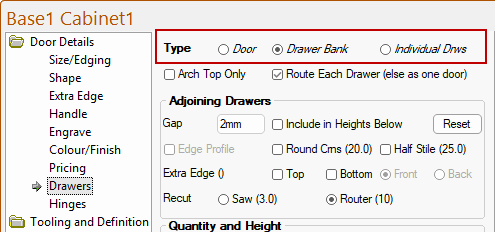
Click to Expand
The Door Details > Handle page provides the option to Use Handles or not.
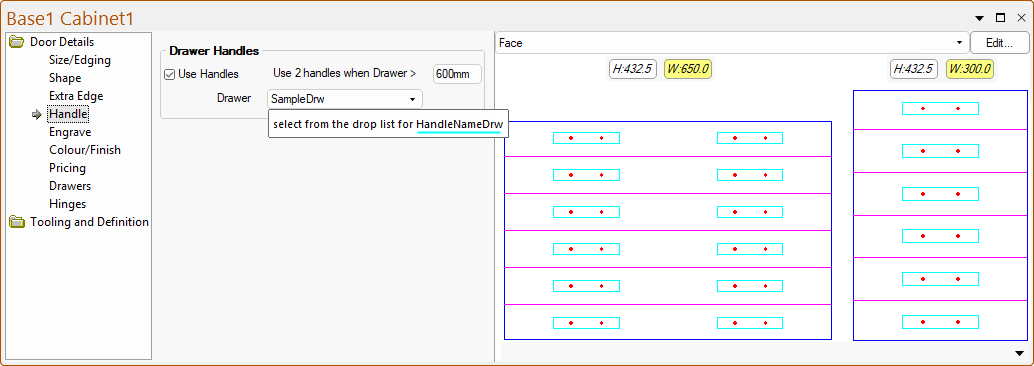
If handles are enabled, then you can customise when 2 handles are used and select from the drop list the handle name for use.
These options are replicated on the Tooling and Definition > Handles page, discussed next.
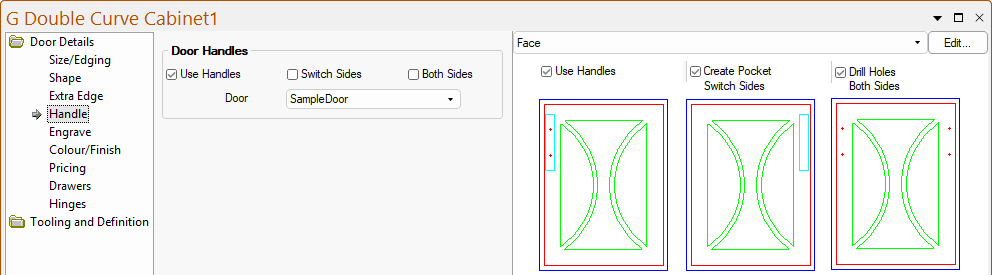
If Use Handles are enabled, then you can customise which side/s handles are affixed and select from the drop list the handle name for use.
- These options are replicated on the Tooling and Definition > Handles page, discussed next.
- The selection available from the Door drop list is created in the Handles machining tables on My Setup > Tables page of the Drawing Properties.
The Door Settings i.e. drill/pocket and positioning etc are also set in a Lookup Table (see My Setup > Tables), which can be overridden on the Tool and Definitions > Handles page.
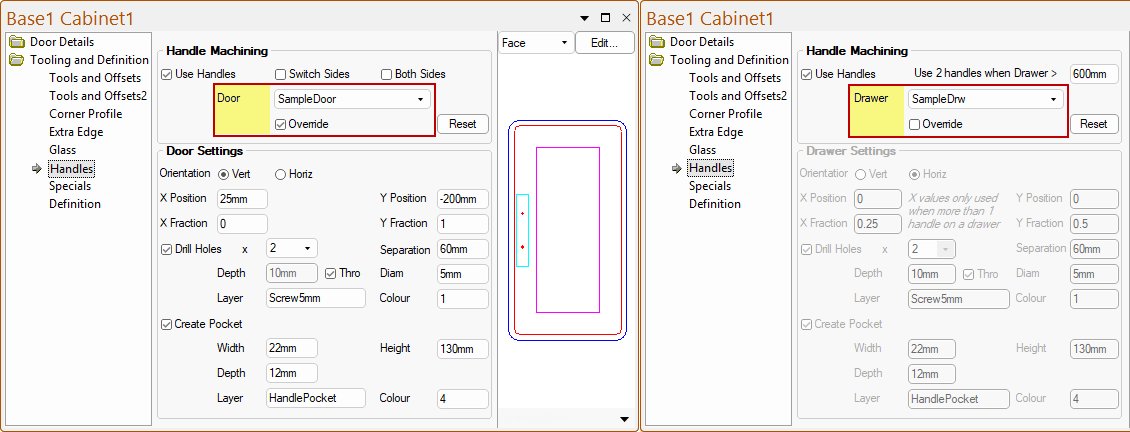
The Tooling and Definition > Handles page at door level initially reflects the Drawing defaults set on the My Setup-Extras > Handles Door/Drw pages.
The Reset button can be used to revert customised Handle Machining group option settings back to these Drawing Property defaults.
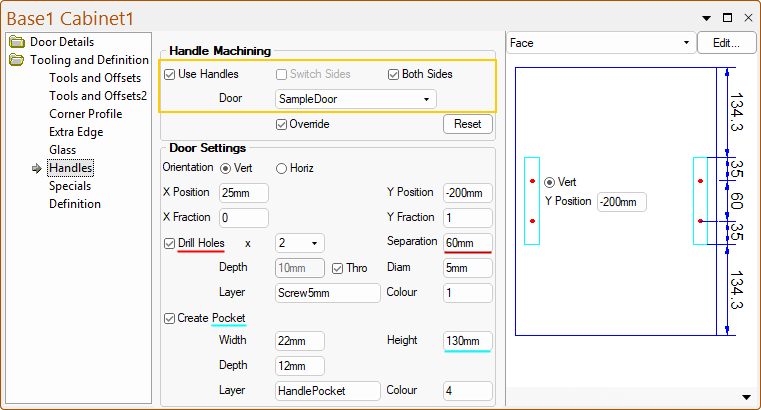
Override Drawing Properties checkbox provides the ability to amend the Door Settings at door level, as displayed below left.
Handle machining can be either/or a...
Handles are always machined in the Front face and can be placed...
If the radio button option on the Door Details > Drawers page is set to Door, the Tooling and Definition > Handles page options are as per the image.
The side handles, if not otherwise specified in the Drawing Properties, is set left but you can use the...
- Switch Sides option to move the handle to the opposite side of the door.
- Both Sides option allows two handles on a door
- when used, the 'Switch Sides' option is no longer available (i.e. greyed out).
Orientation : The radio buttons allow you to select either Vertical or Horizontal.
Position : The position of both the holes and pockets are defined by their centre.
- In the example above, the Overall Height of the door is 400mm.
- To centre the handle drill holes, the Y Position is measured from top of door (if Vertical) i.e. -200mm. with a Y Fraction of 1.
The position of both the holes and pockets are defined by their centre, calculated using the X Position, X Fraction, Y Position and Y Fraction amounts, where the Frac is a fraction of the total width (or height depending on orientation).
For example, if a vertical handle had a single hole at X Position= -10mm and X Fraction= 0.25 then a single hole would be drilled 10mm short of quarter the door width.
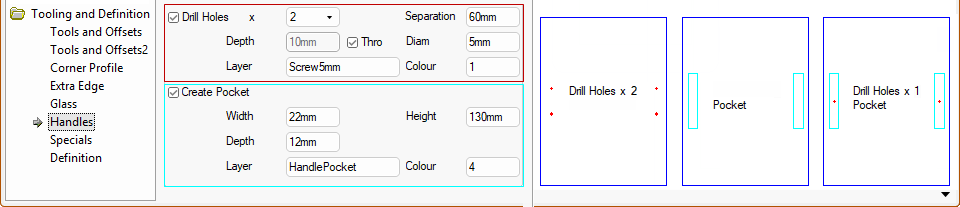
The Use Drill Holes checkbox allows you to designate 1 or 2 drill holes (circle) using the drop list.
The Use Create Pocket checkbox allows you to create a handle pocket (rectangular cutout), which is typically where the handle is integrated into the door itself, creating a seamless look.
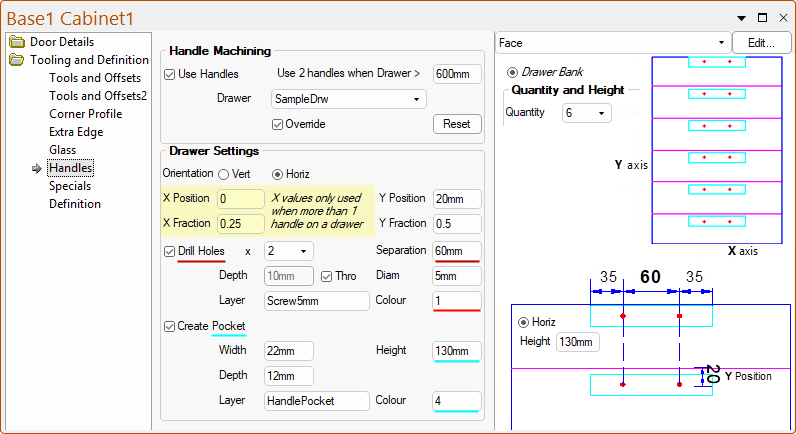
If the radio button option on the Door Details > Drawers page is set to Drawer Bank or a set of single Individual Drawers, the options on the Tooling and Definition > Handles page vary slightly.
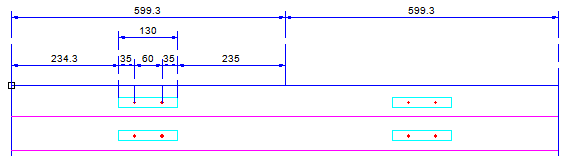
To allow DoorMaster to automatically determine when two handles are required, you need to specify the Width the drawers need to be before this setting is triggered i.e. in this example the drawers width needs to be greater than 600mm before 2 handles/pockets are used.
Orientation : The radio buttons allow you to select either Vertical or Horizontal.
Position : Handles are always machined in the Front face and can be placed in the centre of a Drawer or as a pair at each end of a drawer (for wide drawers).
The Use Drill Holes checkbox allows you to designate 1 or 2 drill holes (circle) using the drop list.
The Use Create Pocket checkbox allows you to create a handle pocket (rectangular cutout), which is typically where the handle is integrated into the drawer itself, creating a seamless look.