
DoorMaster User Guide
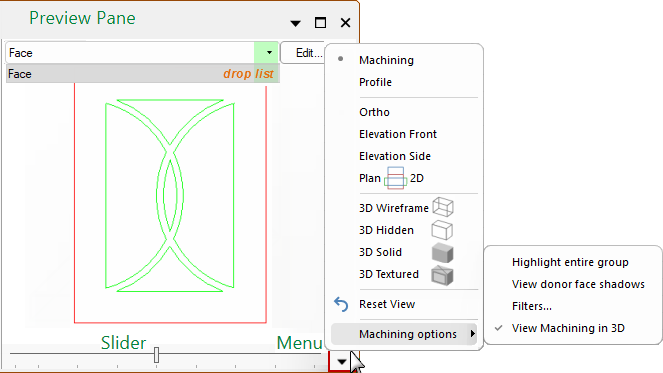
To locate information about any menu commands,  click on the area of interest on image above.
Be aware that images primarily show door properties in Floating mode. When docked, the Preview pane is positioned vertically under the door options.
The preview pane consists of three major areas:
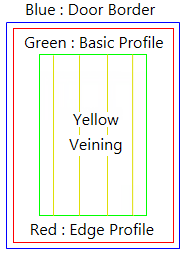
Each door design has a standard face and edge profile, and as you define the door details the preview pane will display a representation of the door being defined.
The position toolpaths are based on the offsets defined against the corresponding tooling, to which a DXF Layer Colour is applied to provide a visual representation which is unused by machining but very helpful for viewing. These colours can be customised e.g. when a colour like yellow is hard to see.
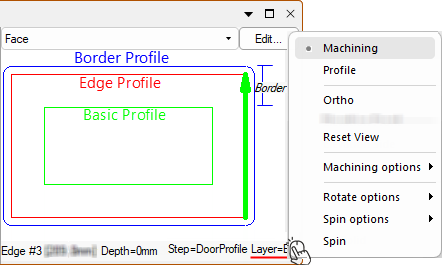
The Machining view option allows you to select individual sections using a drop list. The selected section is displayed along with a status bar - see example.
Any annotations added when in Machining Editor Mode will be displayed in the Preview Pane.
Example : View Machining and Status Bar
The status bar provides information about the currently selected machine step or click point which is indicated by a green dot. The click point as shown in E.g. 2 below, shows the XY coords [66.6mm:50mm] of Vertex #1 which is the height of the border. The dimensions shown here were added in Machining Editor mode.
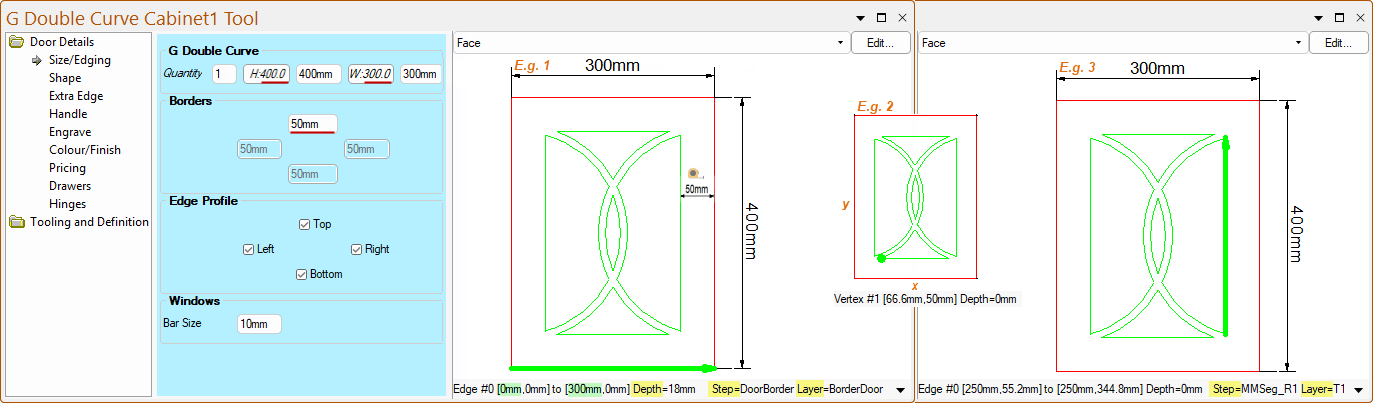
Dimensions, tape measure and other annotations can be added when in Machining Editor Mode by enabling the tool in Current Editor Mode and then returning to Machining Editor to add the dimension etc. Watch the Quick Demonstration here [0:14 mins]
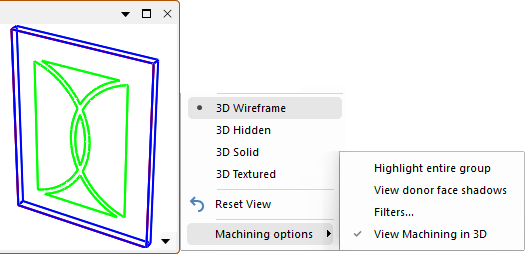
View Machining in 3D: Displays machining in 3D OpenGL view.
The Mouse Shortcuts can be used to pan, rotate, zoom in/out, reset view etc.
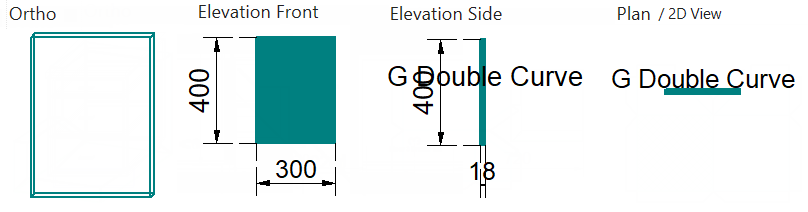
The 'G Double Curve' has been used here to show each view selection.
Moves the camera position back to its original position and angle. This is useful if you lose the image by accidentally moving it out of the view window.