DoorMaster User Guide
You can customise doors/items (including drawing tools) after or before placement. The actual property sheets discussed here are almost identical, except that...
It is recommended, that if you are editing a door's overall dimension, do this before placement. Otherwise it is a matter of personal choice.
The Keyboard Shortcut F12 can be used to customise the door and again to add to the list.
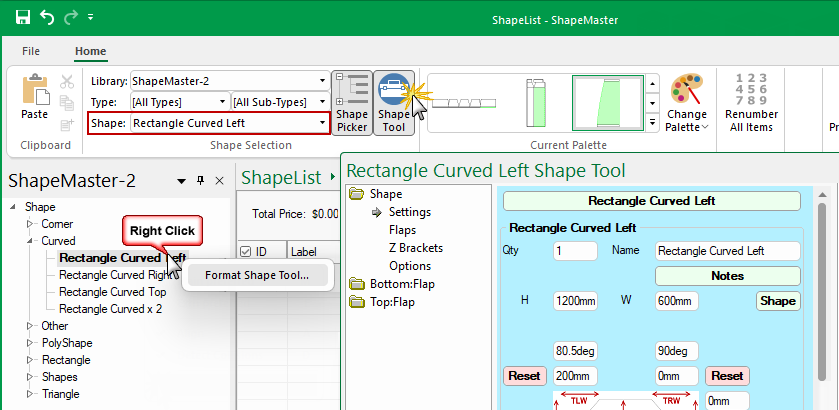
The Format Tool property sheet has a blue background and shows the properties of the door you are about to add to a drawing or to a list.
First, select the door/item using any of the Door Filters and then...
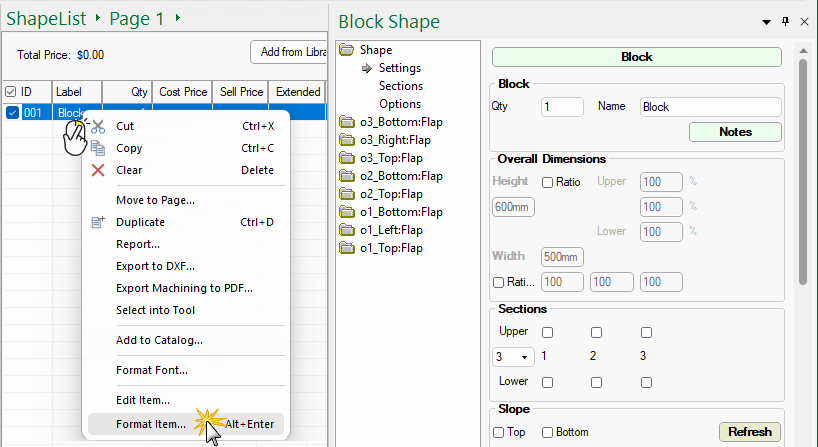
The Format property sheet has a light grey background and shows the properties for a placed door/item.
Select the door/item on the List by...
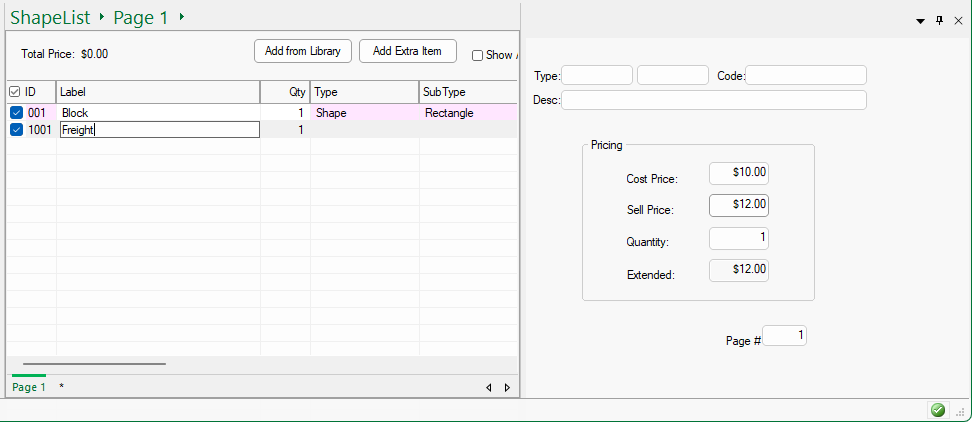
When you use the 'Add Extra Item' command, a line item is added with (no label).
- Enter a descriptive name e.g. Freight
- When you 'Format Item' the property sheet has a light grey background and you can enter pricing details, as shown.
- When you close the property sheet, the Total Price will recalculate.