DoorMaster User Guide
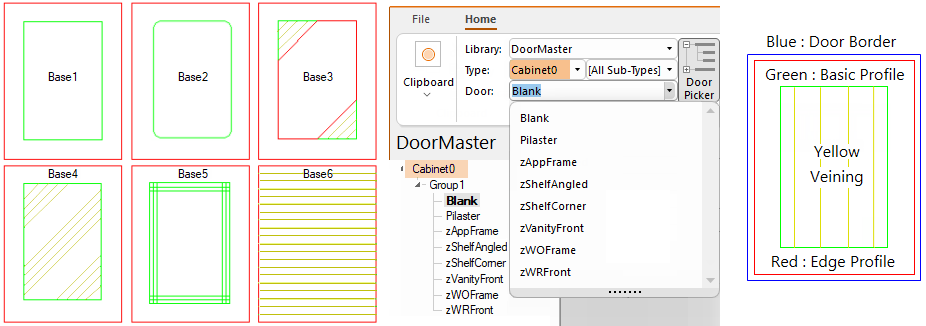
DoorMaster currently has 6 Base doors plus speciality doors and items e.g. Sunburst Doors, Pilaster, and miscellaneous door items, e.g. zFrames, zShelves, zVanity , all of which can be user defined. This section will explain the options available to format these.
Each door design has a standard face and edge profile, and as you define the door details the preview pane will display a representation of the door being defined.
The position toolpaths are based on the offsets defined against the corresponding tooling, to which a DXF Layer Colour is applied to provide a visual representation which is unused by machining but very helpful for viewing. These colours can be customised e.g. when a colour like yellow is hard to see.
 Watch the Video on creating doors in DoorMaster.
DoorMaster gives you the ability to select a door from a ready to use library of doors. You can then type in a few parameters onto a friendly window to reformat the door to your own specifications with a wide variety of options and the ability to save common used doors in your own customised door list.
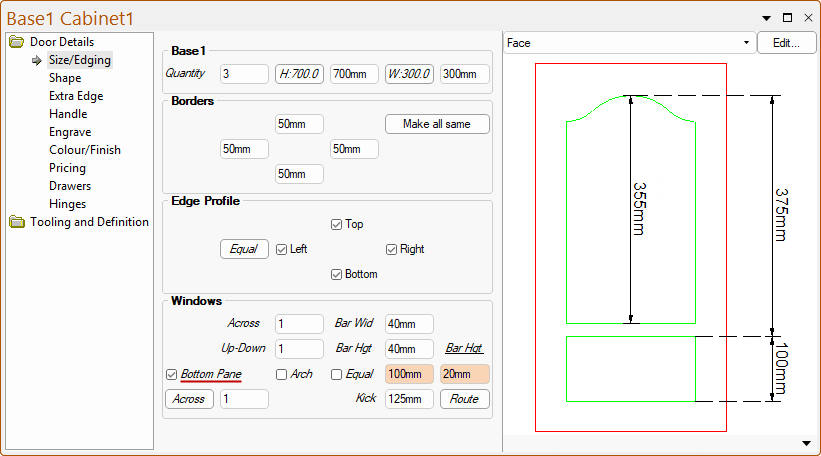
This means that you can create doors with repeating patterns using the same door style, as all the doors provided by CabMaster Software™ come built in with parametric resizing and options. You can also select the number of windows across and up-down, for example, the following uses an existing base cabinet to which a Bottom Pane has been added.
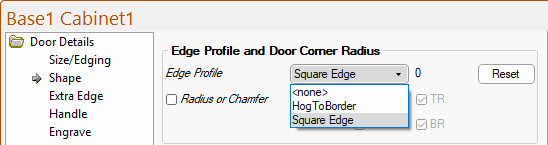
Features of the door are changed by friendly checkboxes and drop lists. Square edge doors can be created as required, controlling each of the four edges by a simple checkbox.
Dimensions etc added in Editor Mode will display in the Preview Pane of the shape, as shown above.
Watch the Quick Demonstration here [0:14 mins]
DoorMaster Software fully integrates with EzyNest with a feature called Machining View, shown below.
This allows you to generate CNC Code and Label information at the push of a button i.e. Generate Nests. CNC Config replaces the need for accessing the ATP in EzyNest as well as allowing you to set required Preferences and Driver Selection options. This allows you to do all this and see nested layouts, without the need to open another software package. It also eliminates downtime and any unforeseen machining issues.
The doors can be cut individually or nested onto full sheets for efficient cutting, which can be done automatically using a flatbed router with appropriate tools. EzyNest allows you to add lettering and decorative cutouts to a doors directly. DoorMaster creates the dxf’s and dxt to seamlessly integrate with EzyNest. When cutting out a batch with mixed sizes, advanced nesting optimizes your material usage.
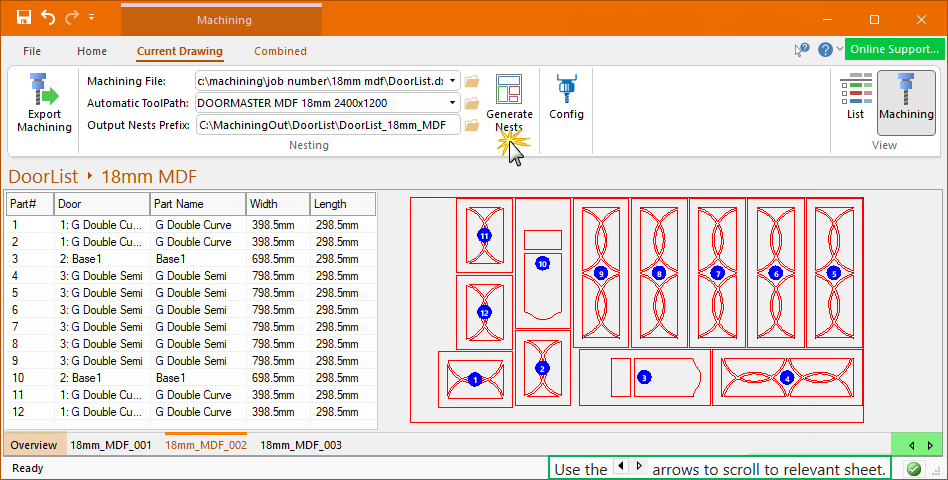
This nest generated 3 sheets of material - Click to view
The Overview displays all nests, in this example 3 sheets of material.
Use the  arrows to scroll to view individual sheets - click on image above for an example.
Want to streamline your production processes? We make things simple for you - see our website DoorMaster Software - CabMaster Software Australia™
With DoorMaster Software, it is that easy to create new custom door designs and send your jobs for to the CNC machine. Prepare to increase your production without putting in extra effort. Watch the video to see some of the features [5:14 mins]