In This Topic
The Door Details > Shape page at the options available will vary depending on the base door being used.
This discussion only covers the options for Base Doors.
For Speciality Doors, such as the Pilaster and Sunburst door, see the topic on Shape page : Speciality Doors.
Edge and Border Profiles
The options for the Edge Profile, Door Corner Radius and Border Profile are common to all doors.
Click to view corresponding options on the Size/Edging page
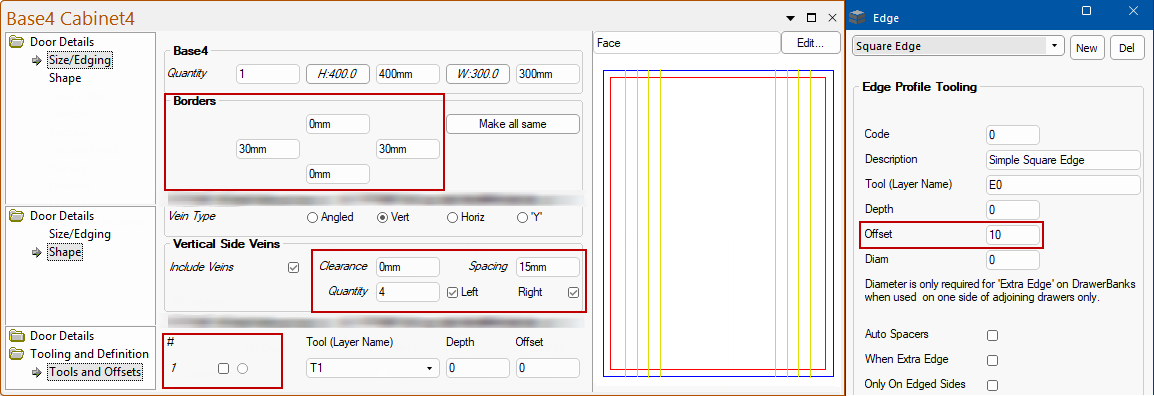
The Edge Offset is set on the My Setup > Tables page of the
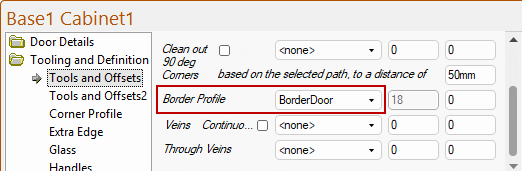
If the Border Profile Tool(Layer Name) is not selected (i.e. <none>) on the Tools and Offsets page, then the checkbox on the Shape page will not be made available (i.e. greyed out).
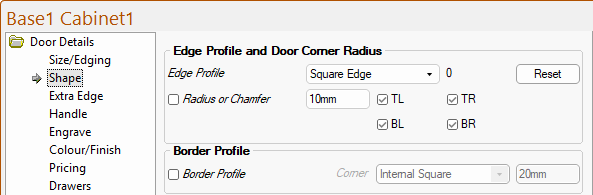
Edge Profile and Door Corner Radius
The desired Edge Profile can be changed using the .
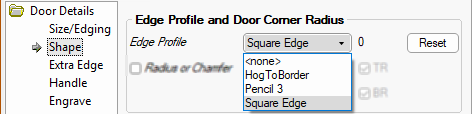
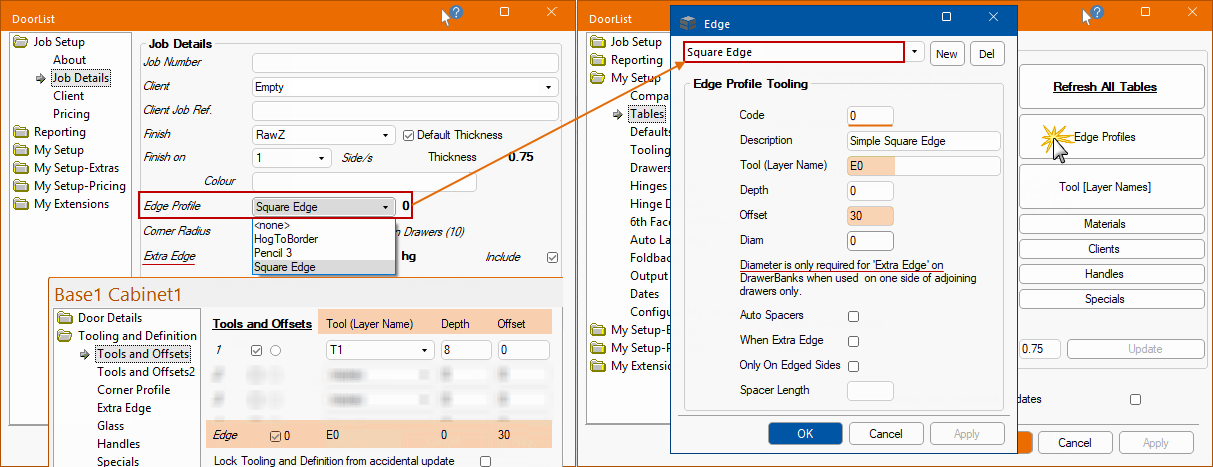
The Reset button sets the Edge Profile back to the defaults set in the Job Setup > Job Details page of the Drawing Properties - click here to view.
The Edge defaults (the Edge Profile and Extra Edge) are set in the Job Setup > Job Details page of the .
The Edge Profile is created and defaults set by accessing the Tool [Layer Names] table on the on My Setup > Tables page. The corresponds to the tables created here e.g. Square Edge.
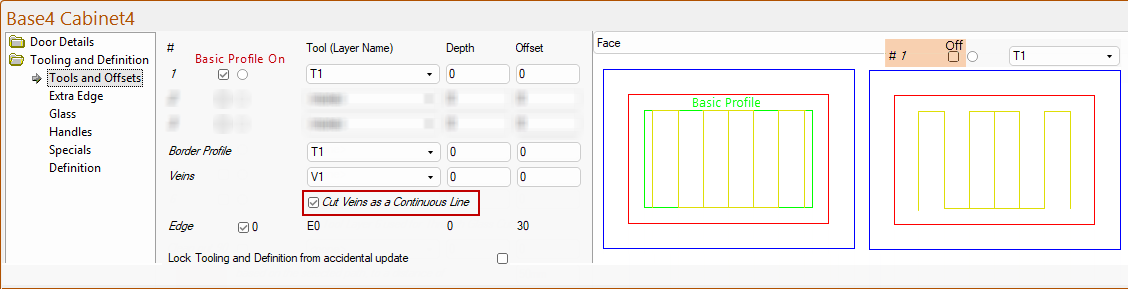
The Tools and Offsets page of the door, confirm the Layer Name [E0], the Depth [0mm] and the Offset [30mm] being used for the door.
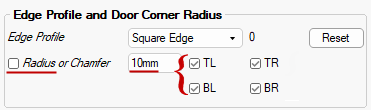
Radius or Chamfer
The edit box allows you to set the distance (default is 0mm) and the checkbox allows the corners of the door itself to be either...
- chamfered (Chamfer if ticked, as shown).

or
- rounded (Radius if unticked)

Select which corner the radius/chamfer applies to i.e. TL = Top Left etc by using the corresponding checkboxes.
Border Profile
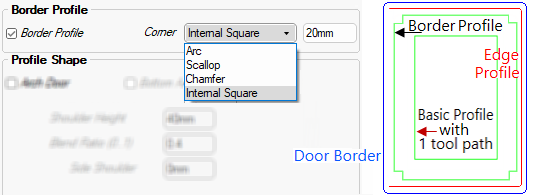
The Border Profile checkbox allows you to turn on/off this option. If enabled (ticked) the Corners of this profile can be shaped e.g. Arc, Scollop, Chamfer or Internal Square) and sized using the edit box e.g. 20mm.
The example, shown above right, has...
- a Door Border (blue) 10mm radius corners;
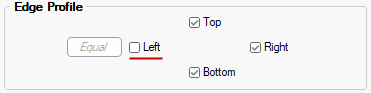
- an Edge Profile (red) on just three sides, set on the Size/Edging page;
- a Border Profile (green) with 20mm Internal Square corner;

and
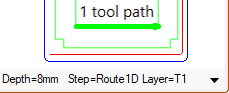
- the Basic Profile with 1 Tool.
If these options are greyed out, then the relevant tool on the Tools and Offsets page has not been selected as a part of the door definition.
Profile Shape and Veins
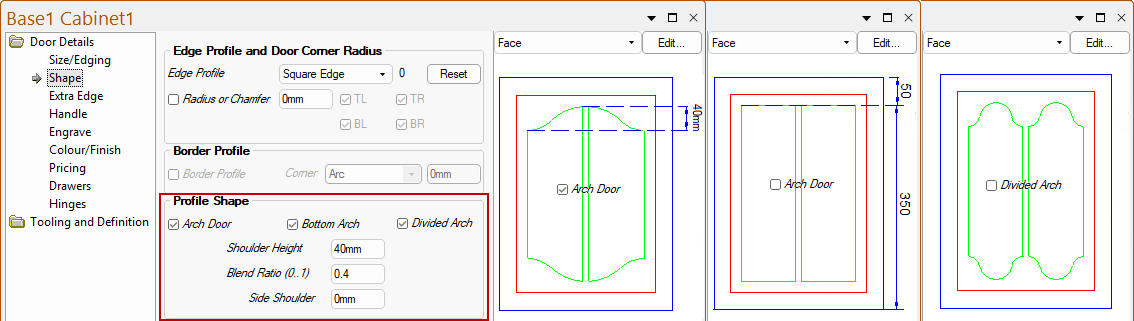
Arch Door
If the Use Arch Door checkbox is enabled/ticked, the basic profile is arched (or rounded).
If disabled/unticked, then the profile will be 'square', as shown below right, and all other Profile Shape options will be greyed out (unavailable).
If Arch Door checkbox is enabled, it can also have a Bottom Arch as shown below middle, i.e. top and bottom of the basic profile will be arched.
Click to view Size/Edging page where the Windows are set to 2 Across
If the Divided Arch checkbox is enabled/ticked, the same arch shape is divided across the available panes e.g. above has two panes.
If disabled/unticked, each pane has its own complete mini arch, as shown above far left.
This only has an effect if multiple windows/panes are selected on the Door Details > Sizing/Edging page - click image above to view.
Shoulder Height is the height of the arched section of the profile, see above left is 40mm.
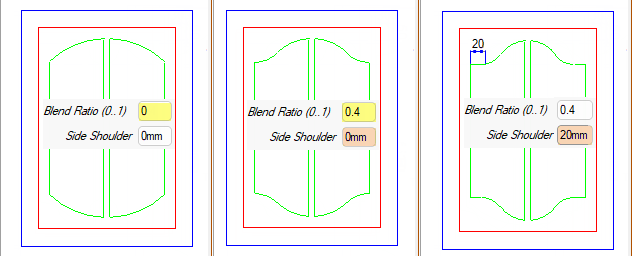
Blend Ratio is the curvature of the arch from 0 to 1. If set to 0, then a rounded shape is created.
The higher the number the closer the join between the two radii move to the centre of the arch.
Side Shoulder determines whether or not a horizontal shoulder is required at the outside of the arch, shown below left is 20mm.
Veins
If the Main Veins checkbox is enabled/ticked, veins are included. The Spacing is the gap between the veins, as shown below.
Clearance is the minimum distance between the edge of the Basic Profile and a vein. If a vein would normally come within this range it will not appear.
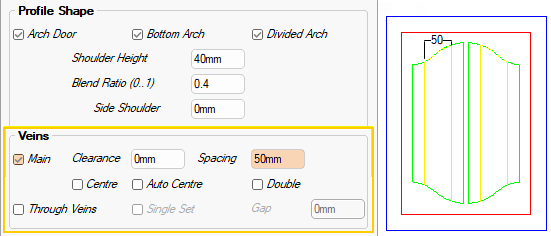
If these options are greyed out, then the Veins tooling has not been selected on the Tooling and Offsets page as part of the door definition.
The Veins Continuous is enabled, and the Veins tooling [V1] has been selected as a part of the door definition.
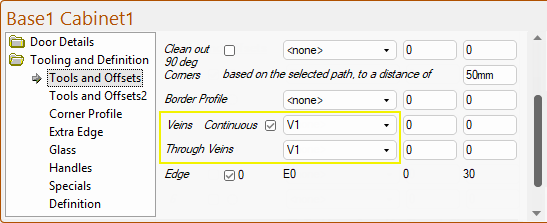
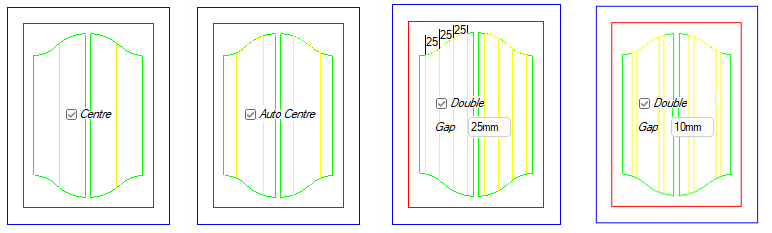
If the Centre checkbox is enabled/ticked, a vein at the horizontal centre of the profile, or a gap, between two veins will be created.
If the Auto Centre is enabled/ticked, the maximum number of possible veins that will be used based on the width, gaps, offsets and number of horizontal panes is calculated.
- If odd number is calculated, then it will automatically set the Centre option on.
The Double Veins options provides the ability to have double (main) veins instead of single ones.
- This places the veins the selected Gap apart centred on where a single vein would go.
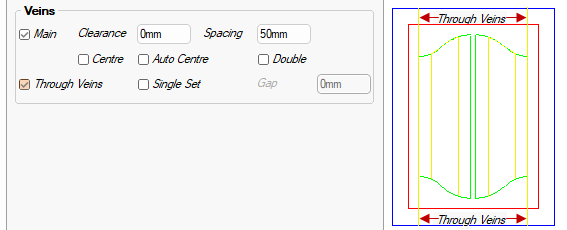
If the Through Veins checkbox is enabled/ticked, veins that run each side of the Basic Profile and run ‘through’ to the Top and Bottom of the door will be created.
The Single Set option provides the ability to add just a single set of Through Veins, on one side of the outer panes, when multiple panes across door.
Corner Style
The Corner Style allows you to select a Basic Profile which is a rectangle with shaped corners i.e. Arc, Scallop, Chamfer or Internal Corner.
- To activate the Corner Size must be greater than 0mm and at least one of the Corners checkboxes must be enabled/ticked to designate which corners to shape.
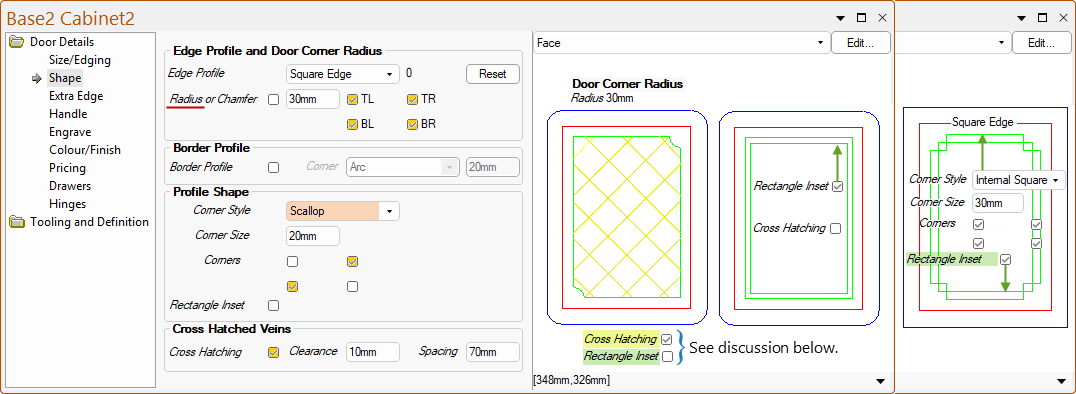
The Rectangle Inset uses a single plain rectangle as Tool Path #1 - this allows for the type of profile shown above far right.
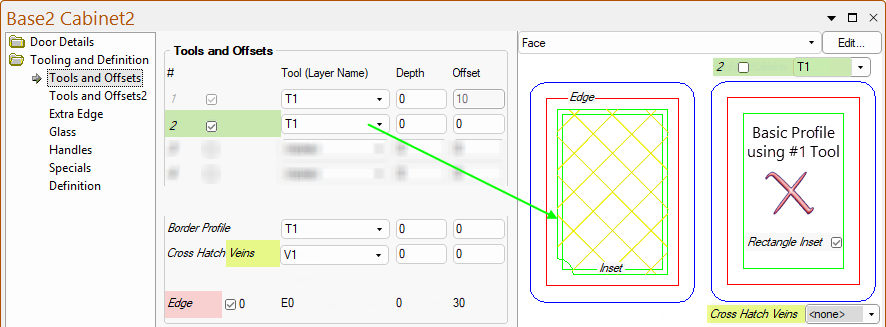
The relevant tools need to be selected on the Tools and Offsets page as a part of the door definition i.e. Veins [V1] and a 2nd tool for the Corner Style profile.
A second tool is enabled to provide the Corner Style profile which in this example is 'Scallop'.
The Cross Hatch Veins are enabled on the Shape page, and the Veins tooling [V1] has been selected as a part of the door definition.
Inset and Cross Hatch
If the Rectangle Inset checkbox is enabled/ticked, a single plain rectangle as Tool Path #1 is included.
- All the others pick up the shaped corner attributes - see above note on the Tools and Offsets page of the door.
If the Cross Hatching checkbox is enabled/ticked, cross hatched veining will be included (as shown above far left).
- The Spacing between the hatching and their minimum distance from the edge can be specified e.g. 70mm.
- If these options are greyed out, then the Vein tooling has not been selected as a part of the door definition - see above note on the Tools and Offsets page of the door.
Corner Style
The Corner Style allows you to select a Basic Profile which is a rectangle with shaped corners i.e. Arc, Scallop, Chamfer or Internal Corner.
- To activate, the Corner Size must be greater than 0mm and at least one of the Corners checkboxes must be enabled/ticked to designate which corners to shape.
- The Corner Size selected here is 100mm and an inset has been added in the image below, measuring from the top right corner to the end of the Bounding Rectangle (shown in a slightly darker green for illustrative purposes only).
If the Bounding Rectangle checkbox is enabled/ticked, it allows for the With Corner Style option i.e. the corners adopt the chosen Corner Style used by the inner routing.
- Compare these images with those below that have the Bounding Rectangle checkbox is disabled/unticked.
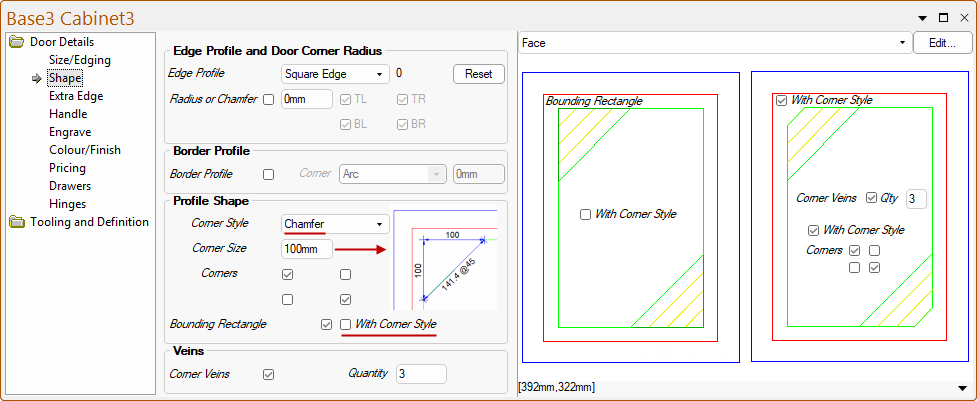
The Bounding Rectangle uses a single plain rectangle as Tool Path #1 - this allows for the type of profiles shown above.
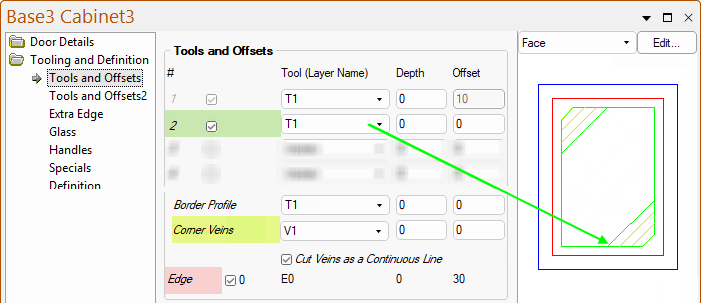
The relevant tools need to be selected on the Tools and Offsets page as a part of the door definition i.e. Veins [V1] and a 2nd tool for the Corner Style profile.
The Corner Veins are enabled on the Shape page, and the Veins tooling [V1] has been selected as a part of the door definition.
- Note the additional option to enable you to Cut Veins as a Continuous Line
A second tool is enabled to provide the Corner Style profile which in this example is 'Chamfer'.
Bounding Rectangle and Veins
If the Bounding Rectangle checkbox is disabled/unticked, it greys out the With Corner Style option i.e. only the inner routing adopt the chosen Corner Style.
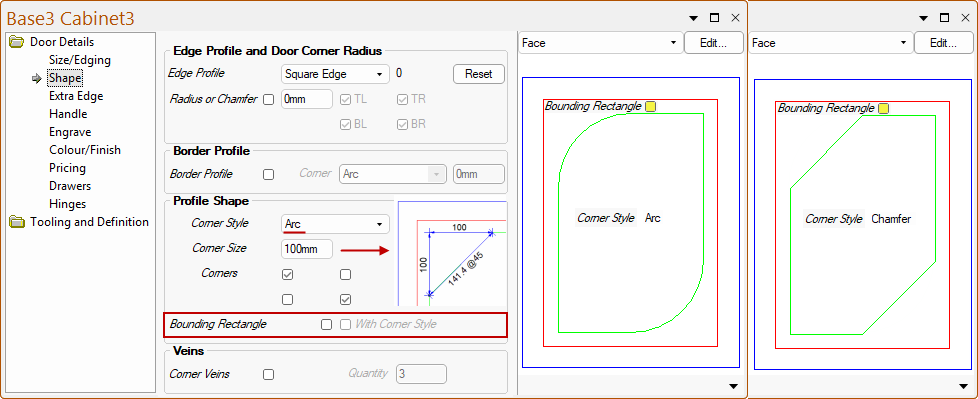
If the Corner Veins checkbox is enabled/ticked, to add veins diagonally across the corners and how many. If these options are greyed out, then the Veins tooling has not been selected as a part of the door definition - see above tip.
Shape Profile
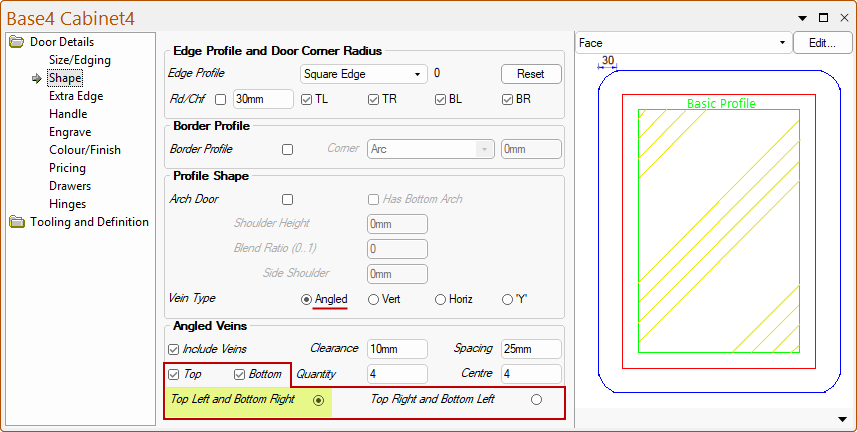
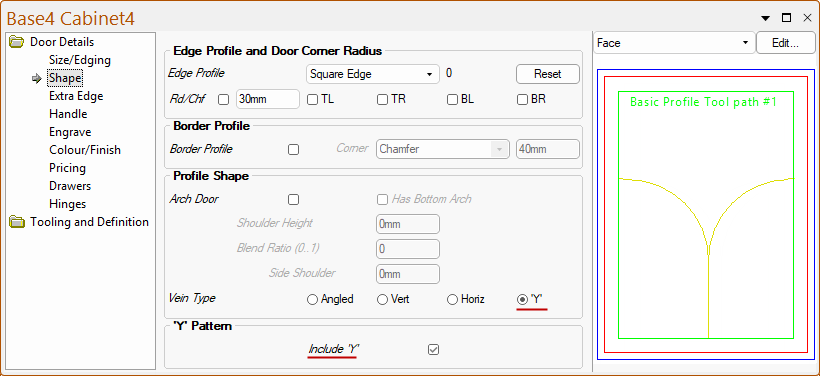
Base4 doors can have a Square, Arched profile or no profile (if all the Basic Profile tools are turned off on the Tools and Offsets page) and include various veining options.
Vein Options
The Include Veins option determines whether or not any veins are required, along with their spacing and clearance from the edge of the profile.
If the Include Veins checkbox is enabled/ticked, then you can select one of the four Vein Types i.e...
- Angled Veins - as per example shown above;
- Vertical Veins;
- Horizontal Veins;
- or a 'Y' shape Vein.
Depending on the option selected here, there are different veining properties to complete.
Angled Veins
Veins are Angled across two diagonally opposite corners of the profile, along with an optional Centre set.
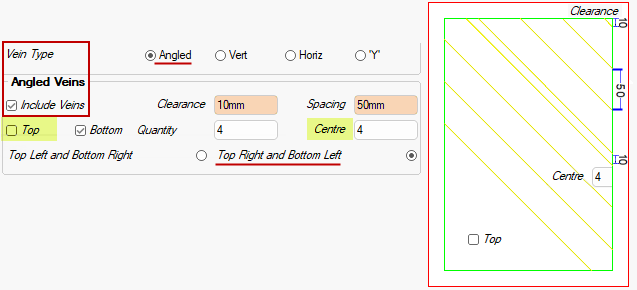
Top and Bottom checkboxes allow for selection of veins on either corner or both top and bottom corners.
Top Left and Bottom Right / Top Right and Bottom Left positioning of the corner veins.
- In the example above, only Bottom corner veins, with Top Right and Bottom Left positioning, are shown
Clearance is the minimum distance between the edge of the Basic Profile and a vein. If a vein would normally come within this range it will not appear.
The Spacing is the gap between the veins e.g. above, 50mm.
The Quantity is the number of veins across corners of door.
The Centre is the number of veins across the centre of door.
Vertical Veins
If Include Veins is enabled/ticked, a parallel set of vertical veins and their spacing are positioned each side of the door.
These veins are offset from the Border, which may need to be adjusted to achieve the desired result.
It may also be desirable to turn off all tooling of the Basic profile.

The Clearance is an additional offset from the Border and does not effect the quantity of veins.
The Quantity is the number of veins in each of the two parallel sets.
The Left and Right checkboxes determines on what side/s the veins appear.
This example has a Border of 30mm on each side and 0mm top and bottom, with no Basic profile [T1] shape being tooled.
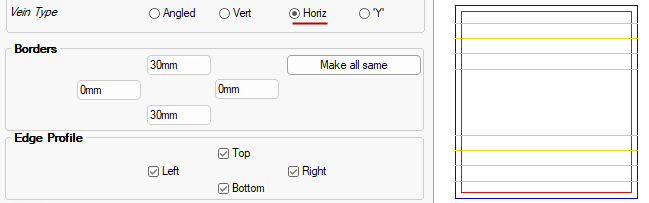
Horizontal Veins
Similar to the Vertical Veins except these are Horizontal on the top and bottom of the door.
'Y' Veins
A single ‘Y’ pattern inside the Basic Profile. The only option available is to turn the ‘Y’ on and off.
Base5 Door
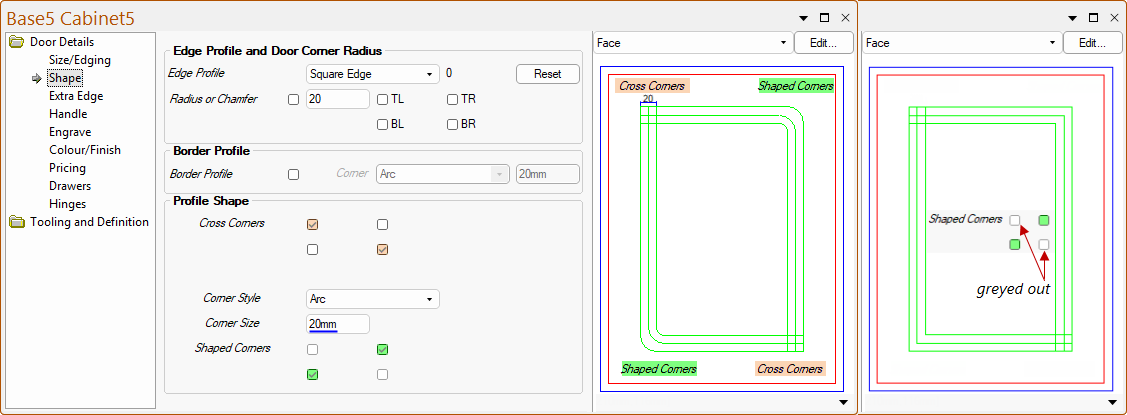
Base5 doors have a square profile with the ability to change the Corner shapes but selected corners can have a Crossover of the square profile, extending each through to the outside profile.
Profile Shape
The Cross Corners checkboxes control the Left/Right of the Top/Bottom corners in which the ‘Crossover’ effect is required.
The options for Corner Style, Corner Size and Shaped Corners (if required) affect the corners without the ‘Crossover’.
- Note that the available Shaped Corners options correspond to the unselected Cross Corners checkboxes - see image below far right.
Base6 Door
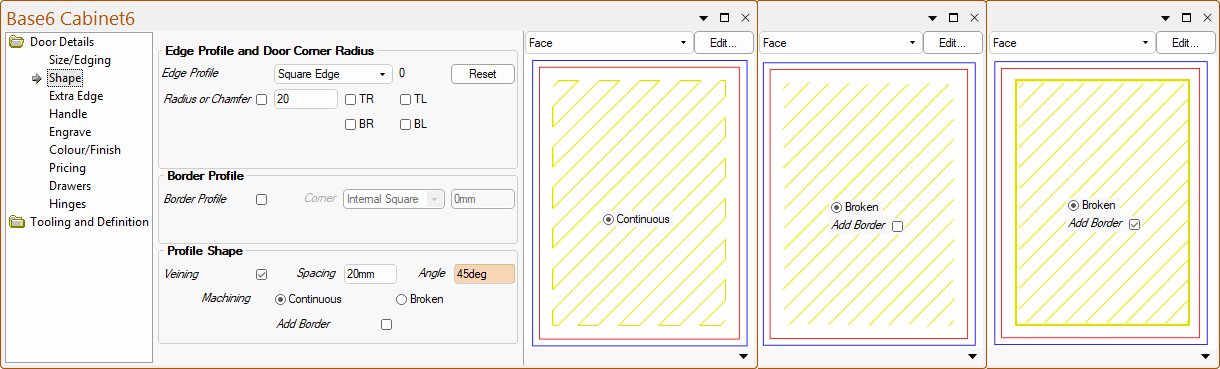
Base6 doors allow a corrugated effect with no other profile (except the ability to add the Edge and Border profiles).
Profile Shape
If the Veining checkbox is enabled/ticked, corrugations are present at the stated Spacing between corrugation centres.
The Angle of corrugations (90deg=vertical, 0deg=horizontal) - the example above shows 45deg.
Machining can be either Continuous (a zig zag effect) or Broken (individual lines), as per above images.
If the Add Border checkbox is enabled/ticked, a border is applied around the edge of the corrugated area (machined with the same tool).