DoorMaster User Guide
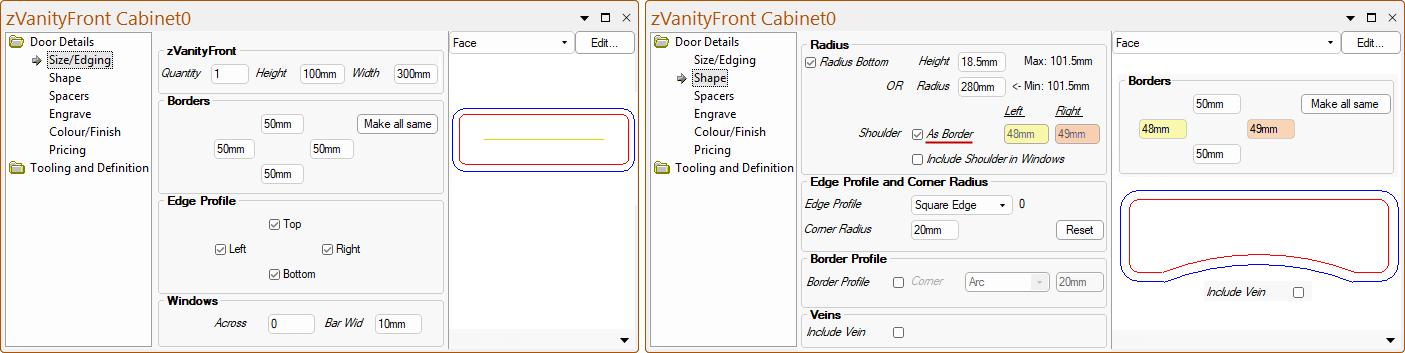
The Door Details > Size/Edging page at door level allows you to adjust the most common door properties such as quantity, height and width.
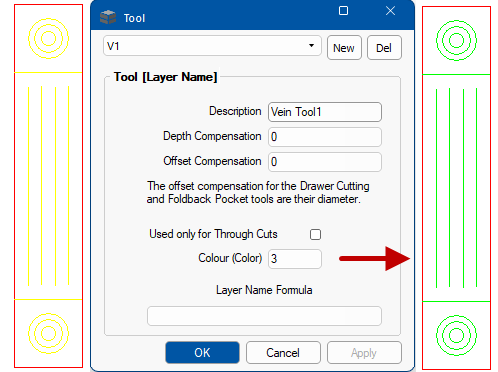
For these discussions, the DXF Colour for Vein Tool1 [V1] has been changed to green for clearer images.
The colour for the V1 tool has been changed from yellow (2) to green (3) for clearer images, on the My Setup > Tables page in the Catalog/Drawing Properties. See also the topic on DXF Layer Colours.
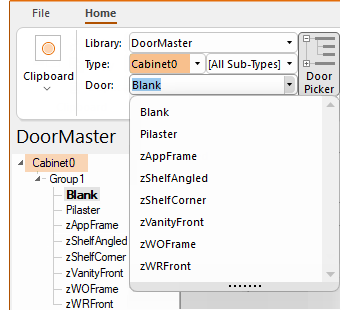
This discussion only covers the options for Type Cabinet0 Doors, as per the door selection list shown above right.
For Base Doors, see the topic on Size/Edging page : Base Doors.
On the Door Details > Size/Edging page, the Height and Width edit boxes allow these dimensions to be amended.
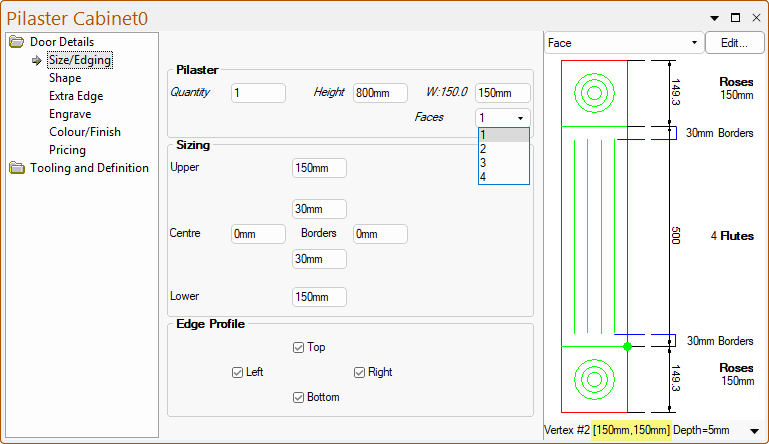
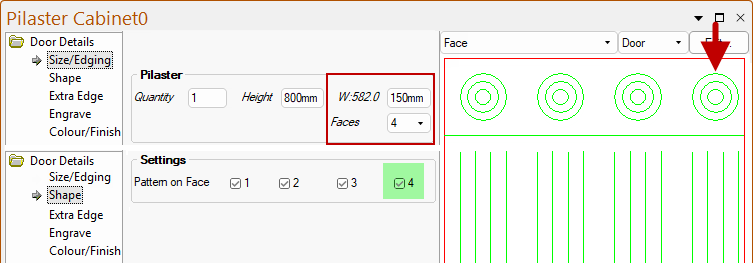
The pilaster can have up to four faces using the drop list as shown.
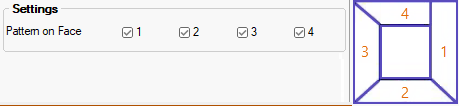
The number of Faces option works in conjunction with the options on the Door Details > Shape page.
For example, if 4 Faces are selected from the drop list, shown below, then the Pattern on Face must have the 4th checkbox enabled.
The W:582.0 is the total width to be cut, whereas the 150mm is the width of each face.
The 4th face is cut the thickness of the material, shorter to allow a flush finish.
The zAppFrame allows you to specify that the edge profile, along an edge, continues to the end of the frame, if the adjoining edge does not have a profile. The example, below left, shows the option when the edge profile is not placed on the bottom of the frame.
The zWOFrame provides the ability to select 1 or more opening frames.
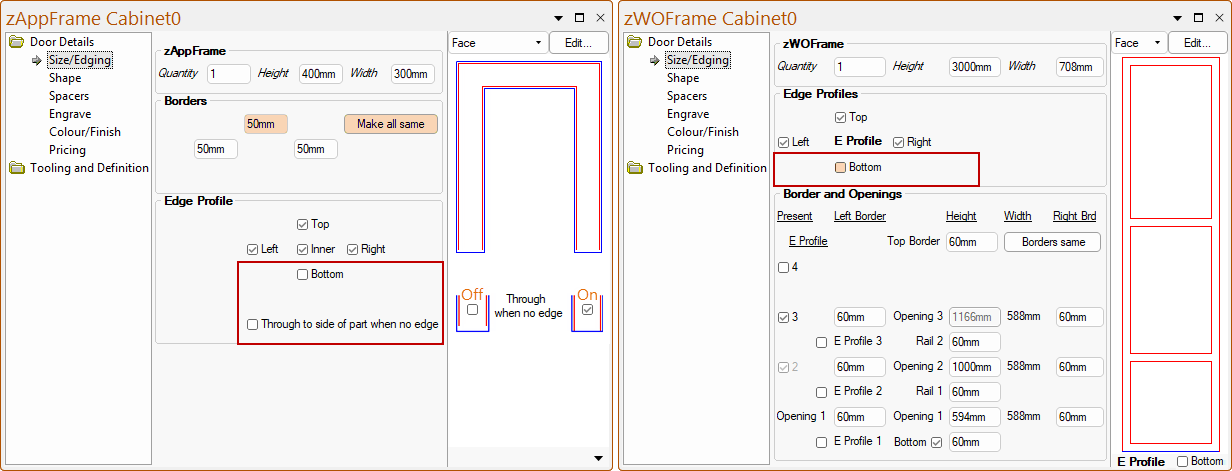
zAppFrame
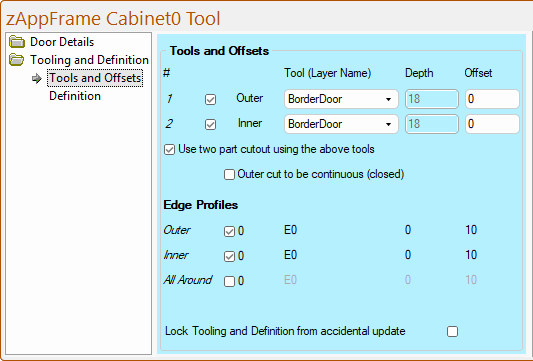
The border cutout can either be accomplished as one toolpath (all the way around the border) or two toolpaths (one of the inside and one for the outside). The two toolpath solution is useful in cases where the part may move when being machined.
The ‘Use two part cutout…’ checkbox can be enabled/ticked, as shown, which allows you to select the Tool(Layer Names), Depths and Offsets accordingly.
- if the option is disabled/unticked, then default ‘Border Cutout’ layer will be used.
A different Edge Profile can be used for the Inner edge of the opening, which can be independently turned on and off.
When the All Around edge profile option is selected this automatically turns off the individual Inner and Outer profiles.
- Note that this selection uses the 'Outside' profile tool selection for the entire piece.
The following images show how these relate to the Door Details > Shape page and the Door Details > Size/Edging page.
The Corner Radius selections are available including Top and Bottom Internal Corners. e.g both the Top Ext. and Top Int. corners set at a Radius of 20mm when the corresponding option checkbox is ticked.
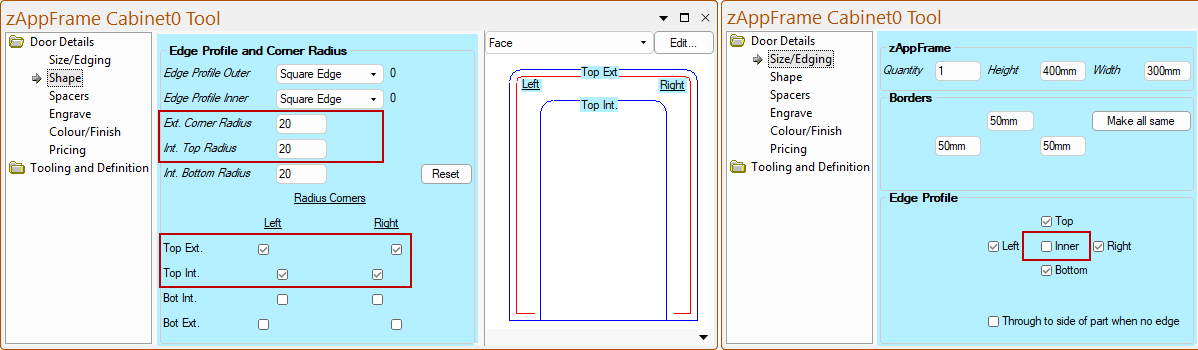
zWOFrame
The border cutout is accomplished using the default ‘Border Cutout’ layer. The tooling details are for the cutouts (one for each).
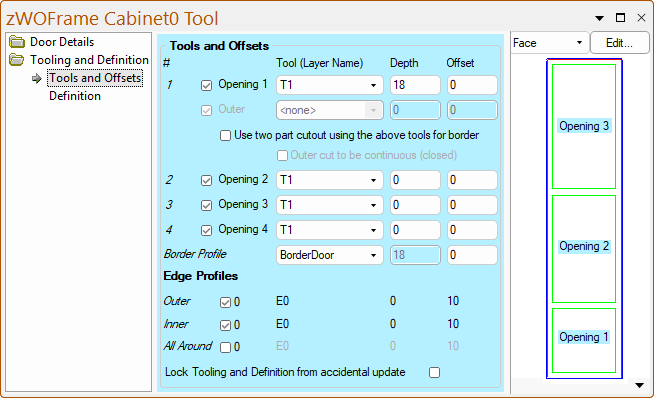
A different edge profile can be used for the inner edge of the openings, which can be independently turned on and off from the outer profile and for each of the openings.
An All Around edge profile in Tooling and Definition (above). When this option is selected this automatically turns off the individual Inner and Outer profiles.
- Note that this selection uses the 'Outside' profile tool selection for the entire piece.
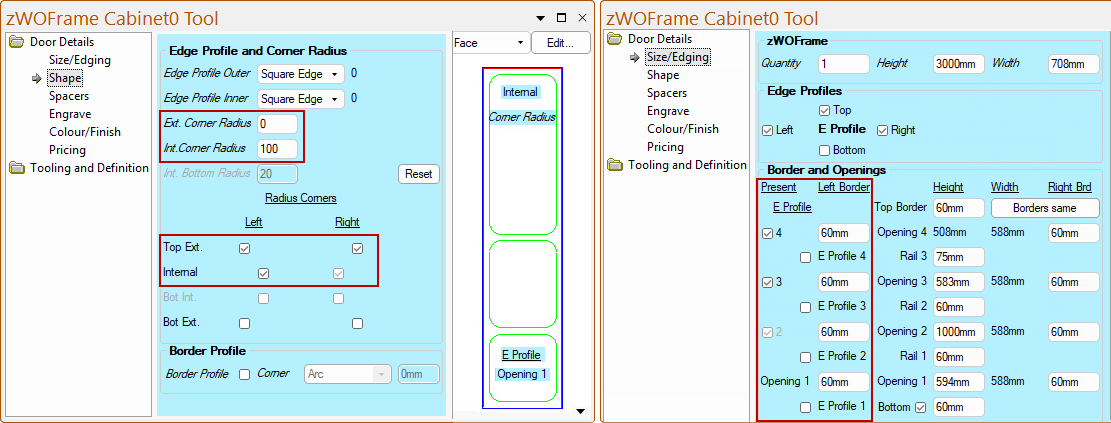
The following images show how these relate to the Door Details > Shape page and the Door Details > Size/Edging page.
The Radius Corner selections are available including Top and Bottom Internal Corners e.g. a Int. Corner Radius of 100mm which is applied when the Internal checkbox is enabled/ticked.
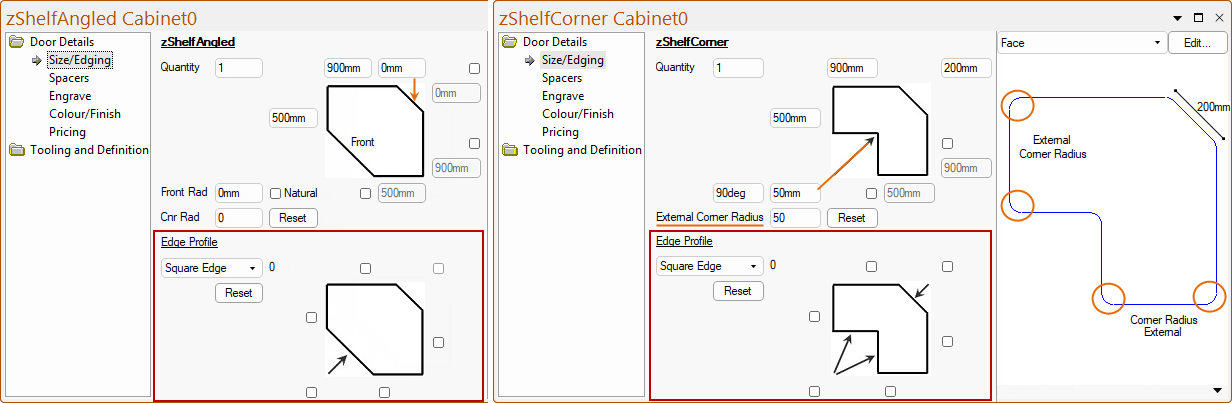
This angled shelf has the ability to adjust the length of all the edges and radius the front and corners.
An edge profile can be applied to any of the shelf sides.
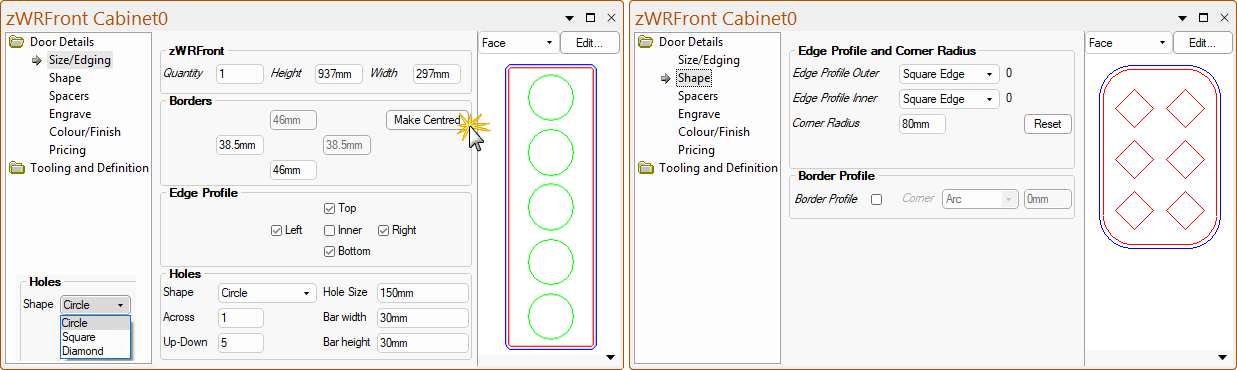
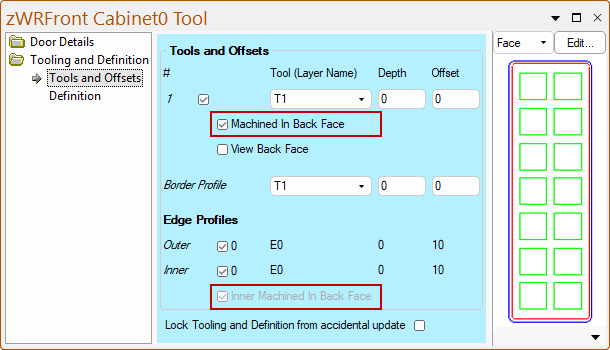
The Tooling Definition > Tools and Offsets page has the ability to have cutouts output into a separate DXF (Back Face) to allow cutting after the item is finished (e.g. vinyl wrapped).
For ease of use the holes still display in the Front face (where the layer name is appended with “- Opp”), even when they are cut in the Back face.