DoorMaster User Guide
The Door Details > Drawers page at door level allows you to select whether the door is to be made as a single Drawer Bank (i.e. the door is profiled then cut into drawer fronts) or whether it is to be made as Individual Drws i.e. a series of individually profiled drawer fronts.
Radio buttons allow you to select whether the door is to be made as...
If the Type selected is Door, then all options on this page will be made unavailable (i.e. greyed out). Refer also Door Details > Size/Edging page.
In this topic, the Base1 cabinet has been used for most examples but note that the options available are dependent on door/cabinet used and the Drawer Type selected.
This option is only made available when a door is to be constructed as a Drawer Bank.
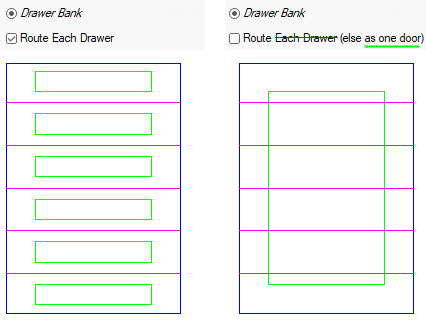
The Route Each Drawer option allows you to construct the Drawer Bank as individual drawers (i.e. cut and nested separately) or a single nested part that is then cut up into individual drawers.
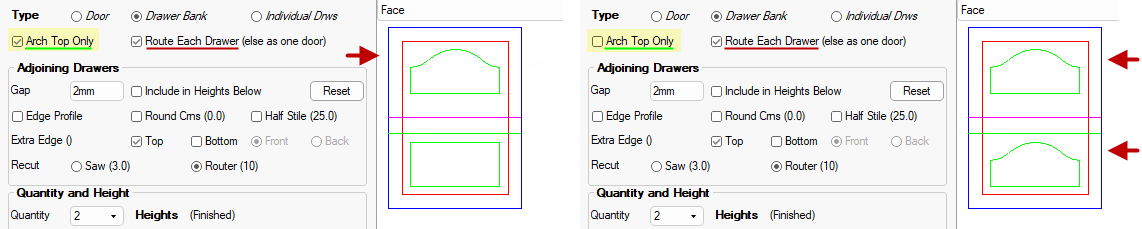
Drawer Bank : The Arch Top Only checkbox provides the ability to have the arch profile on the Top drawer of separate drawers.
- The Arch Top Only is only made available when the Route Each Drawer (else as one door) is enabled/ticked.
- The Arch Top Only is only available on Base1, Base2 and Base4 cabinets.
Individual Drawers : The Arch Top Only checkbox provides the ability to have the arch profile on the Top drawer of separate drawers.
- The Arch Top Only is only available on Base1 and Base4 cabinets.
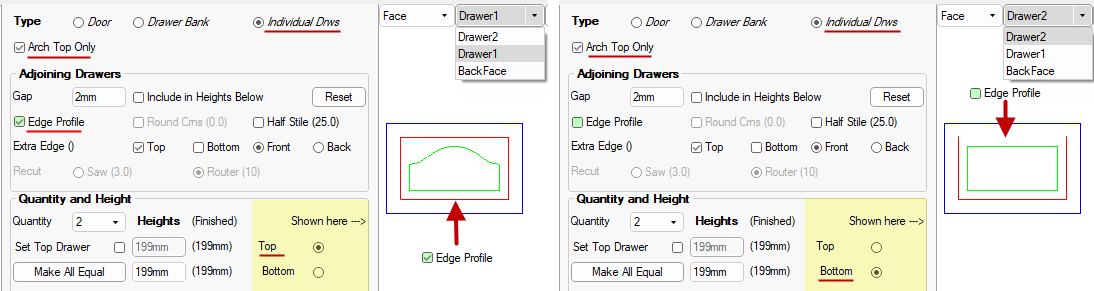 The example above also shows how the Edge Profile feature (discussed below) is represented in the Preview Pane when turned On and Off.
This is the gap between the drawer fronts on the finished 'door' which can be Included in Heights.
The example below left, shows the 2mm added to the Height of all but the Top drawer (which has the Set Top Drawer checkbox enabled).
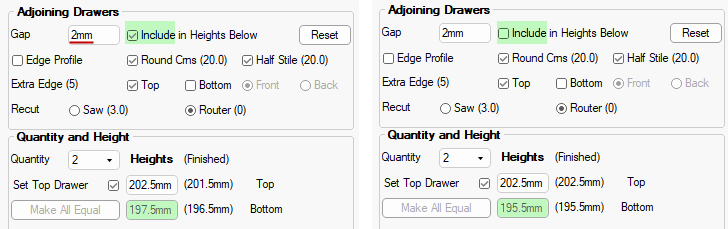
Include ticked : The Overall Height (400mm) minus the Top Drawer (202.5mm) = 197.5mm
Include unticked : The Overall Height (400mm) minus the Top Drawer (202.5mm) minus Gap (2mm) = 195.5mm
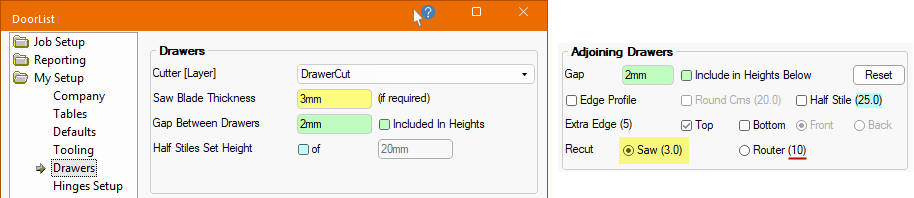
The Gap Between Drawers default can be set on the My Setup > Drawers page.
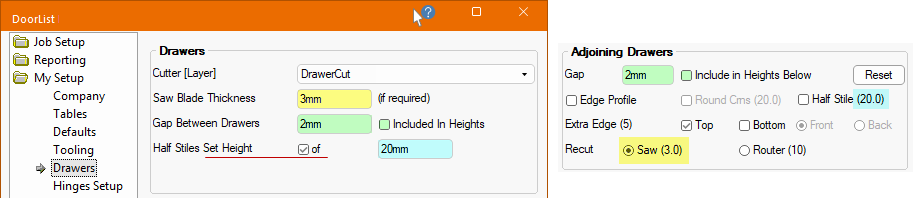
The Gap default is set on the My Setup > Drawers page e.g. 2mm (highlighted in green). Include in Heights can also be set.
Gaps between drawers are essential for clearance, allowing them to open and close smoothly without jamming due to wood expansion, overfilling or because the cabinet is out of square, while also providing space for drawer slides, finger grips, and dust control.
These gaps (often 2 to 5mm) for drawer fronts but larger for the internal box space, ensure functionality and prevent items from getting caught, creating a necessary buffer for movement and airflow in cabinetry.
When making a Drawer Bank, use the Edge Profile checkbox to select whether to place the edge profile on the edges that face each other or not.
The Job Setup > Job Details page of the Drawing Properties allows you to set the default Edge Profile.
In this example, the default Edge Profile is set to 'Square Edge' on the Job Setup > Job Details page.

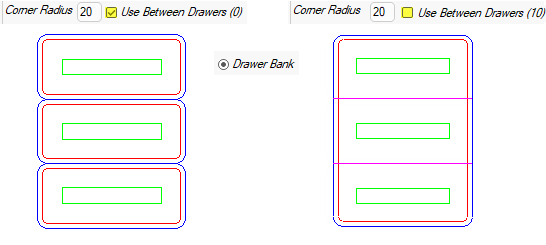
When making a Drawer Bank, use the Round Crns checkbox to select whether to round drawer corners or not.
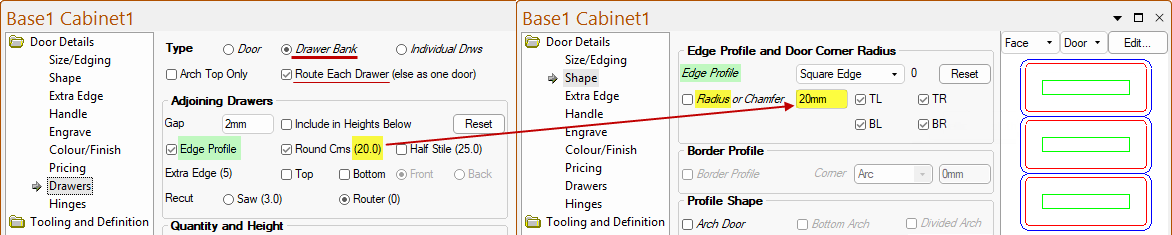
When the Rounded Crns option is unticked, the drawers are cut using a single tool path between each using the drawer Cutter [Layer] BUT when there are rounded corners, the cutting becomes a part of the border of each drawer and uses the Border Cutout [Layer].
The Job Setup > Job Details page of the Drawing Properties allows you to set the default Corner Radius.
In this example, the default Corner Radius is set to 20mm on the Job Setup > Job Details page as the 'Corner Radius' default.
If the Use Between Drawers is unticked, then the diameter of the tool is displayed in the brackets - see discussion on Recut below.
The Type for these examples is set to Drawer Bank.
See My Setup > Tooling page on 'Extra Squared Border' which is designed to be used as a first cut to help eliminate the small segments of board between the doors, which can pop out and interfere with the tools while cutting. This follows the exact same path as the Door Border but doesn't include the rounded corners.
When making Individual Drawers, select whether to use half the profile border on the edges that face another drawer.
If the Half Stile checkbox is ticked/enabled, then the specified height on the My Setup > Drawers page will be used - see note.
Else when the Half Stile checkbox is unticked, then it will use half the frame width specified on the Door Details > Size/Edging page, i.e...
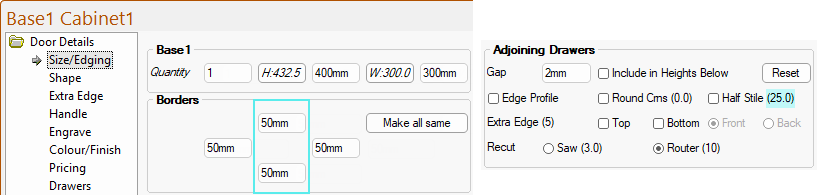
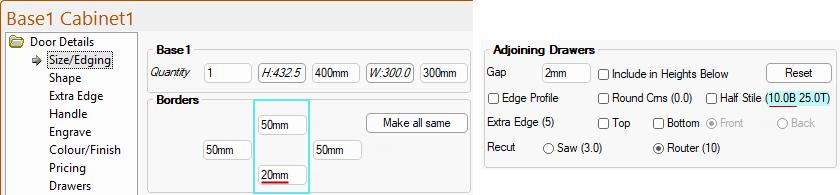
- If the Top/Bottom Border dimensions are the same, then the size displayed in the brackets will be half the Border e.g. 50/2 = (25.0)
- If the Top and Bottom border dimensions are different, then both are displayed...
A half stiles drawer refers to a design aesthetic used in a bank of stacked drawers where the horizontal pieces (rails) between the drawers appear half the width of the vertical pieces (stiles) at the sides and the top/bottom edges.
The Half Stiles Height default can be controlled on the My Setup > Drawers page and is displayed on the Door Details > Drawers page in brackets (highlighted in blue, below right).
Individual Drawers : An extra edge can be applied to the Top and/or Bottom on the Front/Back.
Drawer Bank : A Diameter (stated in brackets) is required for an 'Extra Edge' on Drawerbanks when used on one side of adjoining drawers. If a Drawer Bank is being made and the Extra Edging is only required on just one of the adjoining edges (e.g. just the Top edge), then it is important that the system knows the diameter of the tool, so that the part can be made large enough and split up accordingly. In the example below, the diameter of the Extra Edge tool is 10mm (highlighted in yellow) and is allocated when setting up the Edge Profile tool - see also My Setup> Tables page. There is also separate control of whether the edge is placed on the adjoining edges of drawers.

The Door Details > Extra Edge page options are separate to the options shown above.
As shown in this example, the Door Details > Drawers page : Extra Edge options used on one side of adjoining drawers are different.
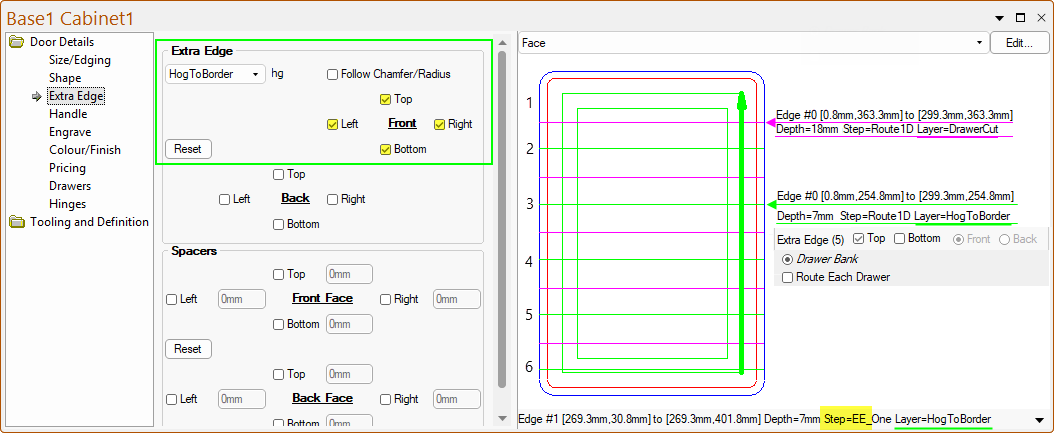
The default Extra Edge can be set and the Include checkbox can be enabled on the Job Setup > Job Details page.
On the Job Setup > Job Details page of the Drawing Properties, the default Extra Edge can be set and the Include checkbox enabled.
These defaults can be overridden at door level.
Extra Edge can be used for features such as recessed handles or V Grooves on door tops for ALL doors.
It allows you to run an extra edging toolpath along (or offset from) chosen edges of the door and this feature can be used for recessed handles.
The Extra Edge can also be applied to the Door Top (Front Face) and Drawer Tops, as required for the job.
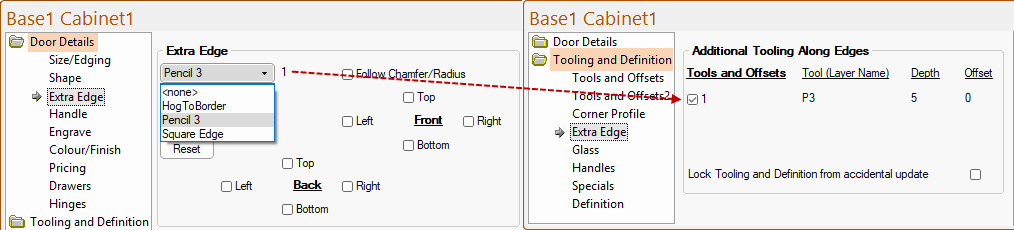
The Tooling and Definition > Extra Edge page is used to switch the feature on/off for each door.
If the Extra Edge checkbox is unticked/turned OFF on the Tooling and Definition > Extra Edge page, then the options on the Door Details > Drawers page will be greyed out.
Whether a Drawer Bank is split into its component parts using the Saw or Router. (Not applicable to Individual Drawers).
The Saw Blade Thickness/width is set on the My Setup > Drawers page and is displayed in brackets (highlighted in yellow below right).
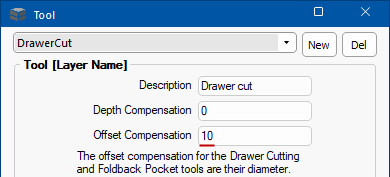
The Router tool diameter is also displayed in brackets e.g. Router(10) is equal to the Offset Compensation of the DrawerCut tool selected in the Drawing Properties shown above left.
The Quantity drop list allows you to select the number of drawers (qty 1 to 6).
Set Drawer Top, when enabled (example 1 below), allows the top drawer front height to be set and then automatically calculates all the others to use the remaining height equally.
Make All Equal button will make all drawer fronts in the bank of equal height taking into account the drawer gaps.
Example 1 : 2 Drawers = 202.5 + 195.5 = 398mm + 2mm Gap = 400mm Overall Height
Example 2 : 3 Drawers = 132 x 3 = 396mm + 2mm + 2mm Gaps = 400mm Overall Height
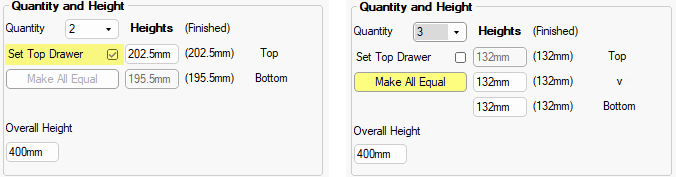
The Overall Height is the actual height of the door/drawers and is the same as the Height dimension as displayed on the Size/Edging page.