DoorMaster User Guide
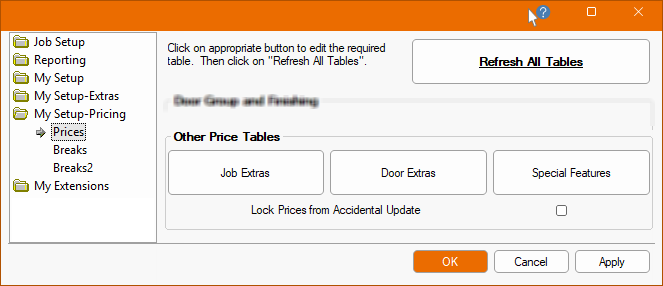
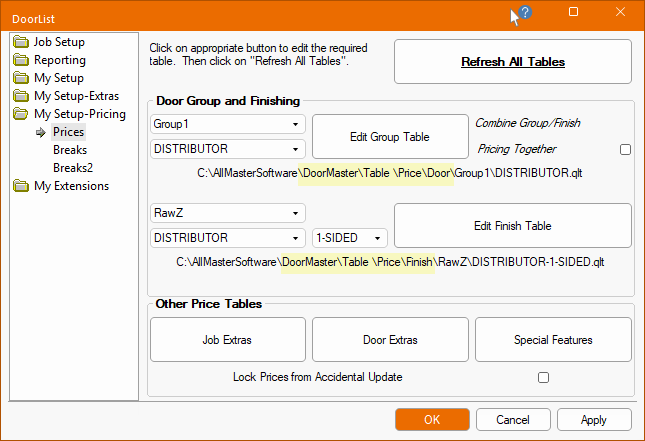
The My Setup-Pricing > Prices page is used to locate the correct tables for pricing.
This topic will specifically discuss how the price for an individual door is calculated.
There are several elements that can come together to price a job i.e...
See the discussion on the Job Setup > Pricing page on the per job elements i.e. Job Extras, Discount and Tax.
The Pricing Schedule is set for each job and is dependent on the Client (customer), which in this example is Group1/DISTRIBUTOR - compare with Clients table.
Individual doors also have a Price Group allocation - click here for details
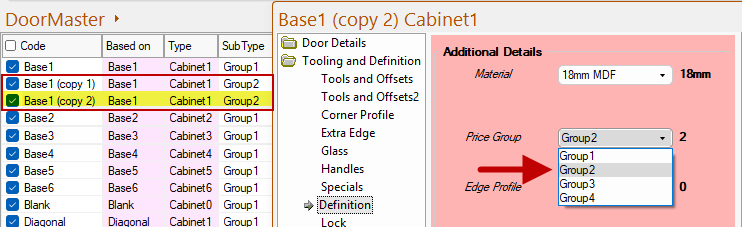
If you are using Group pricing, then you must ensure that the Price Group on the Tooling and Definition > Definition page for each door is set correctly, as shown, in the Catalog. The default is Group1 - See topic on creating a Custom Range of Doors in the Library Catalog Manager.
Additional Details can, of course, be overridden in the Drawing Properties or at Door level.
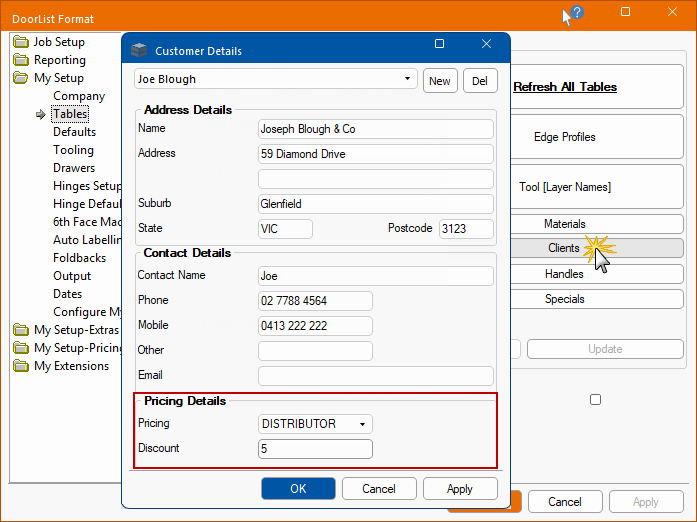
On the My Setup > Tables page, each customer in the Clients table has a Pricing Schedule associated with them e.g. DISTRIBUTOR and optional discount.
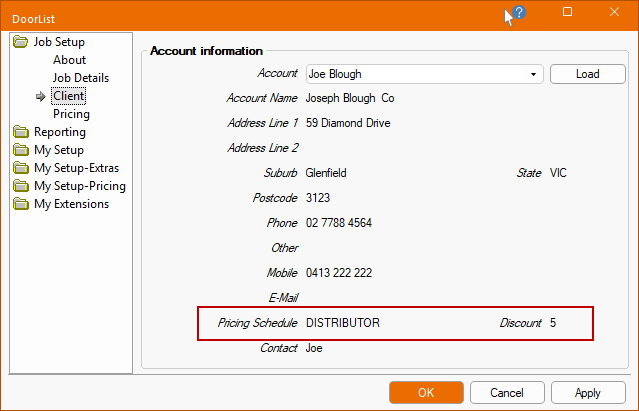
Example of the Job Setup > Client page with allocated customer pricing details
The Pricing Schedule for the client, Joe Blough, is displayed on the Job Setup > Client page.
It relates to the setting in the Client table accessed on the My Setup > Tables page, as shown above.
Each job can also have a fixed dollar amount applied (see Job Setup > Pricing page). If used in conjunction with the customer/client discount percentage then the customer percentage is calculated before the fixed amount allocated to the job is deducted.

After updating/editing any table, it is recommended that you click on the Refresh All Tables button after you close/save the table.
If the Apply button is available, then you should also click this to ensure that your changes are applied to the current job.
In the following discussion, we will see how tables are used when the Combine Group/Finish Pricing option is turned On or Off and where the relevant tables are located.
If the Combine Group/Finish Pricing Together option is disabled/turned off, the base Door Price is dependent on the Pricing Schedule Group1\DISTRIBUTOR table from which a price looked up is made using the Height x Width of the door.

If the Combine Group/Finish Pricing Together option is disabled/turned off, the Finishing price is dependent on the...
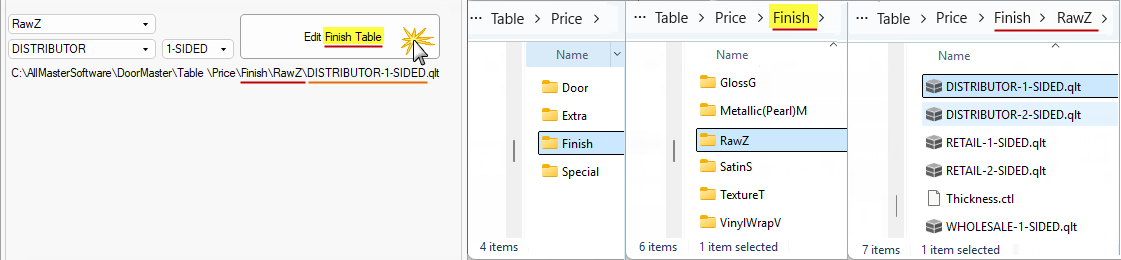
The best way to do pricing is to use the built in table editing, if possible, using the Breaks pages because where you locate the correct tables may be a bit confusing when trying to find them, as there are several that look much the same. Follow this link for an example of Combined Price turned Off.
See also the Price Group - Graphical Explanation below.
If you are using Group pricing, then you must ensure that the Price Group on the Tooling and Definition > Definition page for each door is set correctly in the Library Catalog Manager, as shown. This can, of course, be overridden in the Drawing Properties or at Door level.
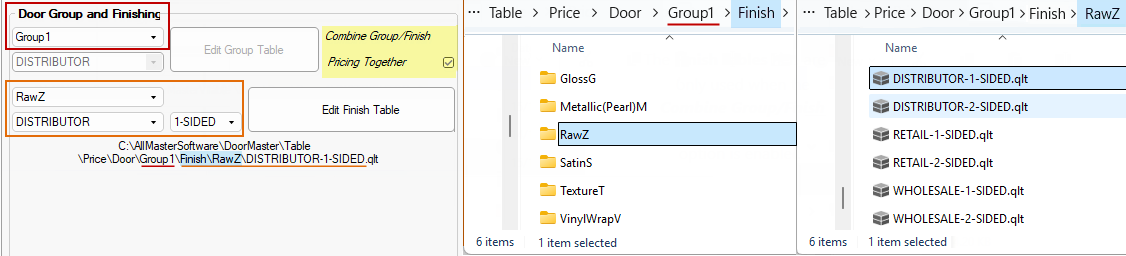
If the Combine Group/Finish Pricing Together option is enabled/turned on, the Finish price is dependent on the...
Based on the Finish, Pricing Schedule (e.g DISTRIBUTOR) and number of sides (e.g. 1-SIDED), a table is referred to and from this a price looked up using the Height x Width.
The best way to do pricing is to use the built in table editing, if possible, using the Breaks pages because where you locate the correct tables may be a bit confusing when trying to find them, as there are several that look much the same. Follow this link for an example of Combined Pricing turned On.
See also the Price Group - Graphical Explanation below.

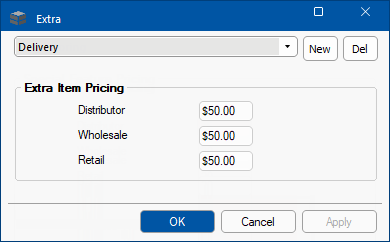
Job Extras are calculated per job based on the Pricing Schedule dependent on the Customer/Client e.g. Distributor/Retail - see Job Setup > Pricing page.
These would include items such as Delivery Charges and any other extra charges for the job as a whole.

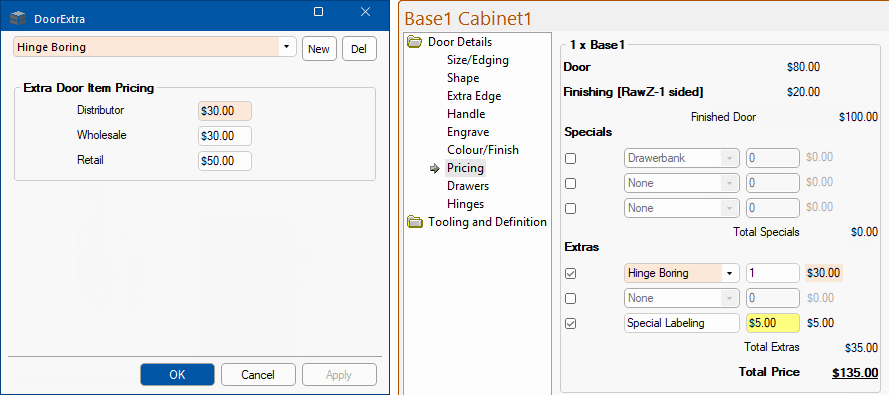
Other extras are items of a fixed price which can either come from the lookup table (e.g. Hinge Boring) or be manually entered on the Door Details > Pricing page e.g. Special Labeling.
The first two (2) door details selection can be made using a $$drop list$ which accesses the ‘DoorExtra’ lookup table (image below left) to define their Description (e.g. Hinge Boring) and Price (based on the Pricing Schedule). The price in the table is multiplied by the quantity specified.
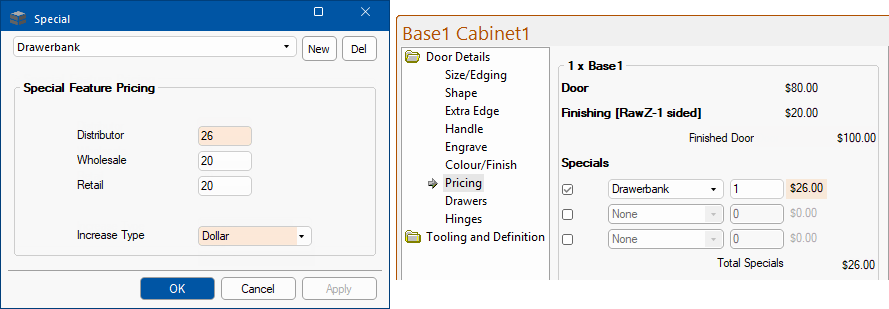
Special Features are additional requirements that affect the price, either by a Fixed Dollar amount or an additional Percentage. An example maybe a price allocated to making a set of drawer fronts as a ‘Drawerbank’. The price in the table (or that calculated as a percentage) is multiplied by the Quantity specified at $$door level:door$$.
These are all selected using the Special Features button, which accesses the lookup table to define their description and price (based on the Pricing Schedule). In this example the DISTRIBUTOR Special Feature pricing for a Drawerbank is set to 25% of the Finished Door pricing i.e. $100 x 25% x Quantity = $25.00 x 1
In this example the DISTRIBUTOR Special Feature pricing for a Drawerbank is set to Fixed Dollar amount of $26 x 1 (Quantity).
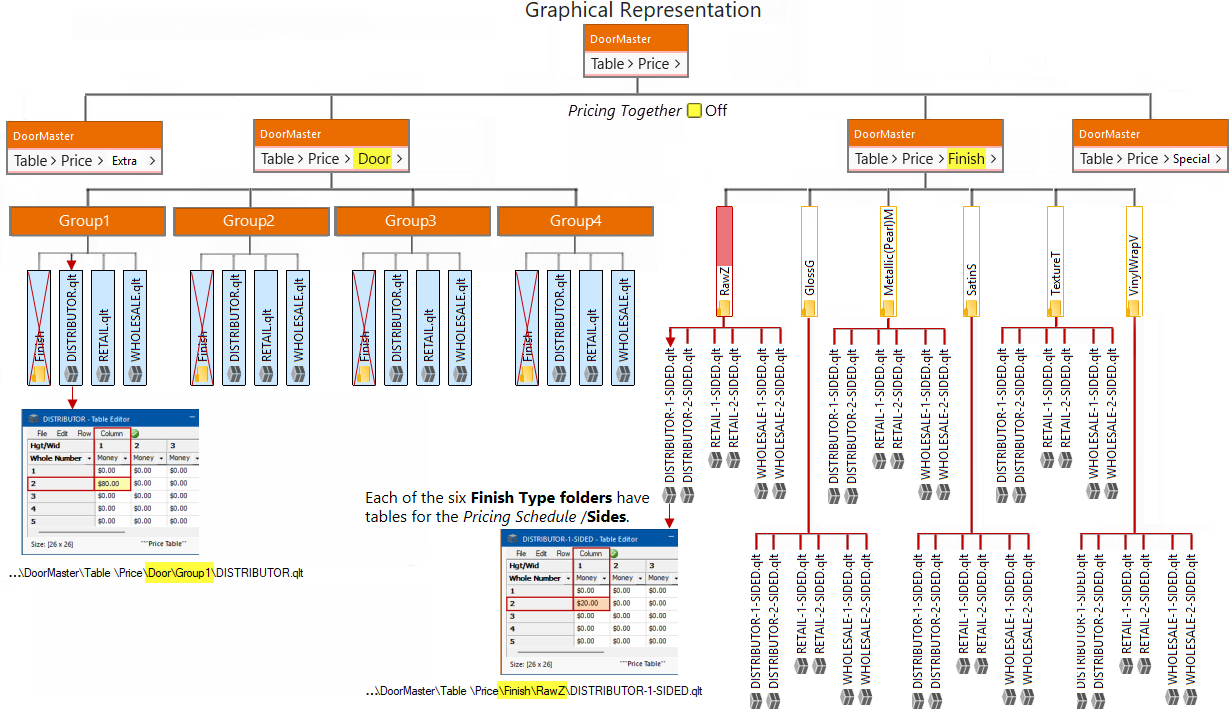
The following shows the four Group pricing tables located in the selected <DoorMaster library>\Table\Price\Door folder.
Each Door Group has a Finish folder that is only used if the Pricing Together is ticked/enabled.
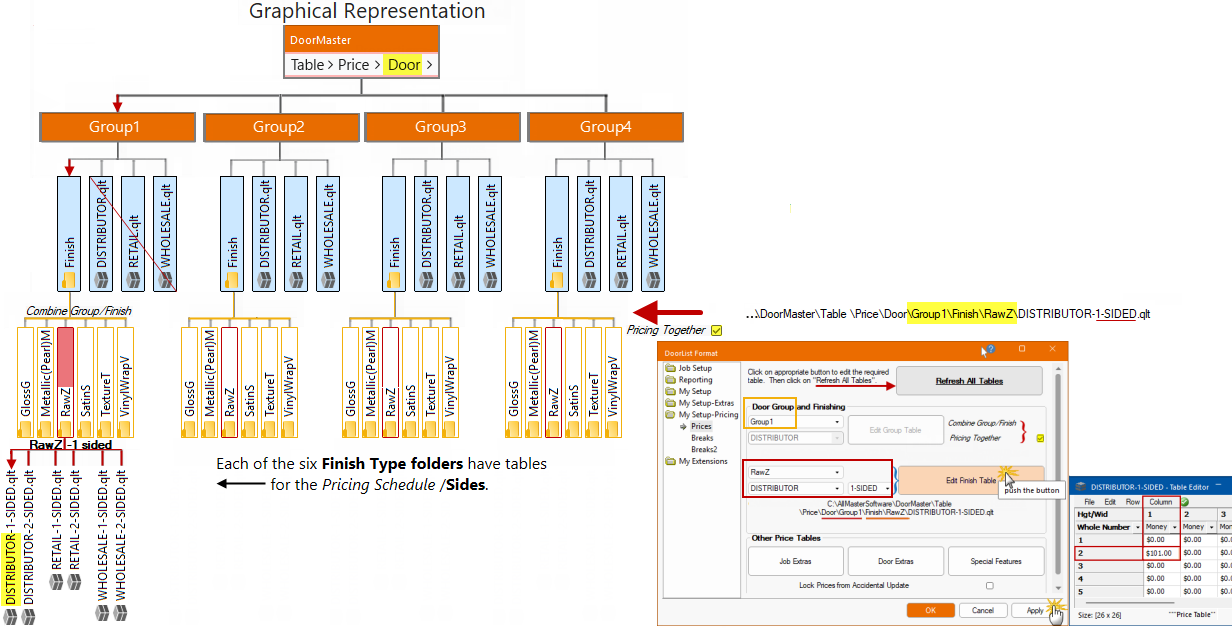
The following shows the four Group pricing tables located in the selected <DoorMaster library>\Table\Price\Door folder.
Each of the six Finish Type folders have tables for the Pricing Schedule /Sides.
If the Pricing Together is unticked/disabled, then two separate tables are used and the final price, in this example, would be $80 plus $20 = $100.00