
DoorMaster User Guide
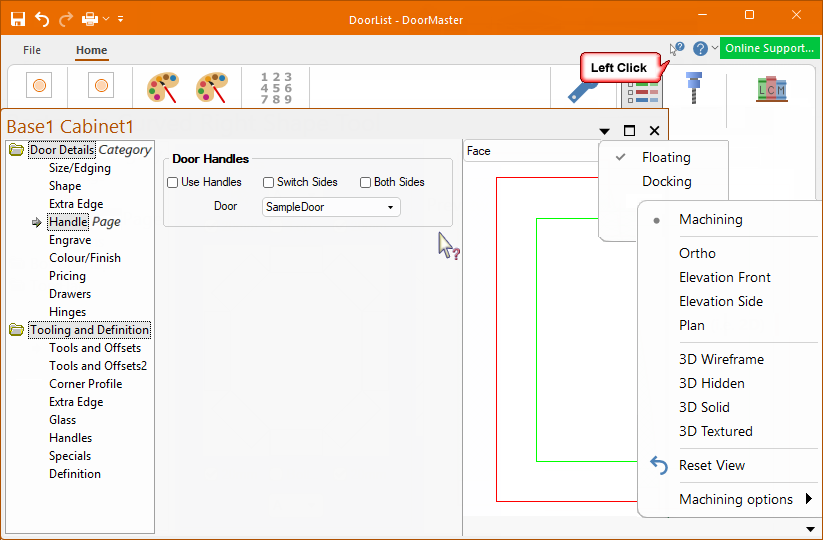
The Door Property inspector provides the ability to override Drawing Properties and customise individual doors. It can be set to AutoHide, Docking or Floating.
See graphical representation of how properties work in relation to door properties.
You can open the property sheets by either using the ...
The property inspector is divided into 'Categories' which are broken up into logical groups. Each 'Category' contains 'Pages' with related options which are mostly controlled by checkboxes that turn on/off and drop lists. A preview of the Door is also displayed.
Context Help is available for each page i.e. a quick link to related online documentation.
Simply click on Context Help  button [the cursor will change to a question mark
  ] and then click on the page of interest.
What is displayed for selection on the Home tab is determined by the Library Catalog Manager.
The door selection can be filtered by Library, Type and Sub-Types.
Every door has a Code name and a 'Use' check box which needs to be enabled/ticked to be displayed for selection.
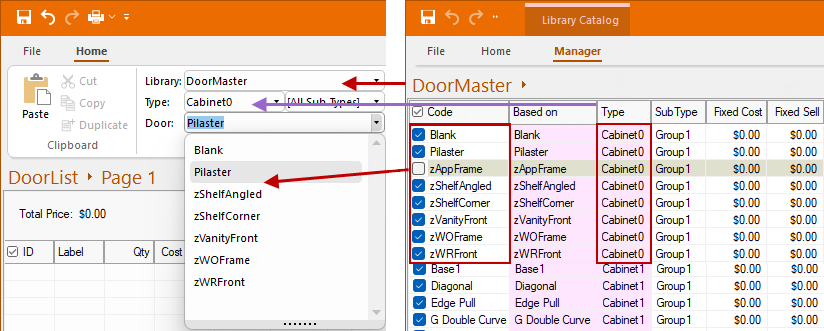
In the example, the zAppFrame door has been unticked in the Library Catalog Manager and therefore does not appear in the Door Selection drop list.
The SubType can be manually overridden to allow you to sort/select more efficiently.