
DoorMaster User Guide
Library, Tool & Window Basics / Library Basics and Properties
In This Topic
    Library Basics and Properties
    In This Topic

    What are Properties?

    A property is a user-defined variable (or default) that every door in the library can access and the end user can modify by using Friendly pages.

    It is important that you understand that DoorMaster deals with door settings at four levels...
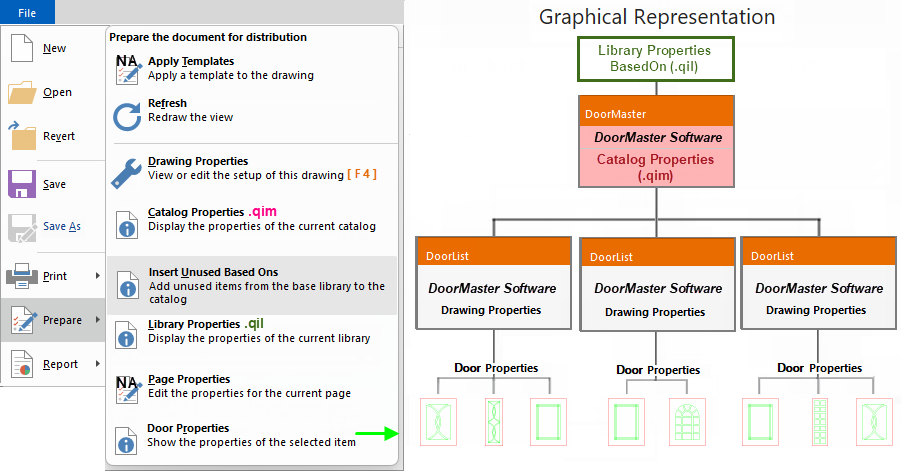
    1. Library Properties [Base Library]
      • The Based on library (.qil file) is supplied and supported by CabMaster Software with numerous construction methods to suit most businesses.
      • Generally the end user does not edit the .qil file at all i.e. only middleware developers edit the Library Properties.
      • These are overwritten with Catalog properties (.qim files) and together they initialise Drawing properties for a new drawing.

    2. Catalog Properties / Library
      • The Catalog Properties (.qim file) contain the global defaults for door construction and can also be accessed via the Library Catalog Manager.
      • Initially the doors are the same as the library (.qil file) provided but can be customised by the end user and applied to all new jobs.
      • New based on doors/items (.qil file) can be created by a library designer and slipped in, leaving the end user to update the catalog (.qim) files independently.
      • Properties are displayed with a pink background.

    3. Drawing Properties / Job
      • The global defaults can be overridden by Drawing/ Job Properties [F4] for individual/current jobs, which is useful as each job/drawing has its own criteria.
      • If turned on in the Options [F10], these will be presented when you start a new drawing,
      • Properties are displayed with a light grey background.

    4. Door Properties / Object
    Prepare Properties

    The File > Prepare menu, as shown above, is one way to access and customise Properties or to Insert Unused Based Ons.

    Note: Only users with Developer Software can access the Library Properties (.qil)

    Difference between Catalog and Library

    A starter catalog (.qim) and a 'Based on' library (.qil) is provided to all users which are located in the <your DoorMaster>/Library folder. Library Properties are overwritten with Catalog properties and together they initialise Drawing properties for a new drawing. 

    When loading a library, by default, DoorMaster looks for a .qim file as well as a .qil file, and loads them both together. The door image gallery is the .qiz file.

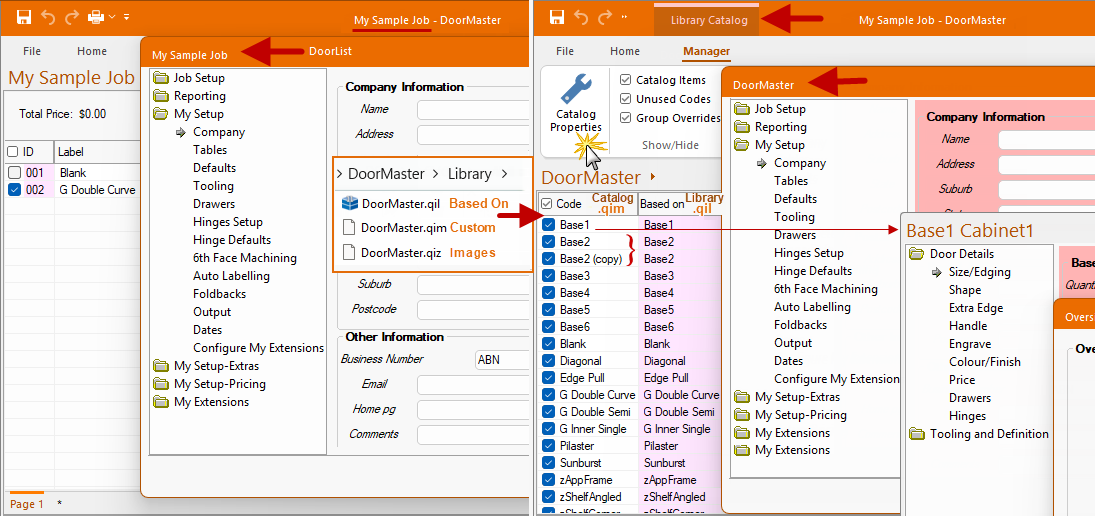
    Both the Drawing Properties and the Catalog Properties have the same categories and pages. The difference can be seen when comparing the image below...

    • Drawing (shown below left) has a light grey background.
      • Before a job is saved with a .qid file name, the title bar will show the word DoorList.
      • After saving, the title bar, as well as the job header and breadcrumbs bar, will show the name of the data file (.qid) e.g. My Sample Job.
      • Individual doors can be customised before or after placement in List View.

    • Catalog (shown right) is located in the Library Catalog Manager for the DoorMaster library has a pink background.
      • The title bar and the breadcrumbs bar will display the selected library name i.e. DoorMaster.
      • Individual doors (.qim) can be customised or duplicated to create doors with parameter variations, saving these to use as templates for future jobs.

    If you select the library 'DoorMaster' on the Home tab, it will load the related pair of DoorMaster .qil and  .qim files.

    It is possible to have one door such as a Base2 (shown below) and any number of variations of this door, by duplicating the original and creating copies with different default parameters e.g. Base2(copy) which can be renamed as required by the end user. If the blue checkbox is ticked, then these are doors/items are made available for selection in List View.
    Insert Unused BasedOns

    The other very useful feature of this separation is that it lets a library designer update the .qil file(s), slipping in new based on libraries/doors, leaving the end user to update the catalog (.qim) files independently. 

    Unused BasedOns can be added to your custom library (.qim), after a library update, from the File > Prepare menu (shown above) or in the Library Catalog Manager.

    See the topic on Library Catalog Manager which includes a brief tutorial video demonstrating how to add unused Based Ons in CabMaster Software™ 

    Provided the two are kept compatible and the administrative roles are kept separate, this provides a very reliable way of updating libraries in the field, as new construction methods get supported and other features get added to a base library.

    Library updates are regularly made available to customers with a valid Customer Care Agreement/Subscription.


    See Also

    Catalog/Drawing Properties

    Ribbon Commands