My Setup-Pricing > Breaks/Breaks2 pages
In This Topic
The My Setup-Pricing > Breaks page and Breaks2 page are the best way to do pricing, if possible, as the rows and columns represent Height and Width of the door and can be viewed/amended on these pages or to use the built in editing on the Prices page.
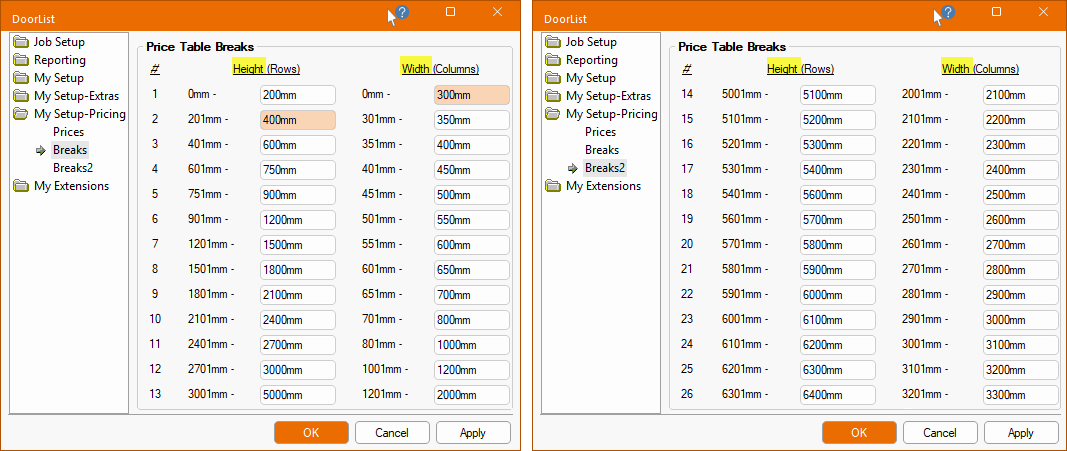
As the Rows represent the Height and the Columns represent the Width of the door, in the example above, a H:400mm x W:300mm door would look up...
- Row 2 i.e. H:400mm;
- Column 1 i.e. W:300mm.
To make sure that we are selecting the correct price table, go to the My Setup-Pricing > Prices page.
Pricing Not Combined
As discussed in the topic on the My Setup-Pricing > Prices page, different tables are used depending on whether the Combine Group/Finish Price Together checkbox is turned on/off. So for this example, this option in turned off as shown below.
For the Door Group pricing
- Select the required Door Group (e.g. Group1 door) and the required Pricing Schedule (e.g. DISTRIBUTOR) using the .
- Click on the Edit Group Table button to open the correct table (e.g. DISTRIBUTOR.qlt)
- Locate Row 2 / Column 1 and change the corresponding money value to $80.00
- Close/Save the table setting by clicking on the

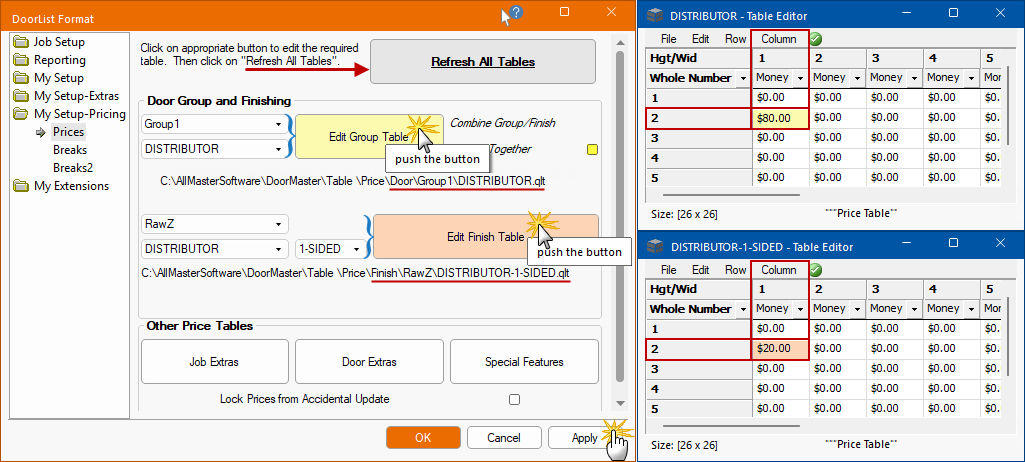
For the Finish pricing
- Using the , select the required...
- Finish (e.g. RawZ door);
- Pricing Schedule (e.g. DISTRIBUTOR);
- number of sides (e.g. 1-SIDED) .
- Click on the Edit Finish Table button to open the correct table (e.g. DISTRIBUTOR-1-SIDED.qlt)
- Locate Row 2 / Column 1 and change the corresponding money value to $20.00
- Close/Save the table setting by clicking on the

Finally, on the Refresh All Tables button and click the Apply button. Then exit  from .
Result
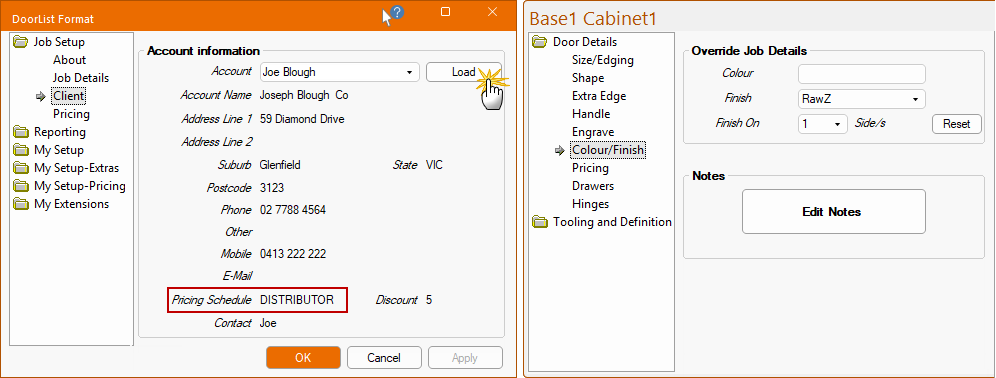
To check the result, ensure that the...
- Client has a Pricing Schedule set to DISTRIBUTOR; (see discussion on Pricing Schedule)
- Ensure that the Combine Group/Finish Price Together checkbox is turned off (for this example).
- Then add a Group1 door (e.g. Base1) with a RawZ Finish and Finished On 1 side to your job/list.
- Finally, go to the Door Details > Pricing page and you should have the desired result, as shown.
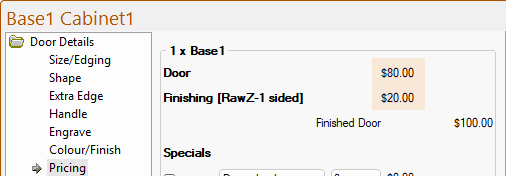
Compare with tables above.
Pricing Combined
As discussed in the topic on the My Setup-Pricing > Prices page, different tables are used depending on whether the Combine Group/Finish Price Together checkbox is turned on/off. So for this example, this option in turned on as shown below.
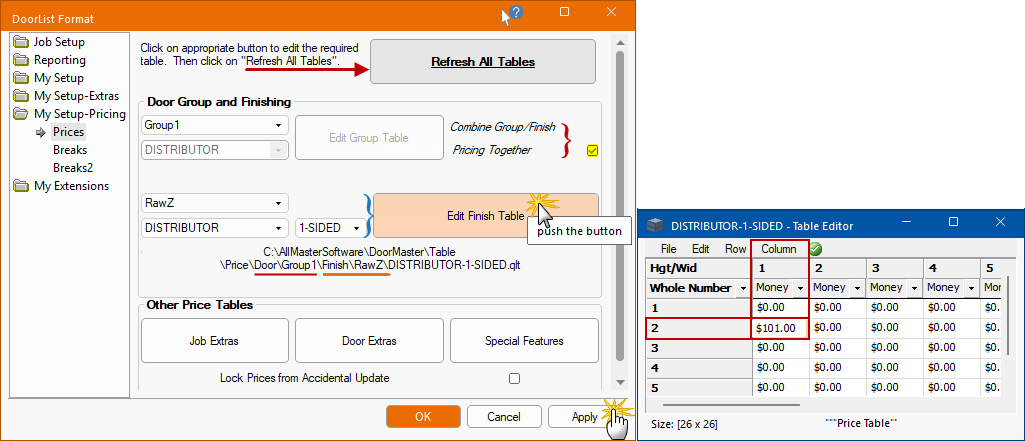
For the Combined Door/Finish pricing
- Using the , select the required...
- Finish (e.g. RawZ door);
- Pricing Schedule (e.g. DISTRIBUTOR);
- number of sides (e.g. 1-SIDED) .
- Click on the Edit Finish Table button to open the correct table (e.g. DISTRIBUTOR-1-SIDED.qlt)
- Locate Row 2 / Column 1 and change the corresponding money value to $101.00
- We are using another value here, to prove that we are using a different Finish table.
- Close/Save the table setting by clicking on the
Finally, on the Refresh All Tables button and click the Apply button. Then exit from .
Result
To check the result, ensure that the...
- Client has a Pricing Schedule set to DISTRIBUTOR (see discussion on Pricing Schedule);
- Ensure that the Combine Group/Finish Price Together checkbox is turned on (for this example).
- Then add a Group1 door (e.g. Base1) with a RawZ Finish and Finished On 1 side to your job/list.
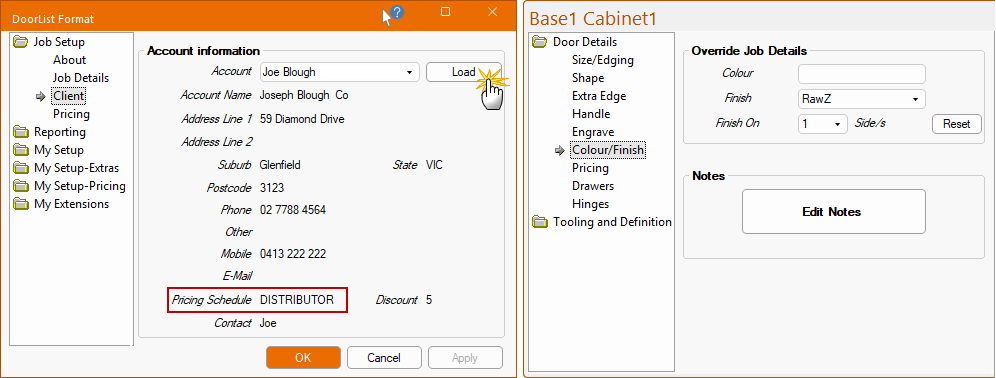
- Finally, go to the Door Details > Pricing page and you should have the desired result, as shown.
- Notice that the individual pricing of the Door and Finishing is not shown, only the total/combined price manually entered in the table.
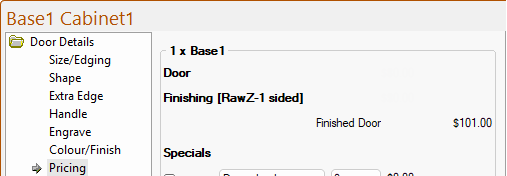
Compare with table shown above.
See Also