DoorMaster User Guide
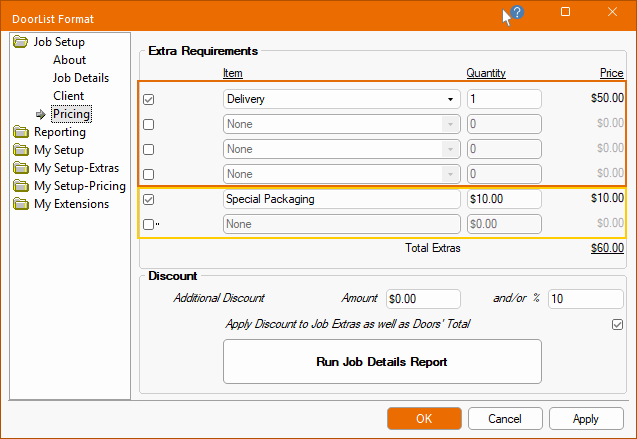
The Job Setup > Pricing page of the Drawing Properties allows you to apply up to six (6) extras and discounts to the job as a whole.
There are several elements that can come together to price a job i.e...
The results will appear on the Job Details Report, discussed below.
The first four of these can be selected from the Job Extras lookup table to define their description and price (based on the Pricing Schedule e.g. Distributor/Retail).
For those using the look up table, the price in the table is multiplied by the Quantity specified e.g. the Delivery Fee is set in the lookup table as $50 multiplied by 1 making the total price of $50 (automatically calculated and displayed here) for delivery applied to the whole job.
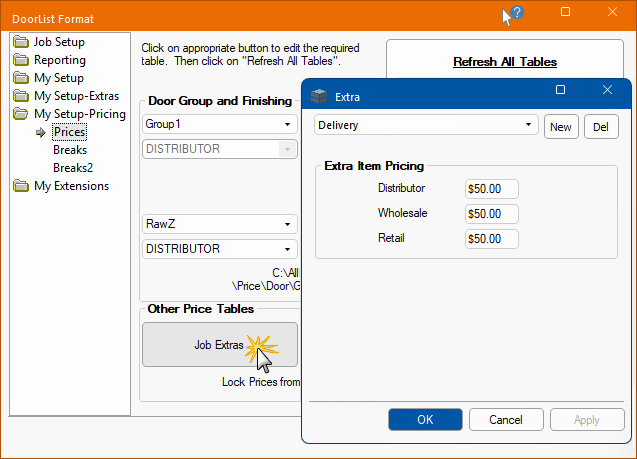
Example of the Job Extras form accessed from the My Setup-Pricing > Pricing page.
The My Setup-Pricing > Prices page of the Drawing Properties allows to create and define Extra Item Pricing.
The remaining two (2) are free format with their Item Description and price keyed manually e.g. a Special Packaging Fee is set manually here as $10, which will be applied to the whole job.

The Discount can be a fixed dollar amount and/or a percentage and is applied to the job as a whole (including the total of the individual doors). It can also be optionally applied to the Job Extras (e.g. delivery fees) using the checkbox provided.
Each customer/client can also have a pricing percentage discount allocated and is automatically applied as the and/or % (which can be manually changed here, for the current job). If, in which case if both the dollar amount and percentage discount are used, then the customer percentage is calculated before the fixed amount allocated to the job, is deducted.
A default value for the Percentage can be stored for each Client in the client table, and if specified, will be automatically applied.
The Client table can be accessed on the My Setup > Tables page.
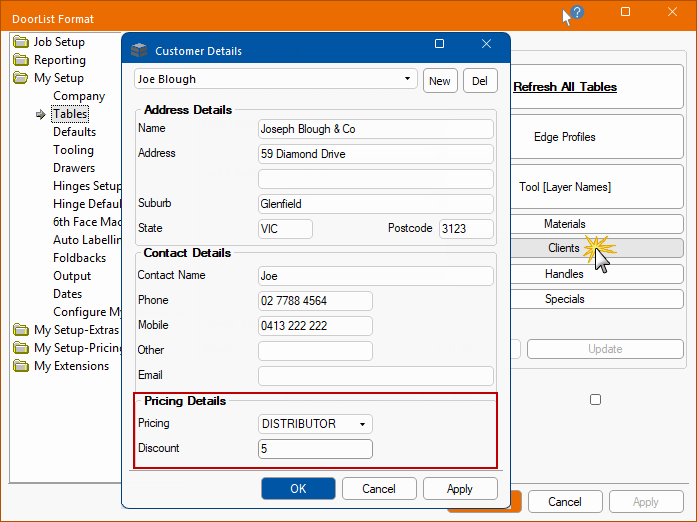
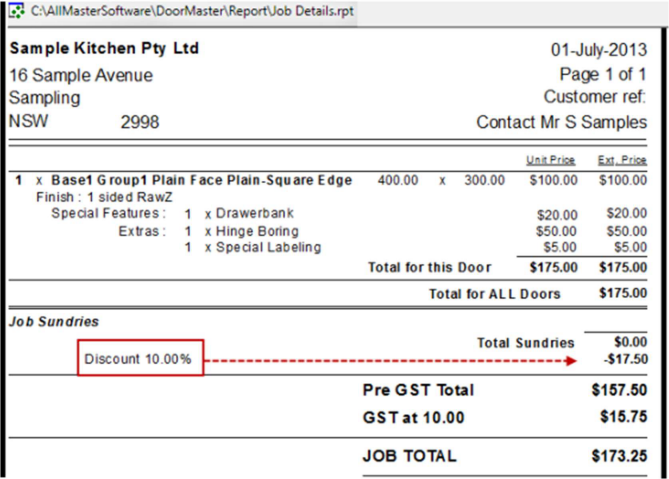
The Discount is automatically applied, as shown below.
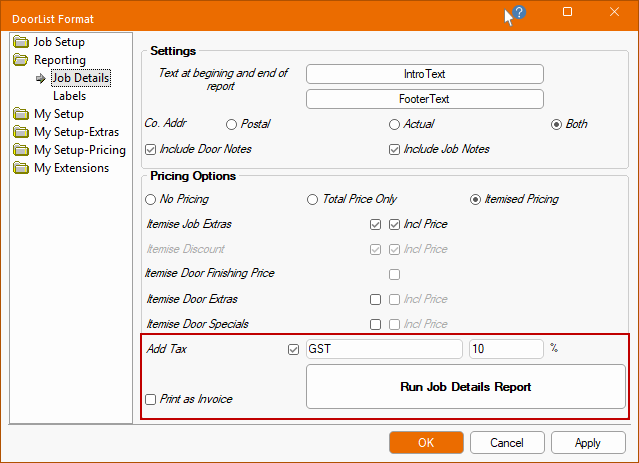
The additional tax amount only shows when you see the pricing on the Job Details Report.
It is a percentage that is applied to the total price (all Job extras and Doors totals) after any Discount.
A default for the Tax can be set on the Reporting > Job Details page of the Drawing Properties.
When either of the radio buttons for Total Price Only or the Itemised Pricing are selected, then the Add Tax option is made available.