DoorMaster User Guide
This topic discusses the G (GI) doors which are usually glazed (or have glass inserts) mainly installed in interior partition walls for bedrooms, studies, or hallways to allow light while maintaining a room barrier.
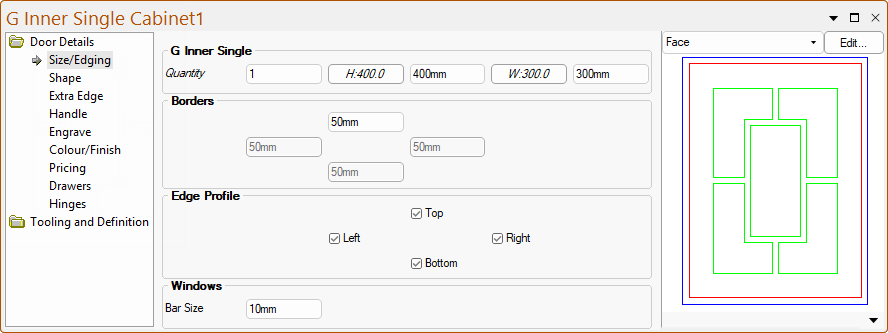
A G inner single door typically refers to an internal single door panel featuring glazed or glass inserts.
The Height and Width edit boxes allow these dimensions to be amended.
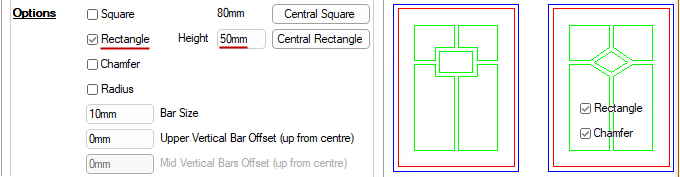
The Bar Size sets the width of the bars between the parts of the central shape. In this example, the Bar Size is set to 10mm.
The Door Details > Shape page allows for the pattern of the central shape to be adjusted.
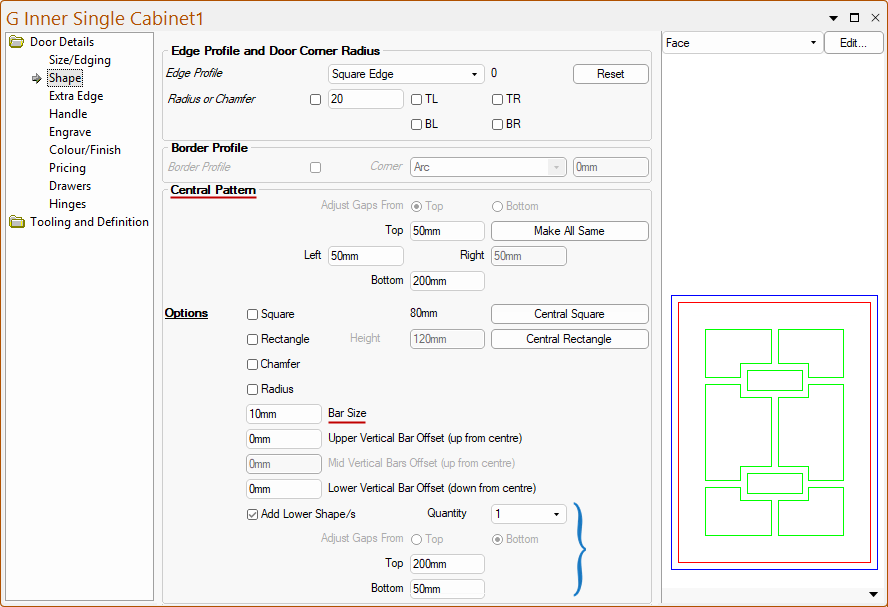
This refers to the gap from the inside of the frame to the Internal (rectangular) Shape.
- The Left and Right gaps are identical to keep the shape centralised.
- The Top and Bottom gaps are independently adjustable, depending on the selected shape.
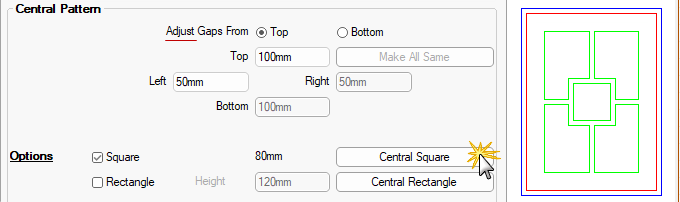
Enabling the Square or Rectangle checkboxes forces the internal shape to be square/rectangle respectively.
- The Adjust Gaps from Top/Bottom options, shown above, are only available for these shapes.
- The Left gap and, depending on the Adjust setting, one of the Top/Bottom edit boxes are adjustable e.g. Top shown above is selected.
- While the Right and the Bottom/Top gaps are automatically calculated to retain the correct shape.
- The Central Square or Central Rectangle buttons can be used to adjust the position of the internal shape (which may intially be positioned towards the top).
The Rectangle is similar to the Square, except the selection of this shape allows the adjustment of the height of the rectangle.
When the Radius checkbox is used the 'Square' option is renamed to Circle and the button is changed to Central Circle.
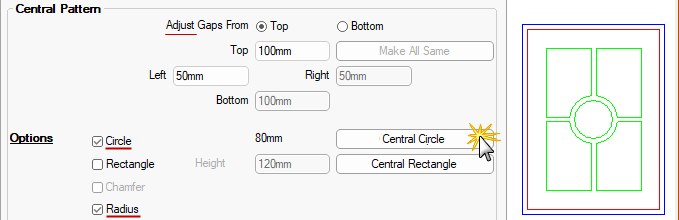
The Radius option rounds off the square corners right back to the central bars.
The Chamfer option chamfers off the square corners right back to the central bars to form a diamond shape.
- The Central Square button was used to reposition the shape for chamfer. [Compare with image above under Rectangle]
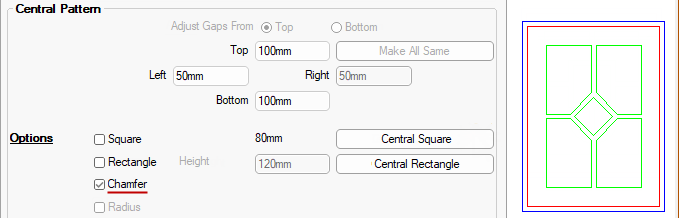
The Square option in the above image is unchecked and the Adjust Gaps options are made unavailable but Top/Bottom gaps are both editable.
- If the Square checkbox is ticked/enabled, it will make the Adjust Gaps options available.
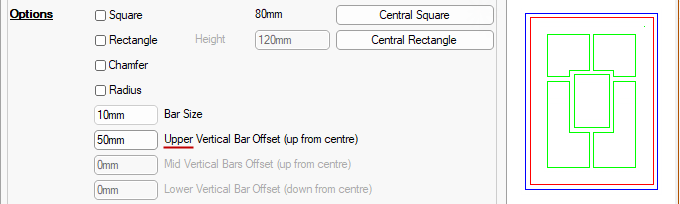
The Vertical Bar Offset options moves the vertical bar from the centre, upwards if positive or downwards if negative.
When applicable, the Vertical Offsets are available for Upper, Mid and Lower bar positions.
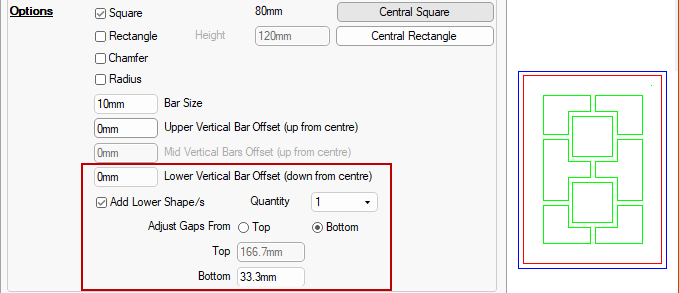
- The following example has a Quantity of one (1) Lower Shape and the relevant options are made available.
- The Adjust Gaps options will initially be automatically calculated as per the Upper Bar Offset, but are based on the same principles.
- The following example has a Quantity of three (3) Lower Shapes and the relevant options are made available.
- When the Add Lower Shape/s has a Quantity selected from the drop list of 3 to 6, the Mid Vertical Bars Offset option is made available.
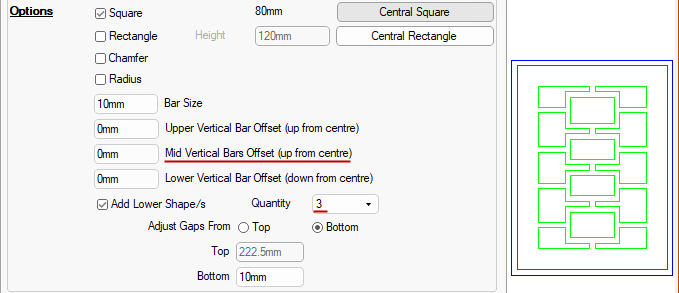 There is no spacing options for the Mid Shapes. They are always evenly spaced in the available area.
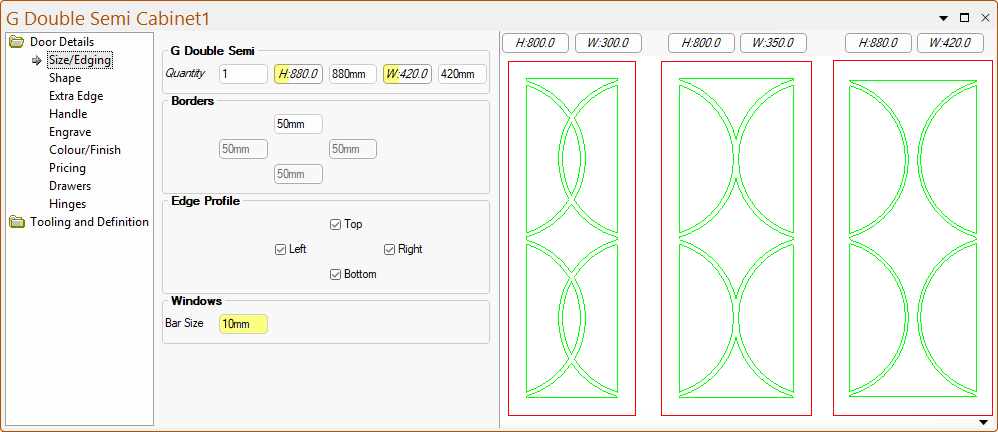
Double-glazed semi-commercial doors.
The Bar Size sets the width of the bars between the parts of the central shape. In this example, the Bar Size is set to 10mm.
A G Double Curve door typically refers to a contemporary architectural entry or interior double door featuring a soft, sweeping "S" or ergonomic curved glass/panel design, or an integrated G-profile grip edge on curved custom cabinetry.
The Bar Size sets the width of the bars between the parts of the central shape. In this example, the Bar Size is set to 10mm.
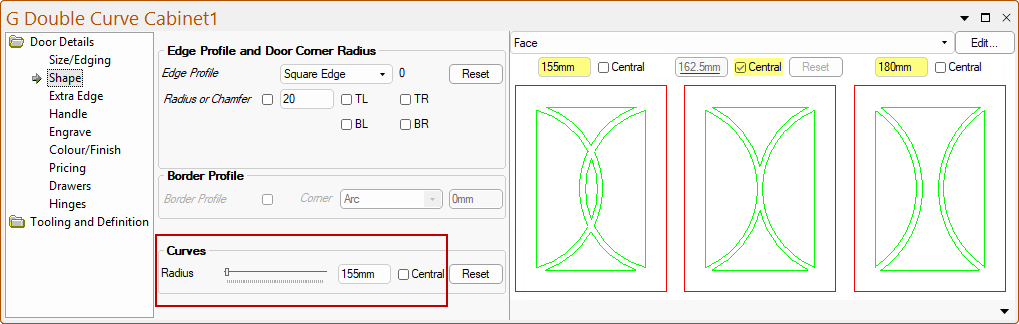
The Door Details > Shape page allows for the pattern of the central shape to be adjusted using the Curves control.