DoorMaster User Guide
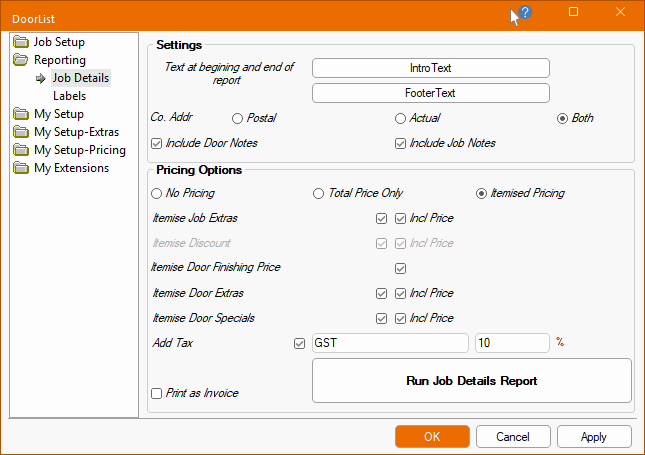
The two types of output from DoorMaster are the Job Details report (which can also be output as an invoice) and door labels.
The Job Details report can be produced in one of three ways...
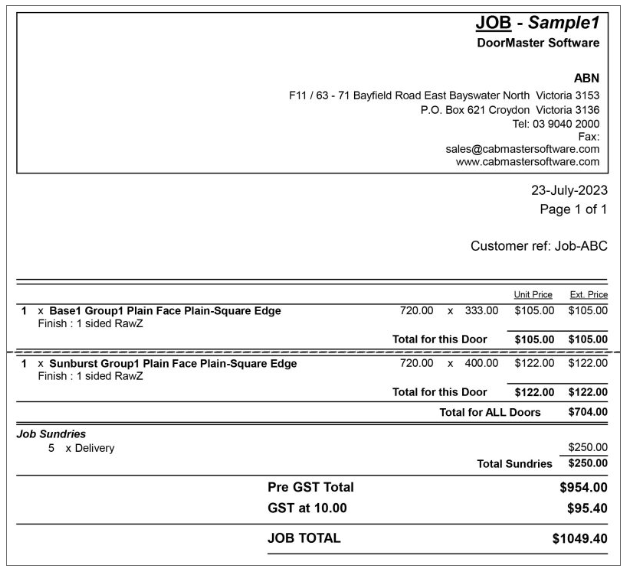
Sample of the Job Details report printed as an Invoice
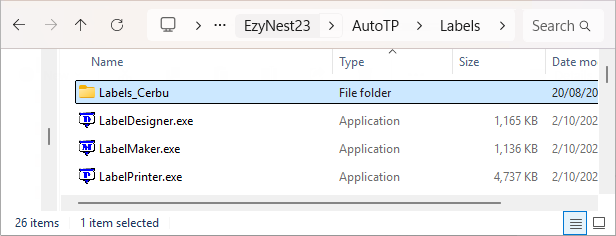
There are two utilities that come with the labelling facility and are located under the EzyNest/AutoTP/Labels folder. These are ...
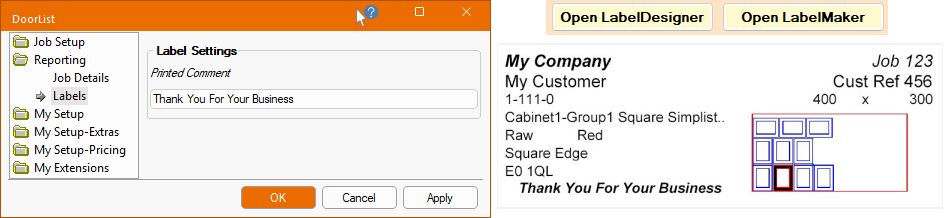
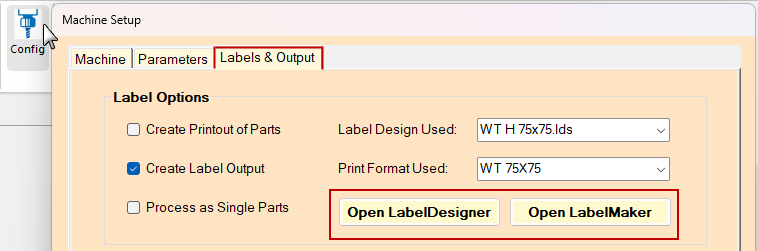
For quick and easy access to the label utilities, the 'Open Label...' buttons are provided within the CNC Config feature.
The Machining Current Drawing (or Combined) command ribbon has a
Config button, which when pressed, replaces the need for accessing the ATP, Preferences and Driver Selection options in EzyNest.
To access the Machine Setup, simply click on the icon on the main menu (shown below) and then select the Labels & Output tab (shown above).

Click to Expand
When a job is (or several jobs are) processed through the ‘Auto ToolPath’ a batch of labels is created for each nested sheet of material.
These are not printed immediately, but are held in files along with the material sheet files ready for processing on the flatbed. The files have the same name as the associated material sheet, but with a file extension of ‘.LJD’. This allows the labels to be printed at an appropriate time, from any PC in the office or at the PC that controls the flatbed machine etc.
To print the labels a copy of the ‘LabelMaker.exe’ utility is required on the PC from which they are to be printed. There is no additional licensing required to use this on multiple machines.
Simply copy the utility to the desired location and run it once by double clicking on it (this sets up an ‘association’ with the required file types).
Thereafter, double clicking on the label file itself will immediately print it to the PC default printer.
A copy of the LabelMaker.exe utility will have been installed along with EzyNest.