DoorMaster User Guide
 Watch the Video on reinstalling CabMaster Software™ on a new computer and see the document on the CabMaster Software™ Transfer Utility.
Download the latest DoorMaster Installer.
Run the downloaded EXE file.
The images used in this topic refer to DoorMaster v11 but the process discussed is relevant for running all Installers.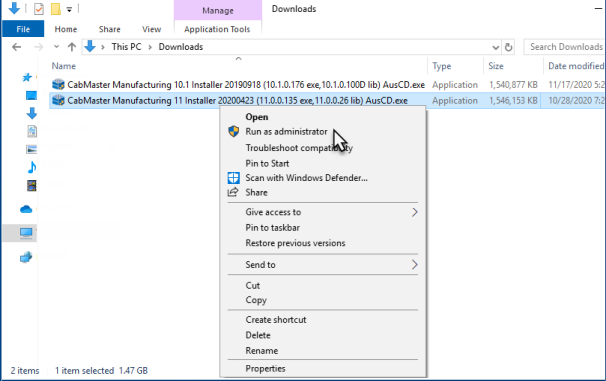
Right click the Exe and select Run As Administrator
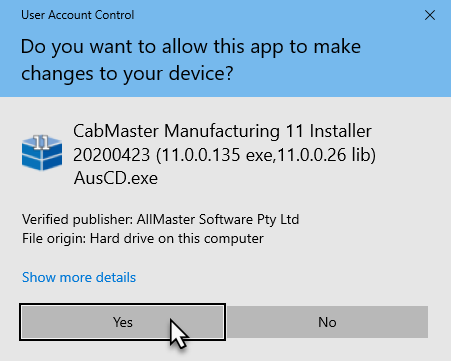
Press Yes on the User Account Control popup if prompted.
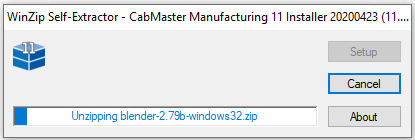
Wait for the extraction to complete.
Cloud Setup
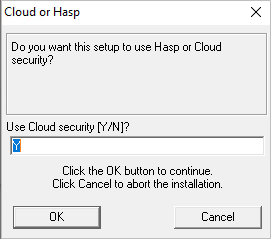
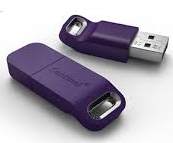
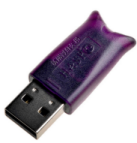
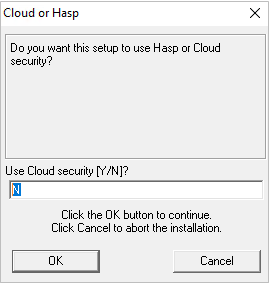
If your license looks like below or you are using a cloud licence ...
- type "Y" into the popup and press OK:
Hardware Lock (Dongle) Setup
If you are using a hardware lock (dongle)...
- type "N" in the box and press OK
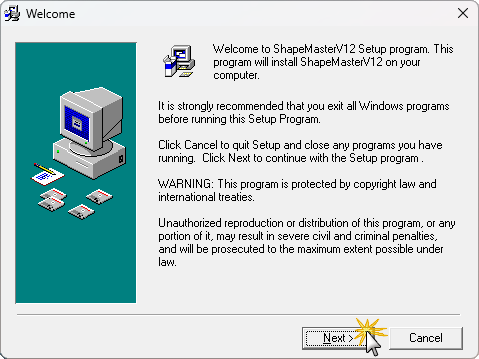
If you have exited all Window programs, as directed here, press Next.
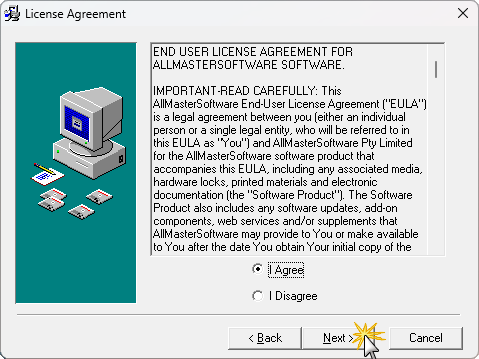
Read the EULA and if you agree select I agree and press Next.
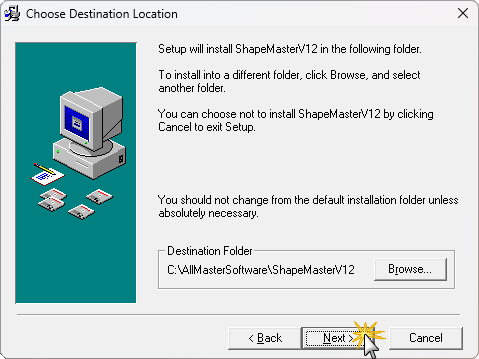
If you want to change the directory you are installing DoorMaster into, press Browse.
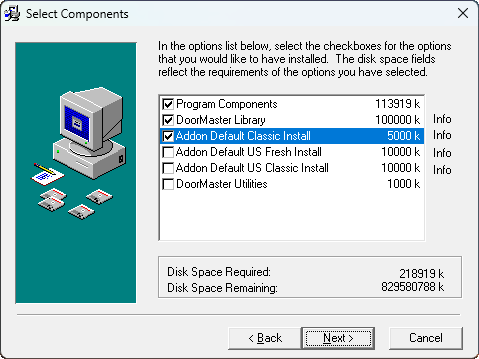
When you are installing DoorMaster, you have the option to install the 'Addon Default Classic' library, as shown.
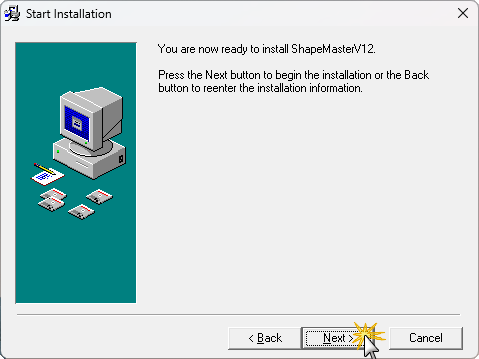
Press Next to begin the install.
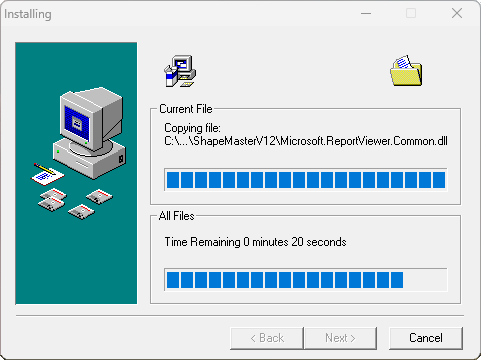
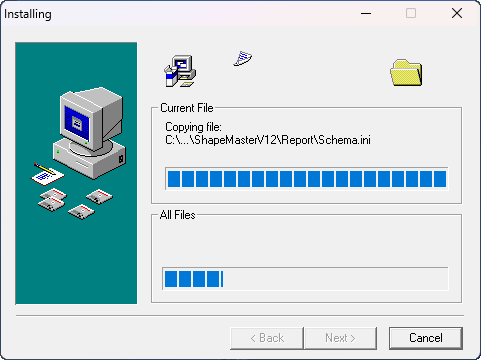
Wait for the install to complete.
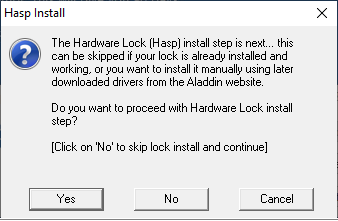
If you are running a hardware lock (dongle) you will get the following popup.
- Press Yes to install the drivers for the hardware lock.
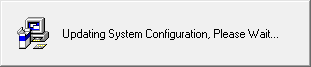
Wait for this to complete.
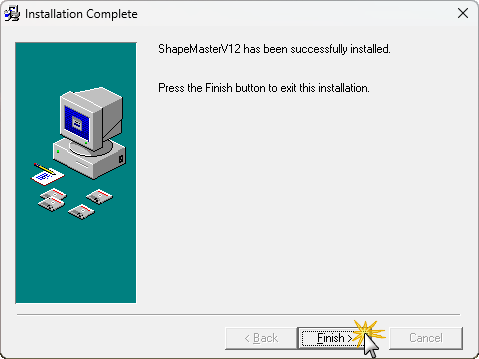
DoorMaster is now installed and you can run DoorMaster from the shortcut on the desktop.
This video discusses how to reinstall CabMaster Software™ on a new computer. (10:02 mins)
If you have DoorMaster installed on another computer previously, check the installed location and folder names and obtain a complete copy of the entire folder.